Note: This is only available for Windows Deployments
How to deploy Desktop Messenger with Microsoft 365 SSO
1
Open the Clients tab
Navigate to the Thread Admin Panel and go to the “clients” tab
2
Select an undeployed company
Select a company that you have not yet deployed Thread to
3
Choose Windows in App Deployment
In the “App Deployment” Tab, select “Windows” and click continue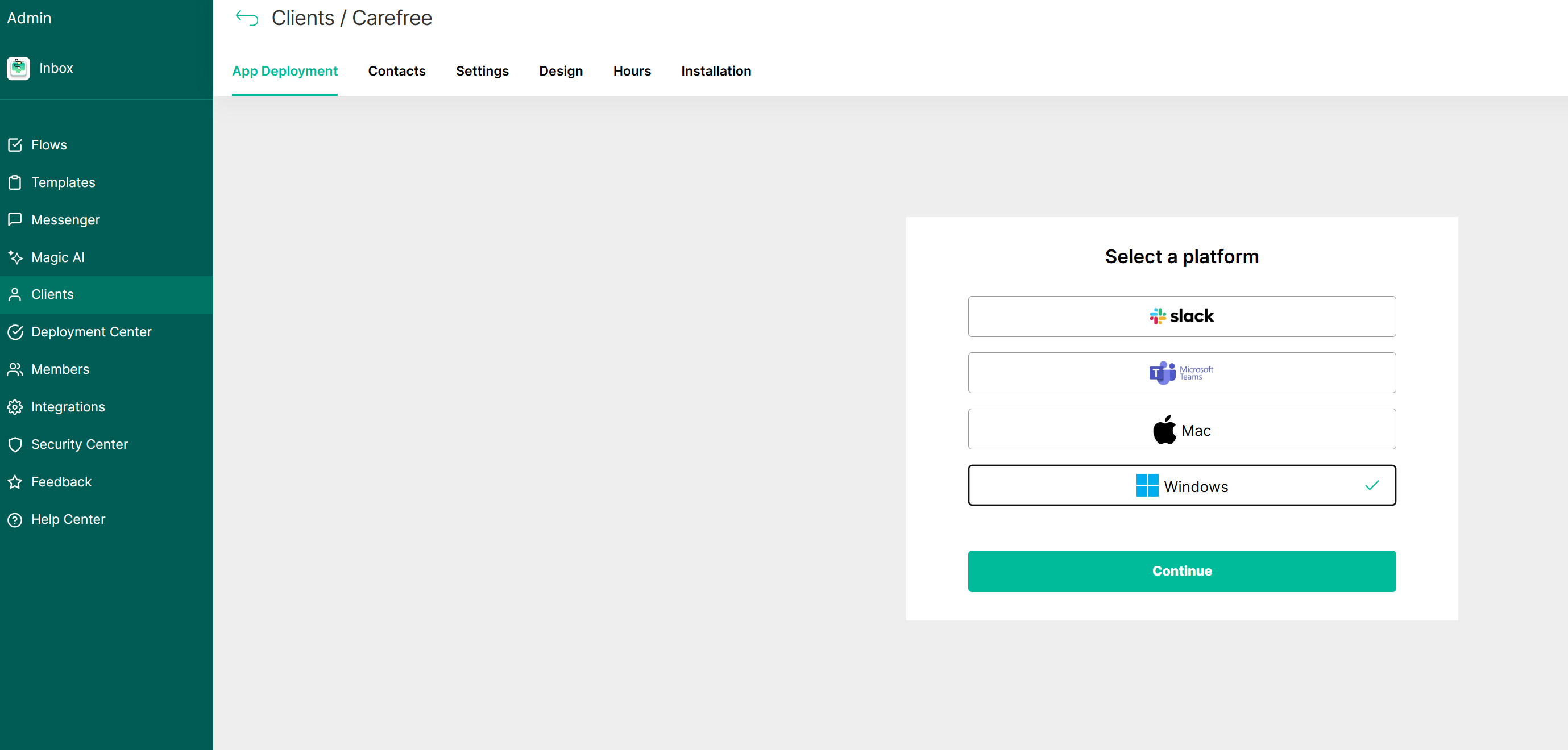
4
Toggle on Auto Authentication
Toggle on “Auto Authentication”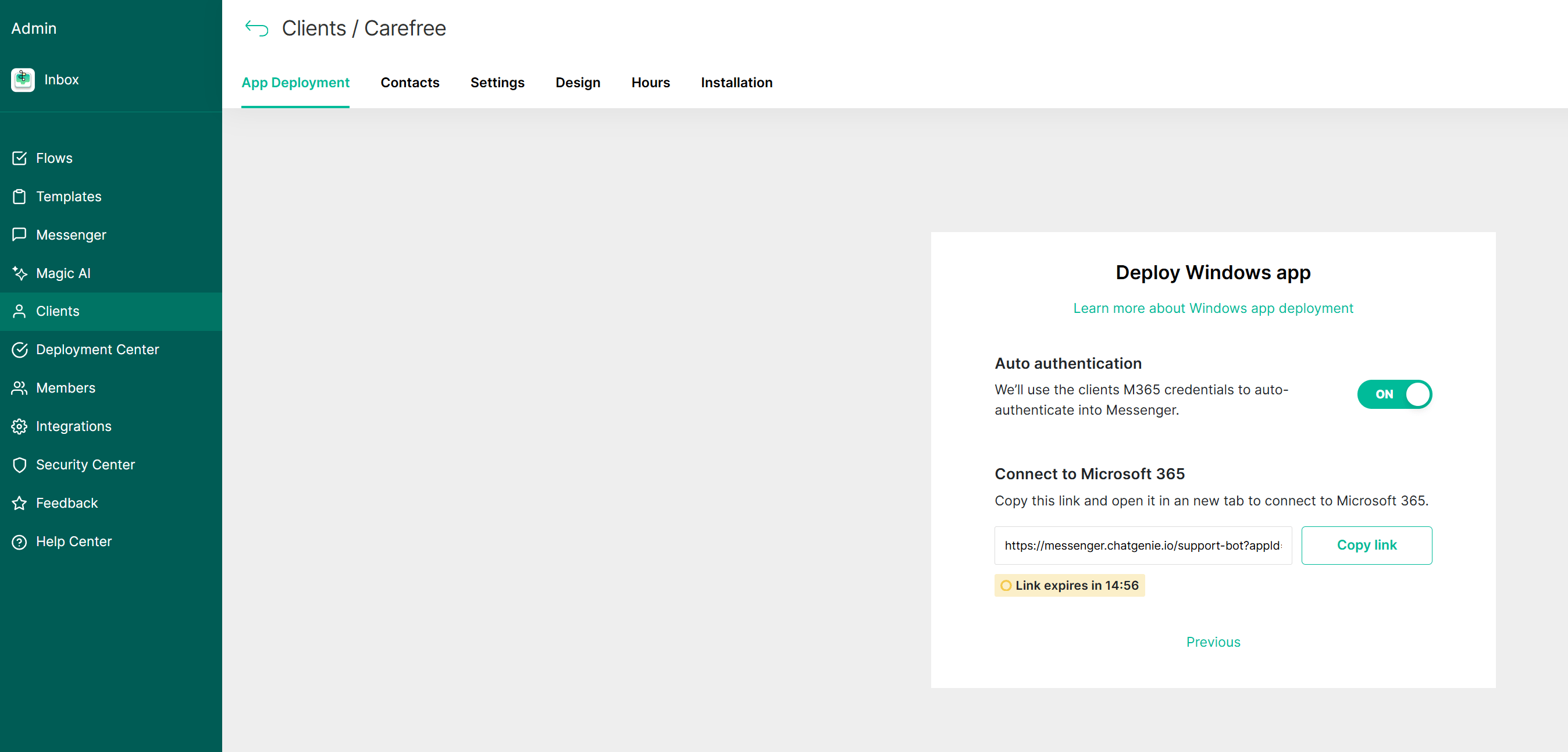
5
Open the link in an incognito tab
Then, open an incognito or private tab and past the link provided.
6
Sign in to Microsoft and get the install script
You will then be prompted to login to Microsoft. Once logged in, approve any permissions you are asked for, and you will see this screen and be given a silent install script to install messenger.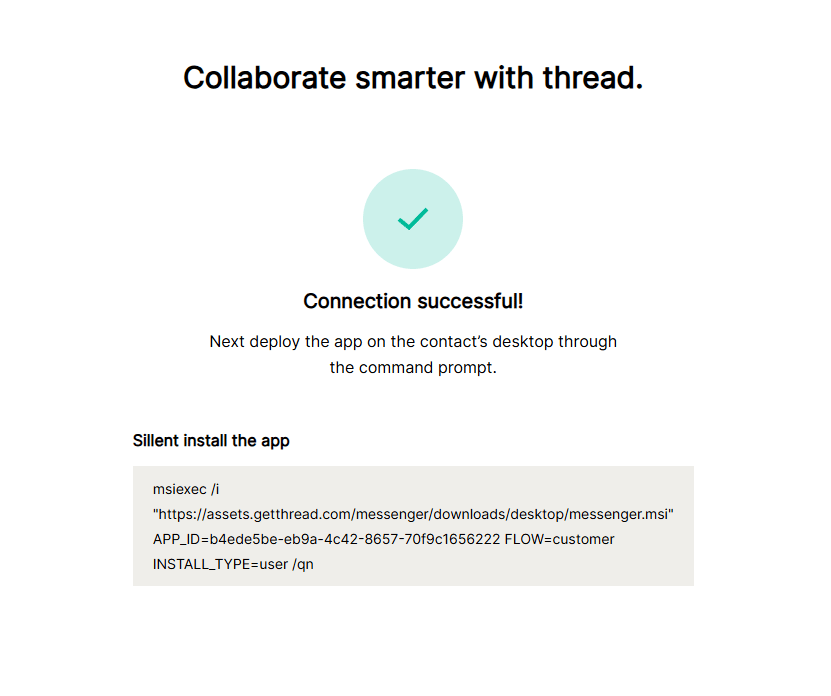
7
Deploy with the per-client script
This script is a PER CLIENT script and can only be used for the specific client you are deploying to. What makes it unique is the AppID, which is specific to each client. The script below can have the “YOUR_APP_ID_HERE” replaced with any client’s AppID to deploy.
8
Locate the client in the admin panel
To find a client’s AppID, go to the client’s tab in the admin panel, and click on a client that you wish to find the AppID of
9
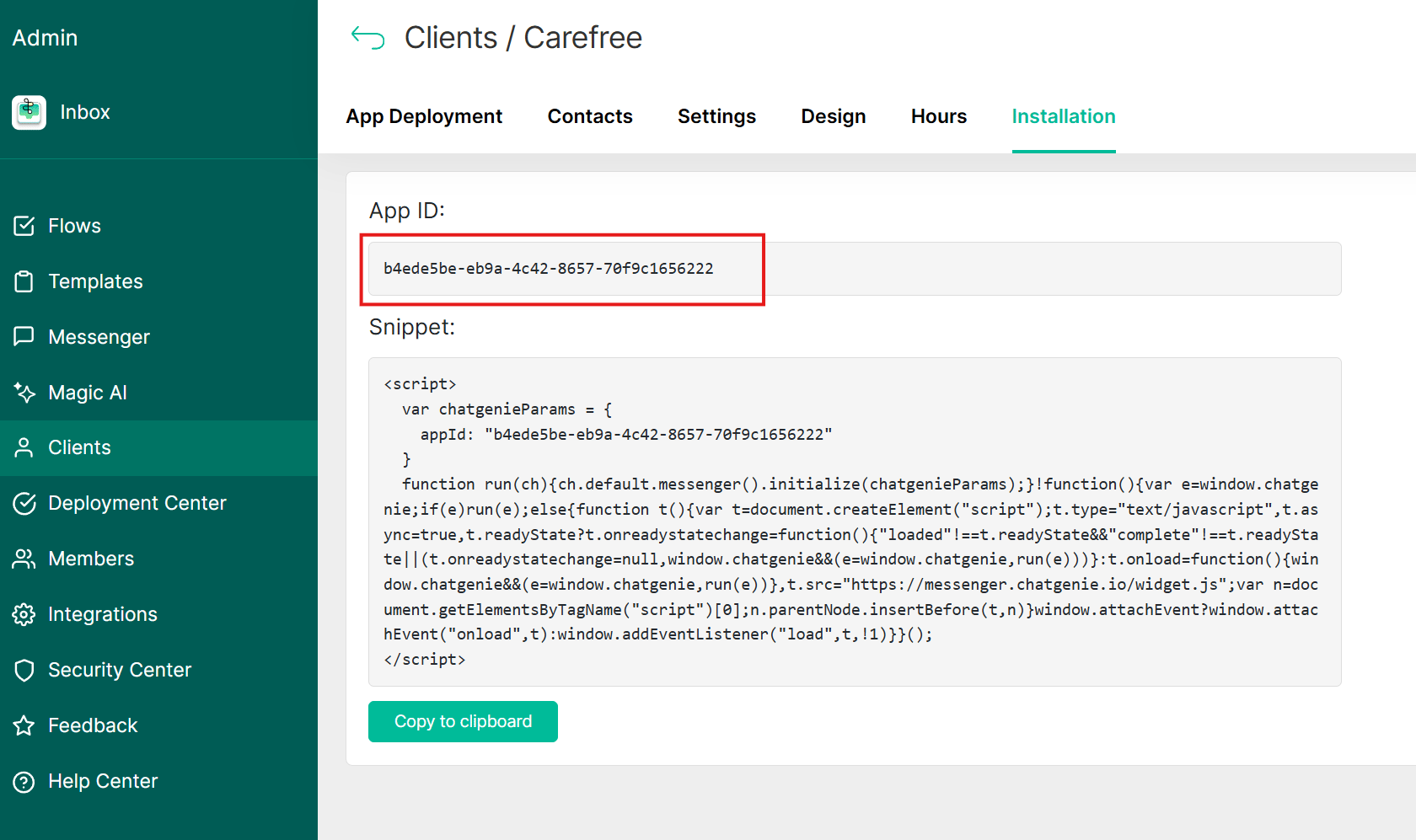
Find the AppID on the Installation tab
Then, click the “Installation” tab for that client, and the AppID for that client will be there.