

Microsoft Teams Service App Notifications
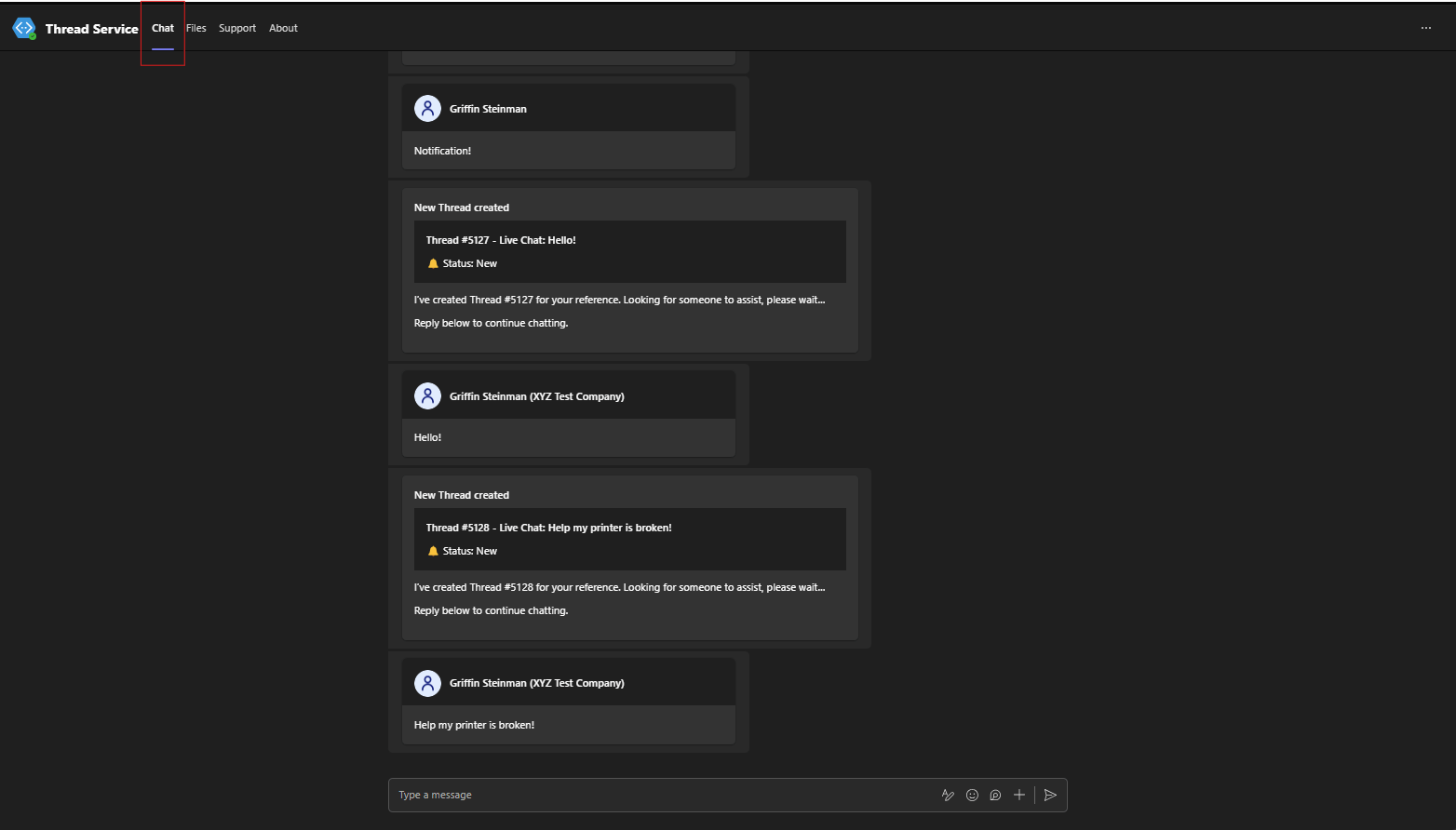
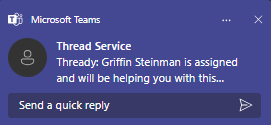
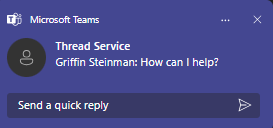
The Teams Service App has a specific way of notifying you when one of your service requests gets updated by the assigned service tech. After you create a service request, you will get a teams notification informing you that your request has been successfully created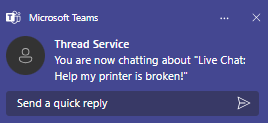
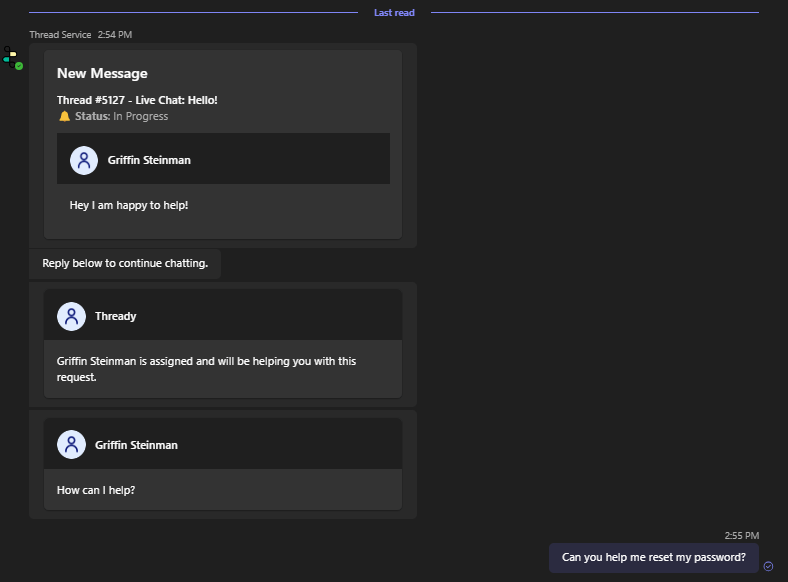
Teams Service App Notification Settings
The teams service app has a couple of settings you can configure to control which notifications you receive. The first thing you can do is block the bot conversation by going to your “chats”, right clicking on the converstaion with the bot, and selecting “Block bot conversation”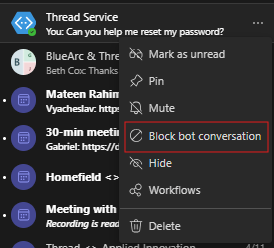
Slack Service App Notifications
The Slack Service App uses slack notifications to alert you about your service requests. After you create a service request, you will get a slack notification informing you that your request has been successfully created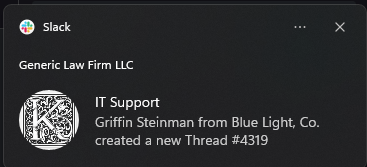
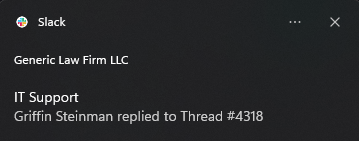
Slack Service App Notification Settings
To stop slack notifications from appearing, you have the option to mute the conversation with the service bot so that you no longer get system notification updates for your service requests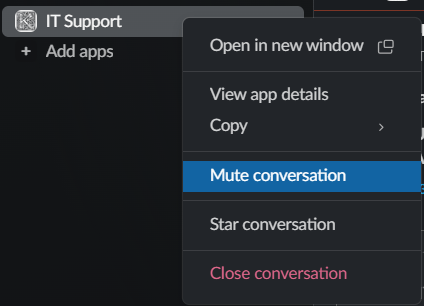
Desktop Messenger Notifications
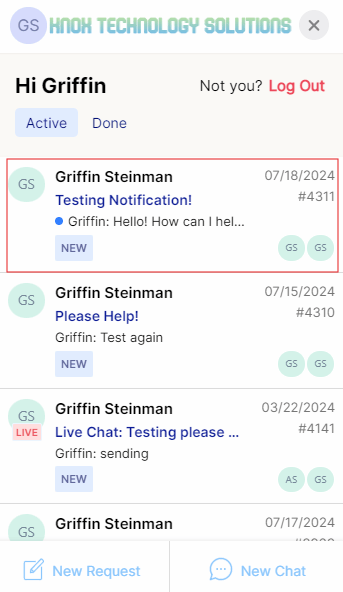
The desktop version of messenger is a standalone program that runs on both Windows and MacOS. This program is used to create, monitor, and reply to your existing threads. When a tech updates one of your service requests, you will get a system notification that takes you directly to the request in messenger.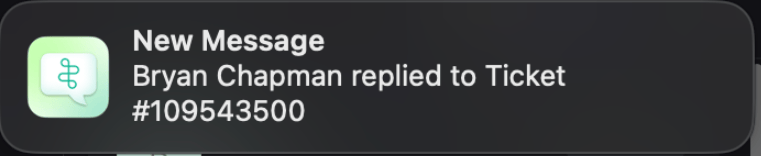
Email Notifications
If you open a service request via email, you will receive an email update when a tech replies to your request. This email will contain the entire conversation up to the most recent reply.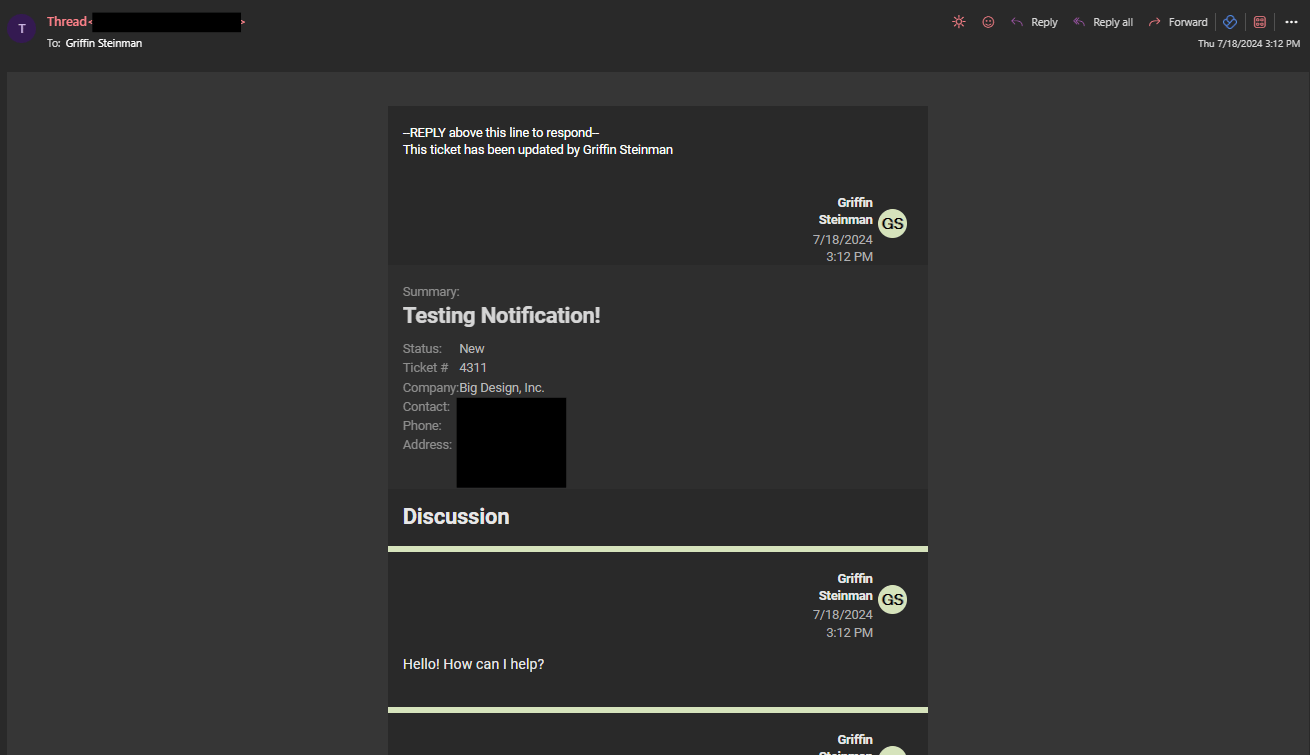
FAQ Section
My email inbox is full of request updates, how do I mitigate these?
My email inbox is full of request updates, how do I mitigate these?
The best way to do this is to create a separate folder in your email client that routes all of your thread updates into it. In outlook you can do this by filtering for keywords, or through the email address of your MSP
I am not getting any slack notifications when my request gets updated. What should I do?
I am not getting any slack notifications when my request gets updated. What should I do?
First thing is to check your system notifications and ensure that slack notifications are enabled. Then in slack itself, you can check that the bot is not muted, and check your personal notification preferences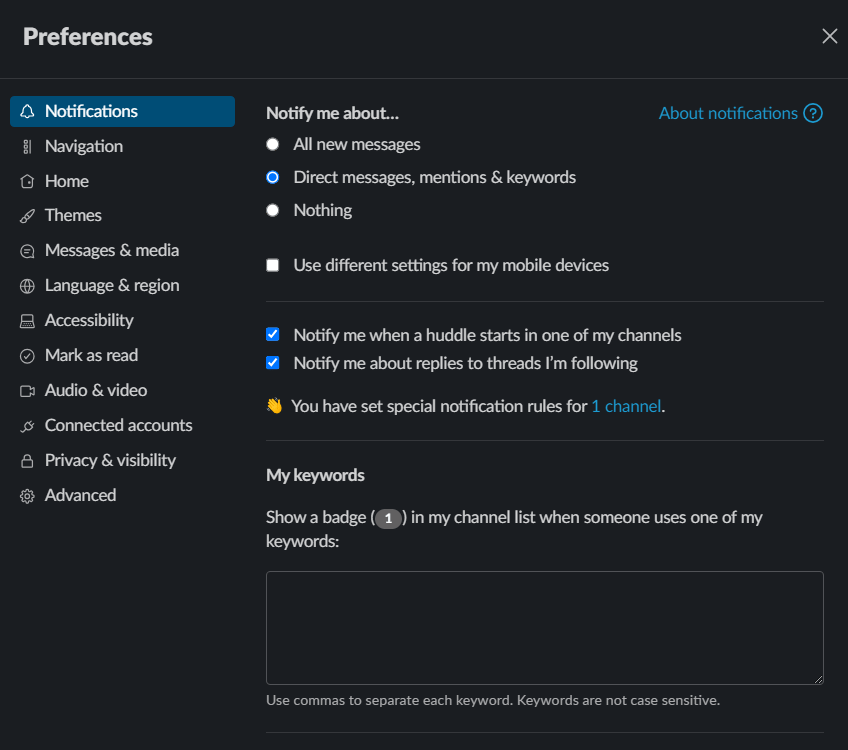
How do I enable notifications for the desktop version of messenger?
How do I enable notifications for the desktop version of messenger?
Since messenger is a program, its notifications are controlled at the system level.For Windows, navigate to your system settings and search for “notifications”, then click on “notifications & actions”. Then, scroll down until you find messenger, and then ensure that notifications are turned on.For MacOS, click on the apple logo in the top left corner and click “System Settings”. Then search for “notifications”, then click on “Notification settings”. Then scroll down until you find messenger and then click into it and enable all notifications.