
Kiosk Mode
Concept Kiosk Mode is a deployment option for the Thread Desktop Windows App that lets employees start a support conversation from a shared device — without needing to log in or create an account. Instead of requiring individual credentials, Kiosk Mode attributes all conversations from a shared device to a single placeholder contact you configure in advance. The device hostname is displayed alongside every conversation in your Inbox so your technicians always know exactly which machine is reaching out.- Employees can open Messenger and start a chat immediately — no login required
- Your technicians see the device hostname in Inbox, so they always know which machine sent the message
- Standard and Kiosk deployments can coexist at the same client site
- All standard Messenger features remain fully available
- Kiosk Mode is included in standard per-client pricing at no additional cost Though by default our script installs it under user context, It can be installed under System context as well. See here for Documentation - https://docs.getthread.com/article/68gd2y9l0b-deploying-messenger-on-windows
How To
Before You Begin- You must have Admin permissions in Inbox to configure Kiosk Mode
- Prepare a placeholder contact to serve as the “Default Contact” for all Kiosk conversations at this client (e.g., “Shared Device User” or “[Client Name] Kiosk”). Do not use a real employee’s contact — all shared device conversations will be attributed to this placeholder
Enable Kiosk Mode for the Client
- In the Inbox Admin panel, navigate to Clients
- Open the Settings tab for the relevant client
- Click the override parent settings checkbox
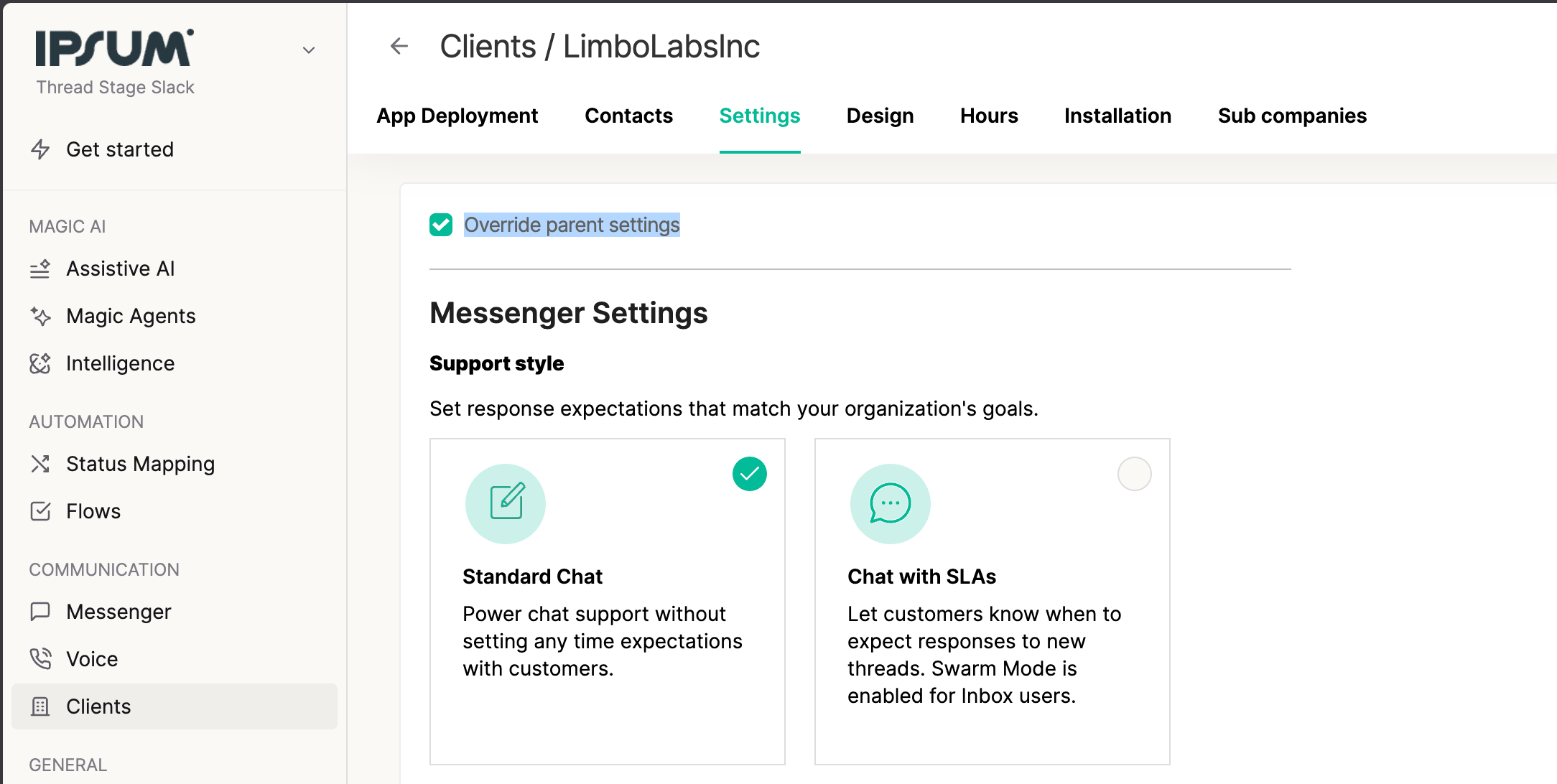
- Toggle Kiosk Mode on
- Select the Default Contact that all Kiosk Mode chats will be mapped to
- Save your changes
Deploy the App on Shared Devices
- In the Inbox Admin panel, go to App Deployment → Windows
- You will see two install scripts — a standard Messenger script and a Kiosk Mode script
- Copy the Kiosk Mode install script
- Run the Kiosk Mode script on each shared device
What Your Technicians Will See
Once deployed, every conversation initiated from a Kiosk device will appear in Inbox like this: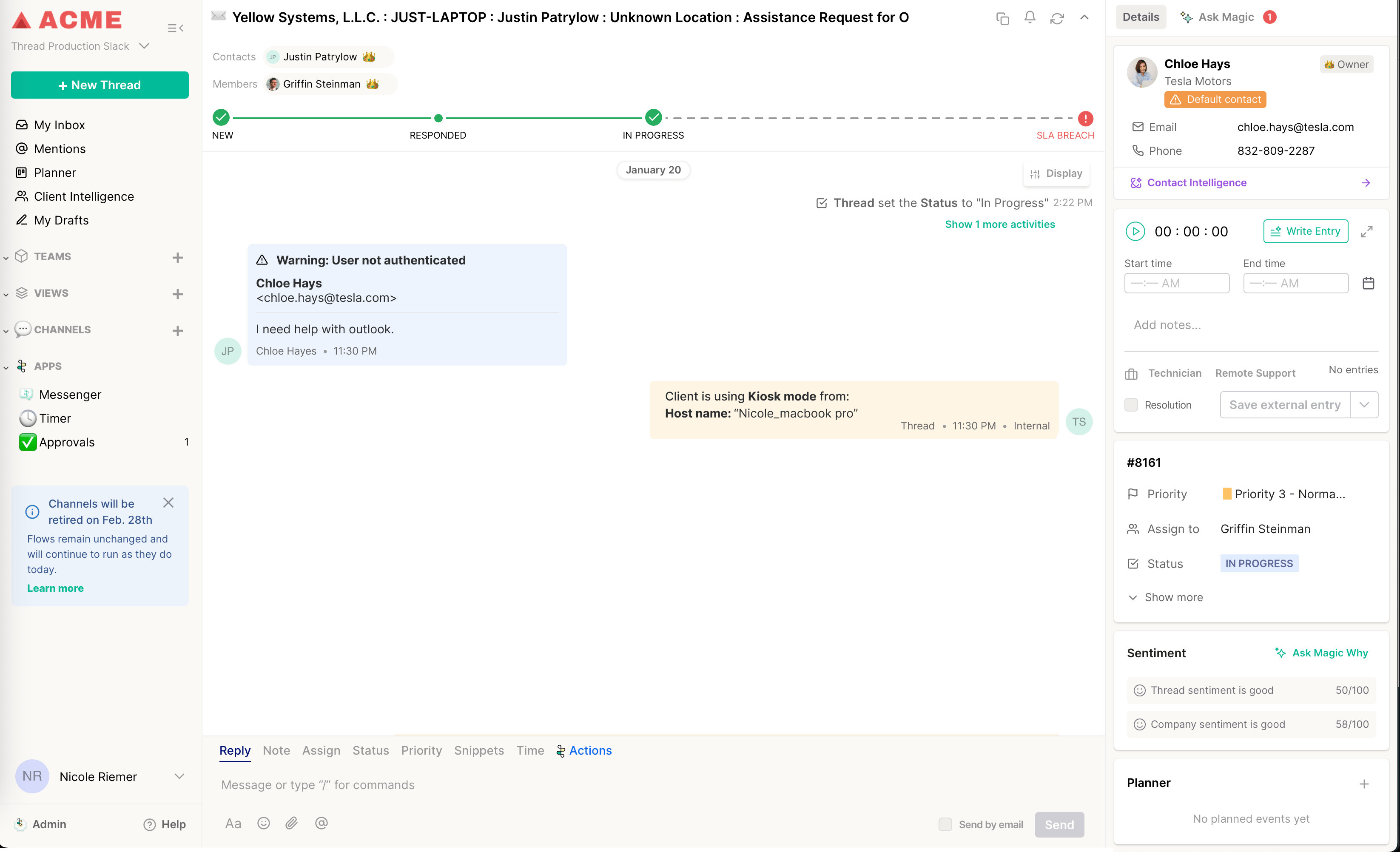
Frequently Asked Questions
Can Kiosk Mode and standard Messenger coexist at the same client site?
Can Kiosk Mode and standard Messenger coexist at the same client site?
Does an end user need to log in or create an account to use Kiosk Mode?
Does an end user need to log in or create an account to use Kiosk Mode?
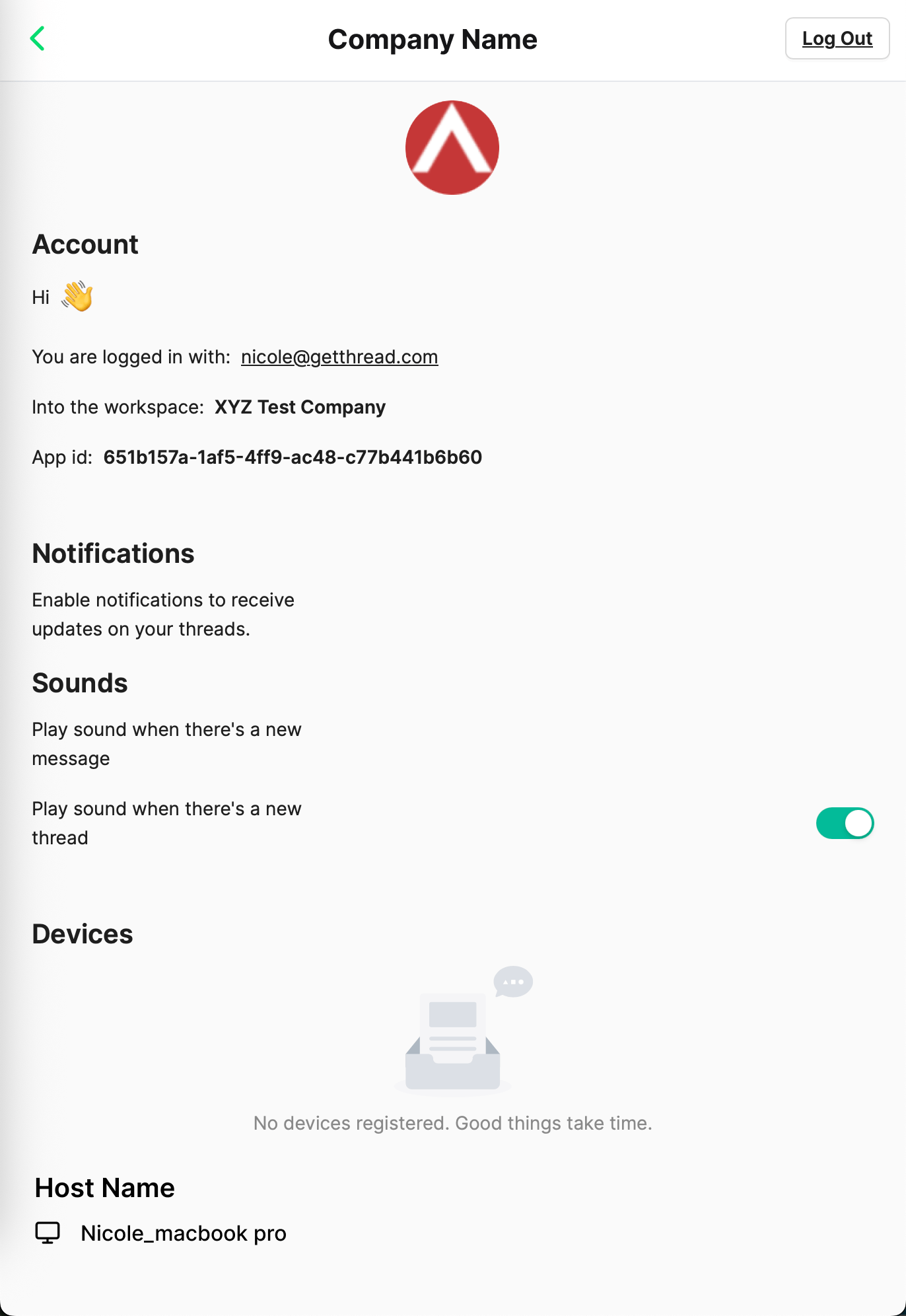
How does a technician know which device sent a message?
How does a technician know which device sent a message?
What if the Default Contact is deleted?
What if the Default Contact is deleted?
Can I change the Default Contact after Kiosk Mode is already deployed?
Can I change the Default Contact after Kiosk Mode is already deployed?
Does Kiosk Mode cost extra?
Does Kiosk Mode cost extra?
Does Kiosk Mode support all the same Messenger features as the standard app?
Does Kiosk Mode support all the same Messenger features as the standard app?
Can a client have different Default Contacts for different locations or departments?
Can a client have different Default Contacts for different locations or departments?
What should the Default Contact be named?
What should the Default Contact be named?
What happens if Kiosk Mode is toggled off after it's been in use?
What happens if Kiosk Mode is toggled off after it's been in use?
Is Kiosk Mode available on Mac or mobile?
Is Kiosk Mode available on Mac or mobile?
How do I fix a device that had the wrong script installed?
How do I fix a device that had the wrong script installed?