
Sound Notifications
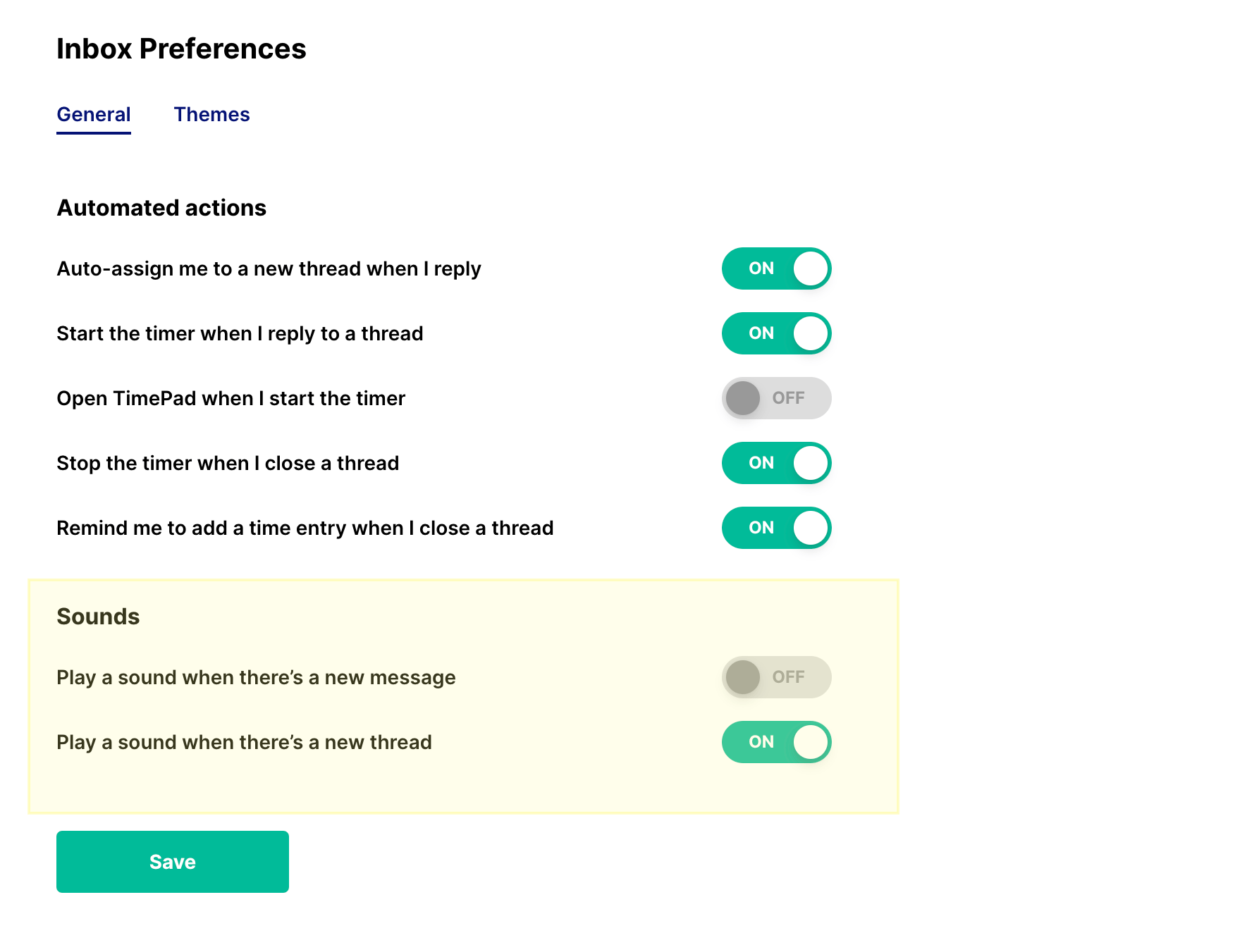
- Play a sound when there’s a new message – Plays an audio alert whenever a new message is received in a thread you own.
- Play a sound when there’s a new thread – Plays an alert when a new thread is created and assigned to you.
These settings apply specifically to yourMy Inbox, meaning you’ll only receive sounds for threads where you are the thread owner.
View Notifications
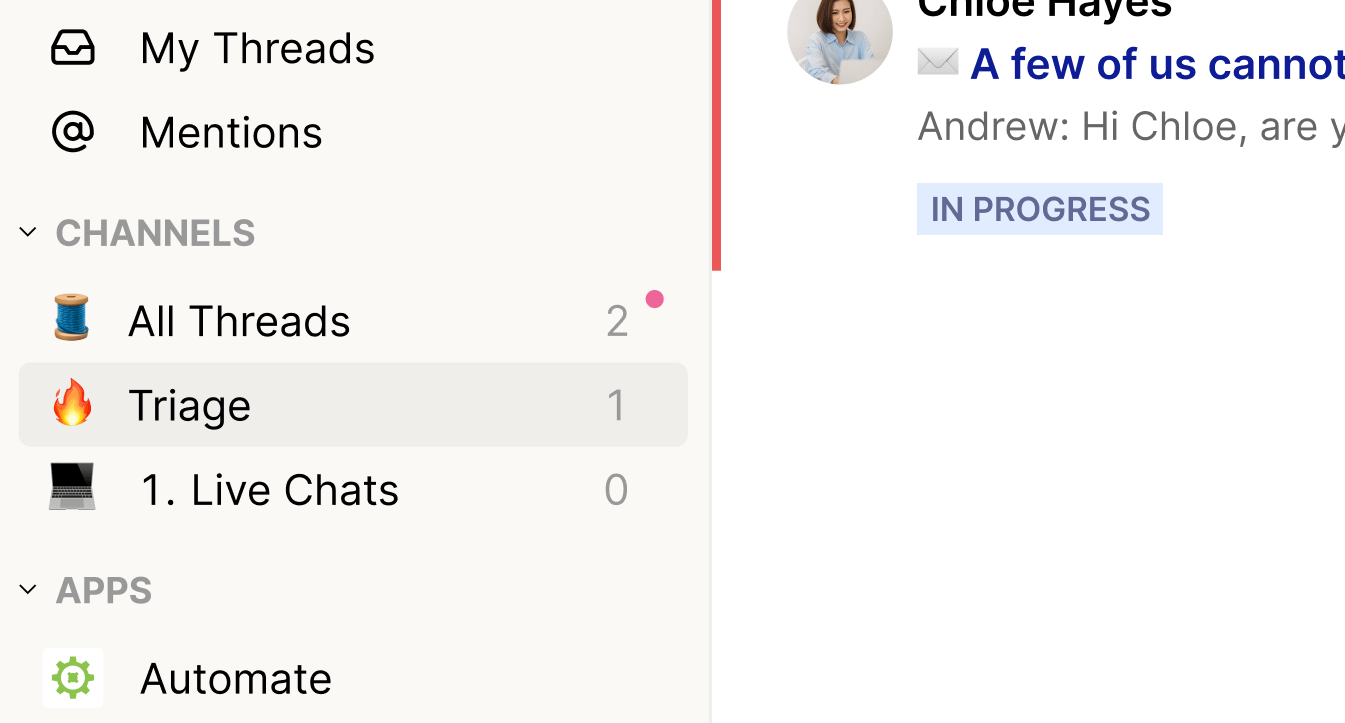
- New threads, owner and mentions – Get notified for new threads, activity on threads you own or are a member of, and when you’re mentioned.
- Owner – Receive notifications for new messages only on threads you own, plus any mentions.
- @ Mentions – Only receive notifications when you are directly mentioned.
- Off – Turns off notifications for that view entirely.
Chat Platform Notifications
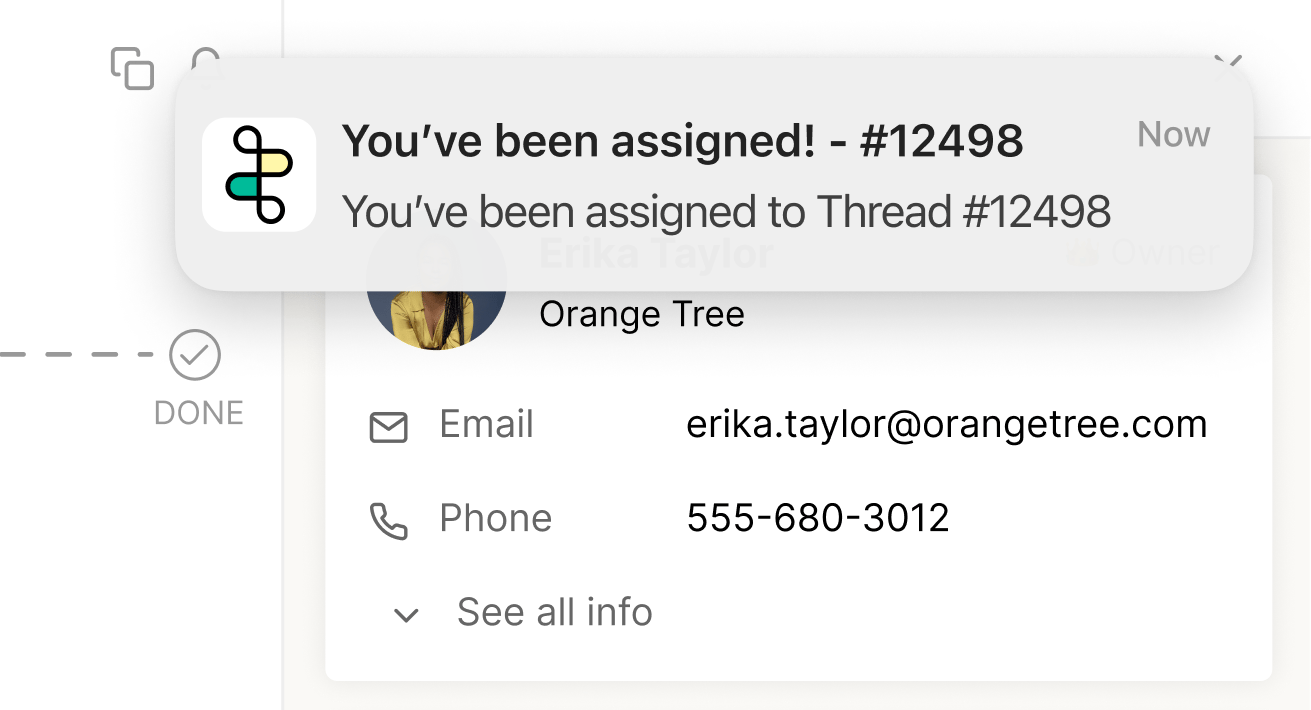
It’s important to note that these settings affect only the selected user’sone-on-one conversationwith the Companion App — they donotimpact thread notifications that are sent throughFlows.
- All – Sends all assigned tickets, whether through a flow or not, as direct messages from the Thread bot.
- None – Disables all assigned-to notifications from being sent to the user’s one-on-one chat with the Thread bot.
Best Practices
Notifications in Thread are designed to keep you informed without adding noise. By combining sound alerts, view-based notifications, and chat platform messages, you can tailor how you stay updated based on your personal workflow. A few best practices to consider:- Customize per view – Set different notification preferences for each view to focus on what matters most.
- Use sounds sparingly – Enable audio notifications only where immediate attention is needed, such as for new threads in your My Inbox.
- Leverage Companion App messages – For admins, enabling chat platform notifications helps ensure critical updates reach team members directly in Teams or Slack.
- Review settings periodically – As your role or responsibilities change, revisit your preferences to keep notifications relevant and useful.