
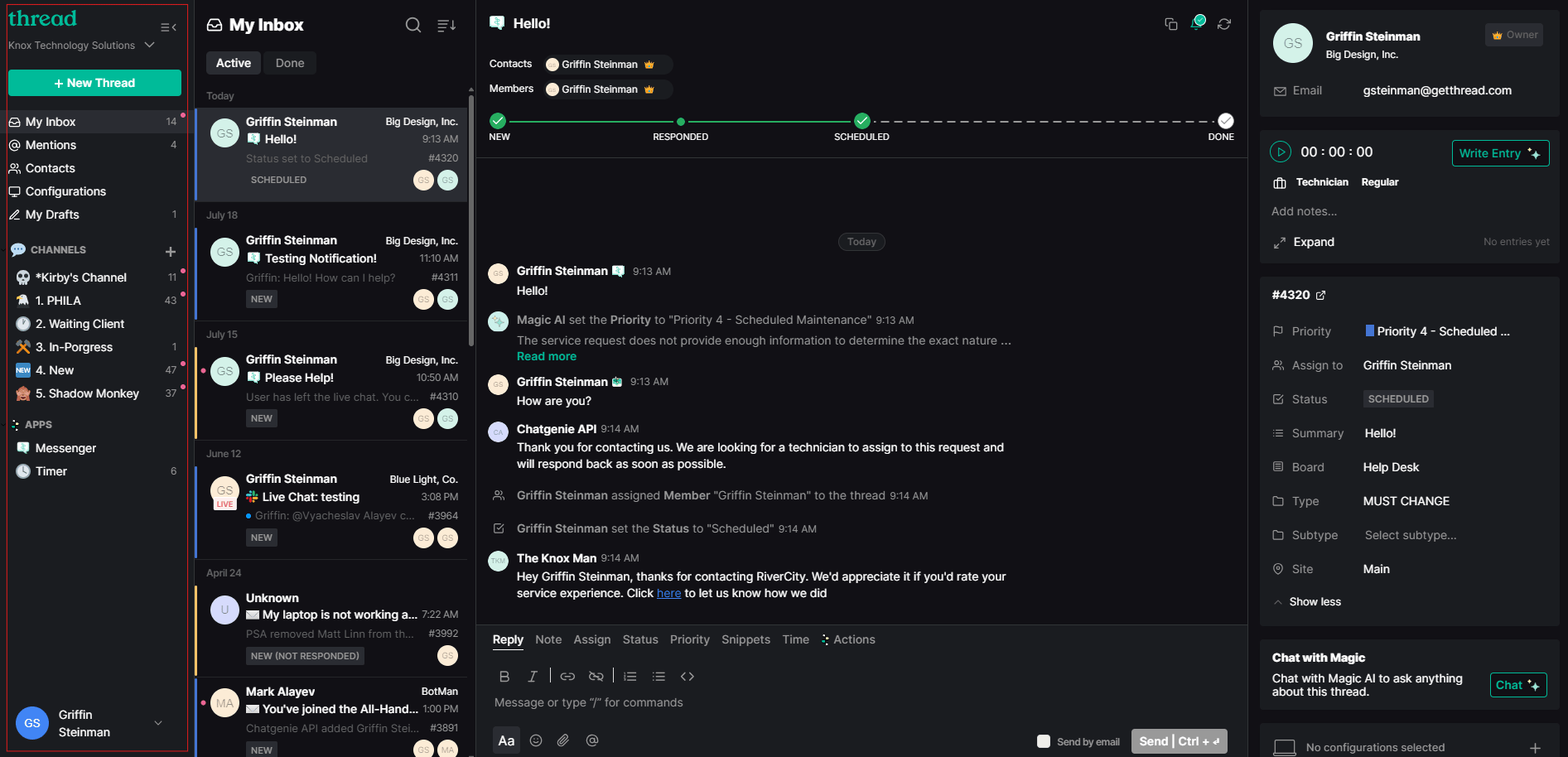
The Inbox Viewer
We will start with the left most section, the Inbox viewer.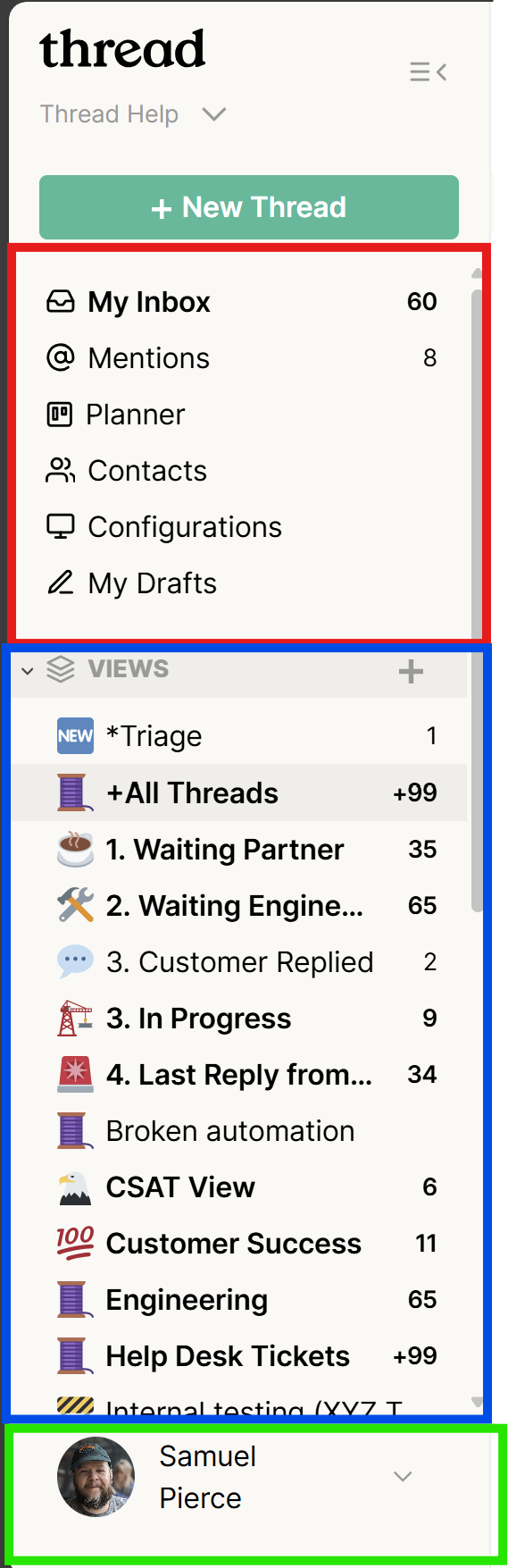
Section 1
New Thread
This section has many unique features. Let’s start from the top and move our way down. At the top, we have the “New Thread” Button. This button allows you to create a non-live thread on behalf of a contact. When creating a new thread using this method, you select the contact, the board that the thread should be on, a thread summary, and then type the initial message. For these types of thread, the “send by email” checkbox is checked by default.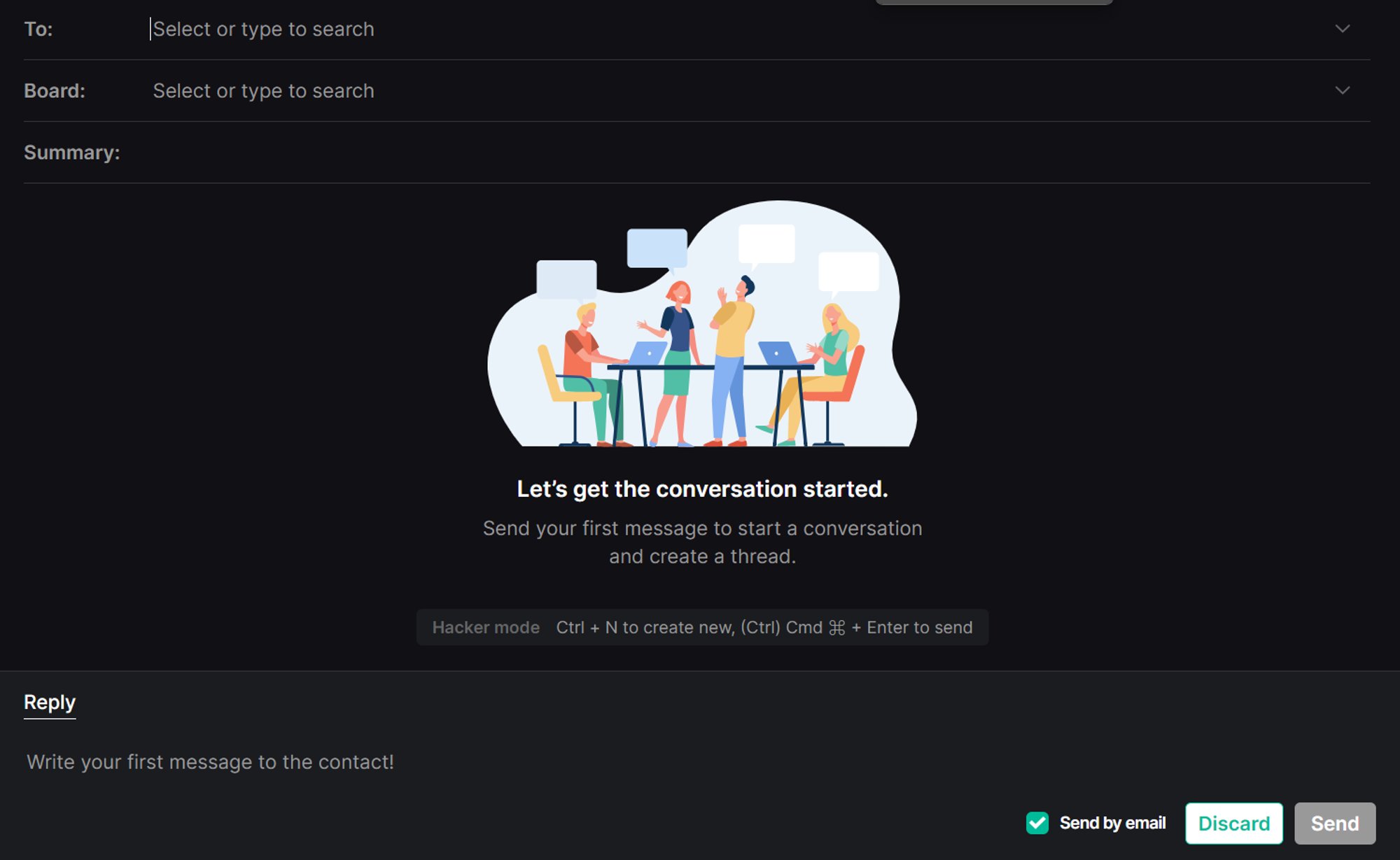
My Inbox View

@ Mentions View

Planner

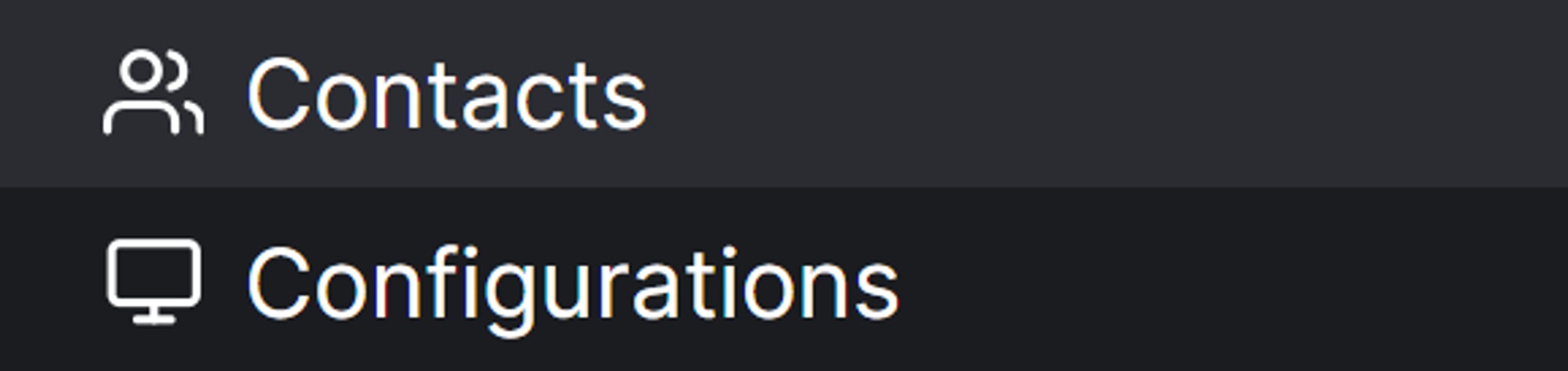
Configurations & Contacts
My Drafts

Section 2
This section contains custom views created by users that are tailored to certain criteria. Each view has specific flow criteria attached to it. Let us first go over how to create a View.Creating a View
1
Click the + button
First, you click the “+” button at the end of the “Views” title
2
Name the view and upload an icon
You will want to name the view and upload an icon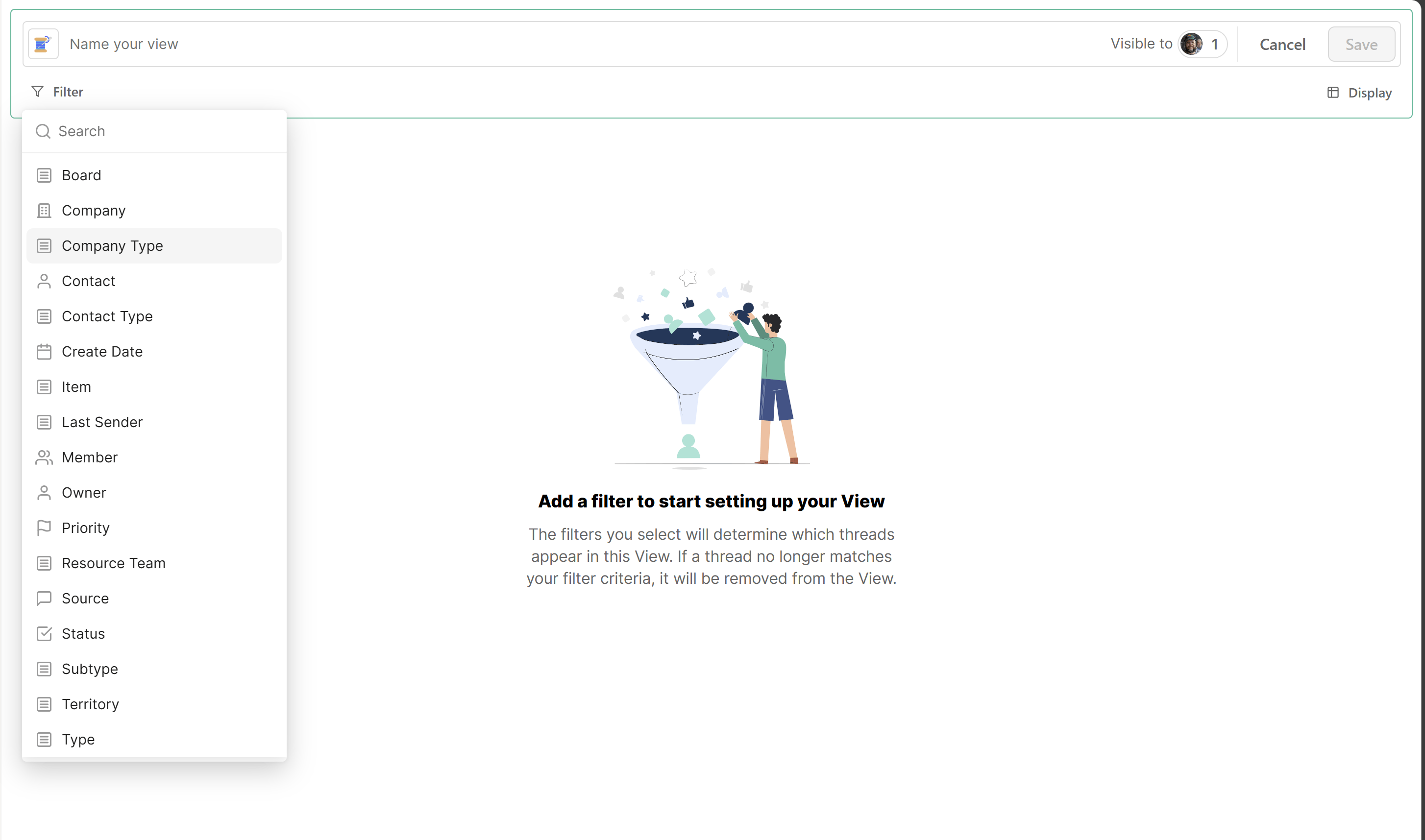
3
Add your team members
Next click on View to, then add your team members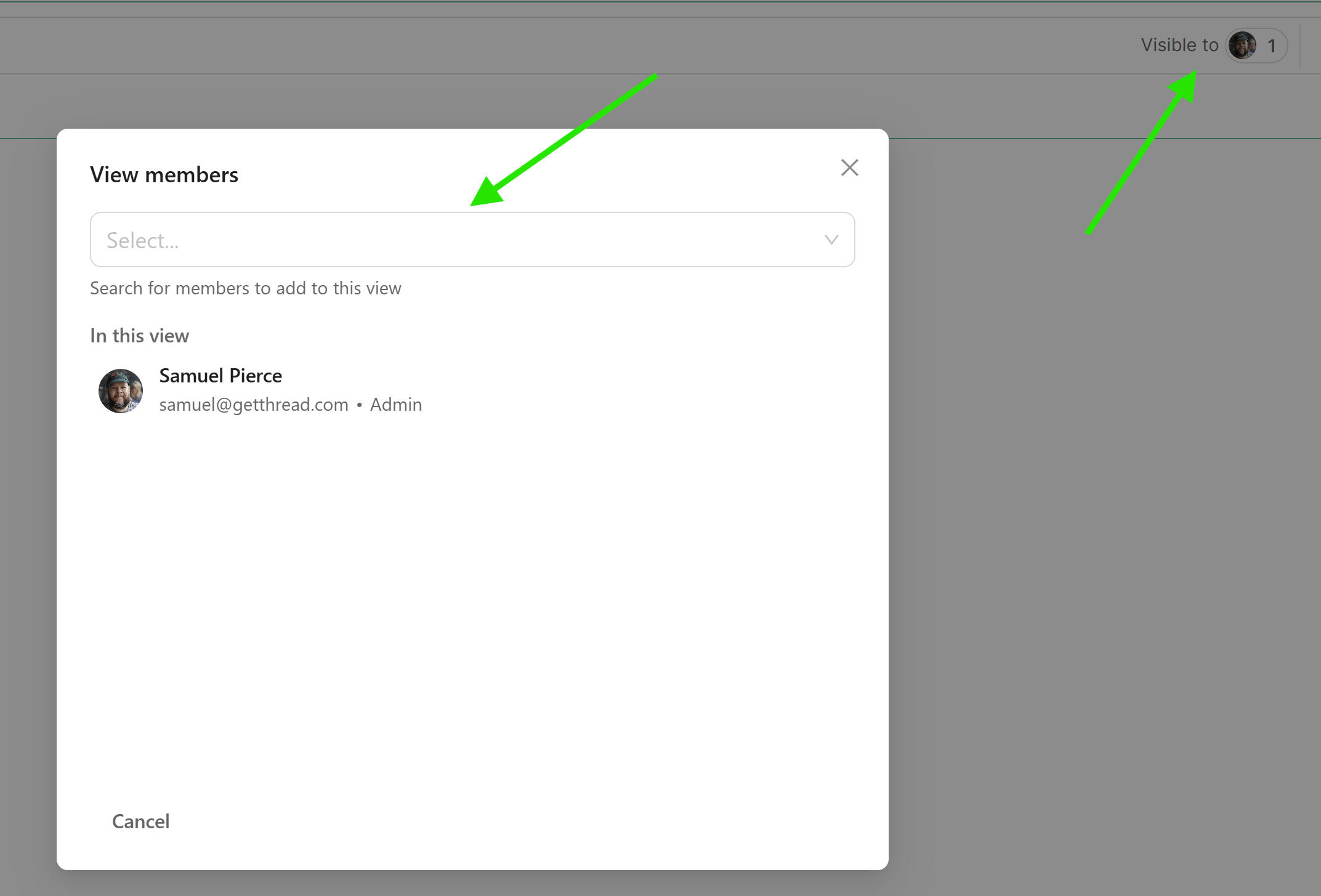
4
Create the view logic
Next you will create the logic that you want associated with the view. Click on filter and select your filter options.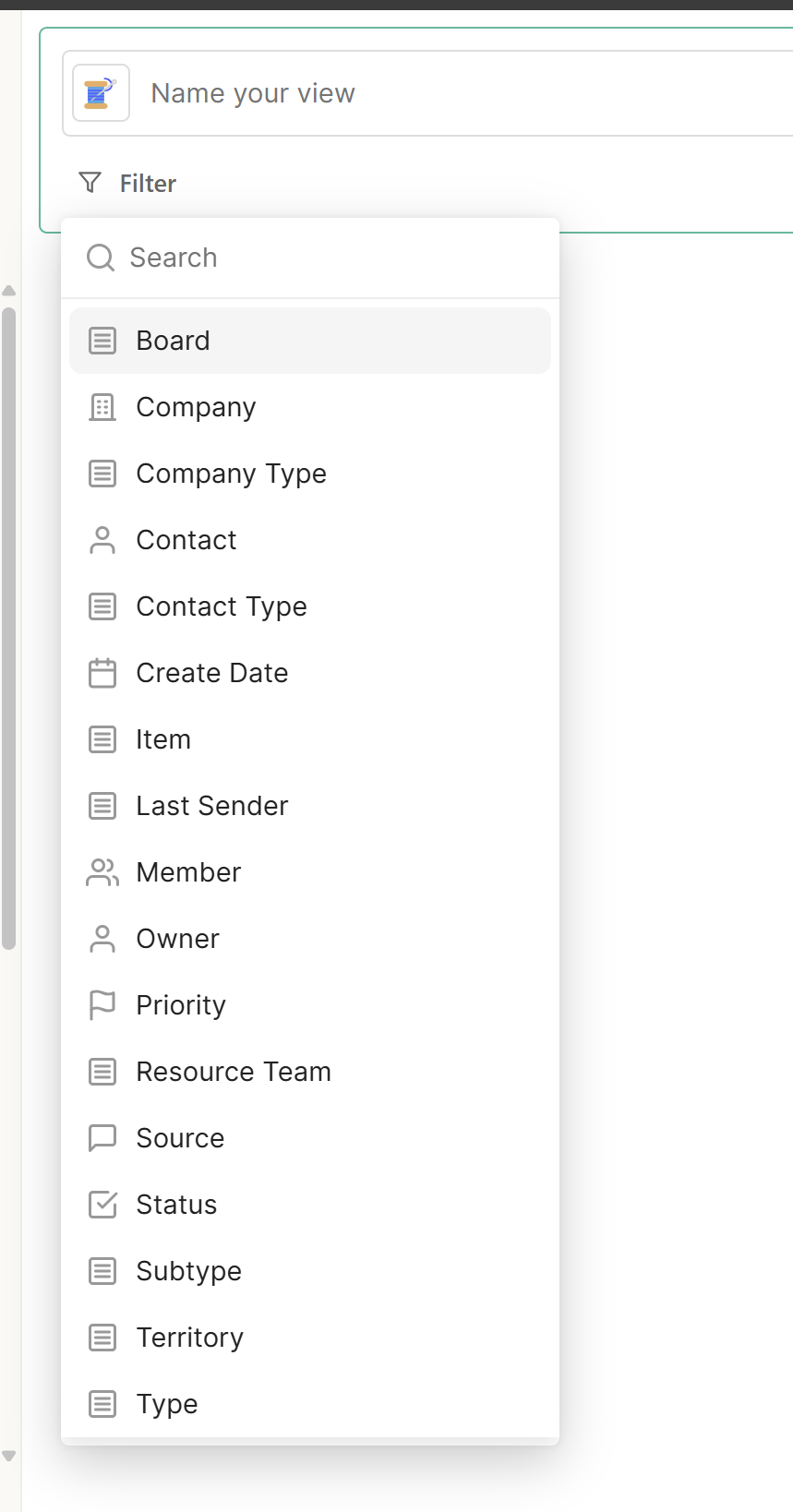
5
Save the view
Once you complete these steps, hit save
The View List
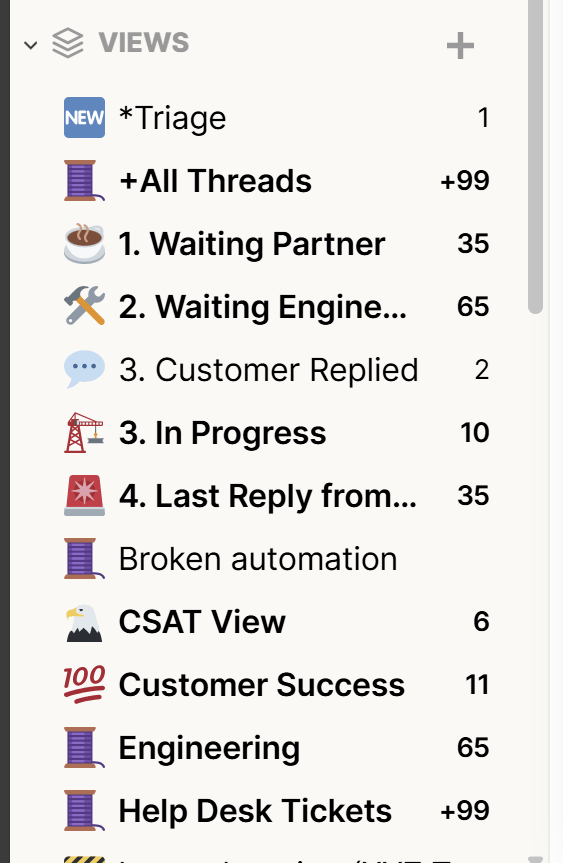
It is important to note that views can only be created byAdmins. All users are able to create versions views just for themselves and can control which members are added to which views.If a regular member creates a view with only themselves in it, an admin user cannot access or make changes to this view as it is hidden to them.
Section 3
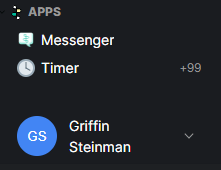
Messenger & Timer Views
The messenger view is simply a hyperlink to the admin panel The timer view contain all threads that currently have a time pad timer running. This is specific to the user as the user must have the timer running, not anyone else. At the bottom, by clicking on your name you are able to access- S****nippets
- P****references/Work Flow Automations
- B****east Mode Shortcuts
- Sign out.
Snippets
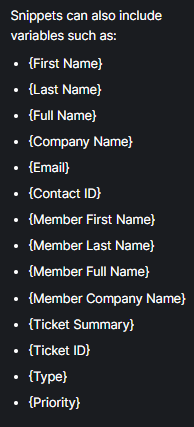
Let’s look at the Snippets Menu: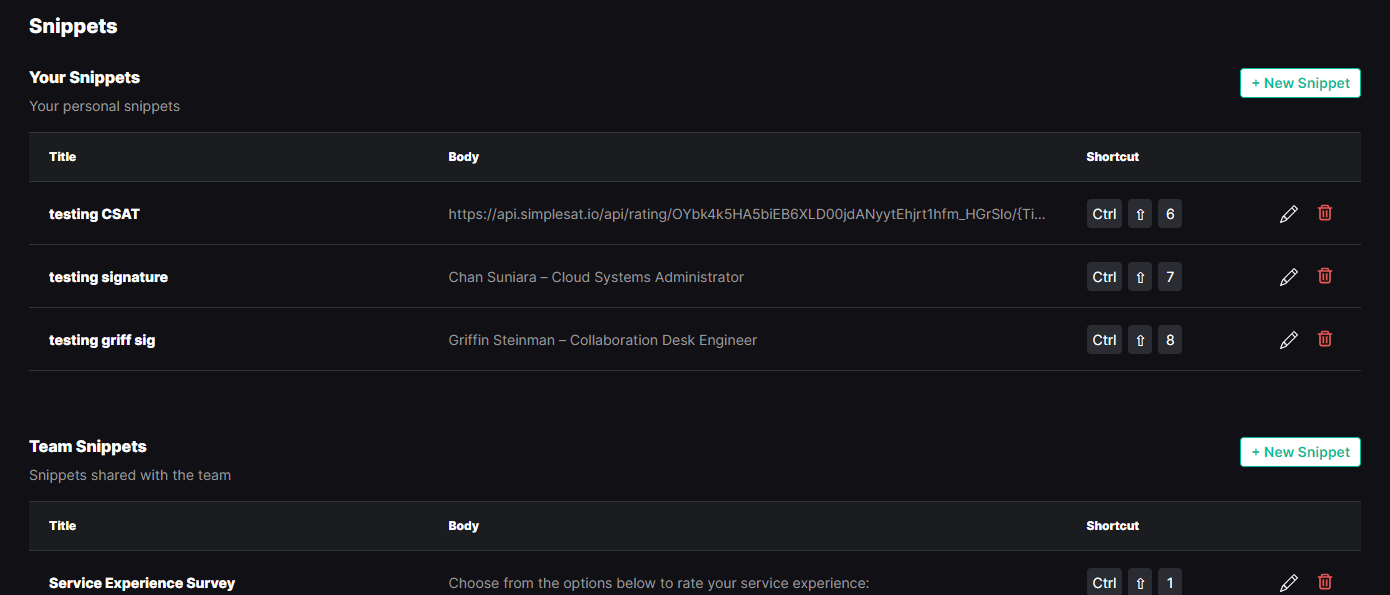
- “Your Snippets” - These snippets are created by you and only viewable by you
- “Team Snippets” - These snippets are created by anyone on the team and are able to be used by anyone on the team.
Inbox Preferences
Each user can edit their inbox preferences at a user level.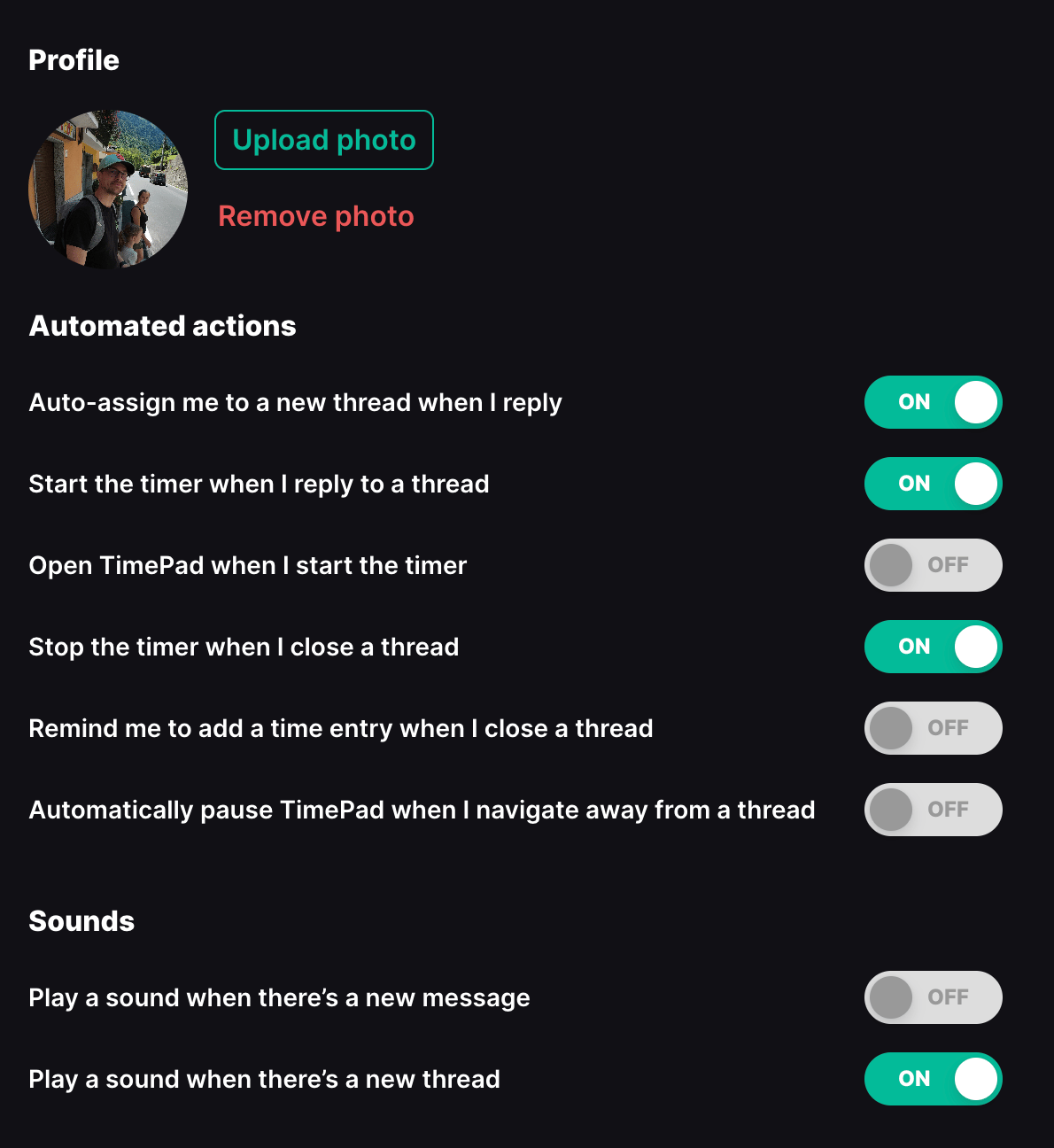
- Auto-assign me to a new thread when I reply - When this is enabled, you will automatically be assigned as the owner of a thread after you send the first customer facing reply
- Start the timer when I reply to a thread - When this is enabled, your Time Pad timer will automatically start once you send a customer facing reply
- Open Time Pad when I start the timer - When this is enabled, the Time Pad will expand in the control panel when you start the timer
- Stop the timer when I close a thread - When this is enabled, the Time Pad timer will stop after you change the status of a thread to a configured “closed” status
- Remind me to add a time entry when I close a thread - This will engage a popup reminding you to submit a time entry if the timer is still running when you close a thread
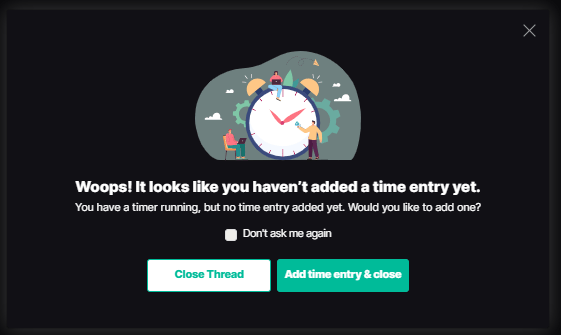
- Automatically pause TimePad when I navigate away from a thread - This will automatically pause the timer when you navigate away from the thread within Inbox. Note: the timer will still continue if the thread is open but you navigate to another tab
- Sounds - you can learn more about these two preferences in this doc
FAQ Section
What do I do if I notice that I am missing some contacts, boards, or statuses from my PSA?
What do I do if I notice that I am missing some contacts, boards, or statuses from my PSA?
A: If you notice that some things are not synced to thread, you can run a manual sync. To do this, navigate to the thread admin panel and go to Integrations -> PSA -> PSA Sync. From here you can run a manual sync.
It may take up to 1 hour for these syncs to complete
I just synced a new member over into inbox and they can't see any views. What do I do?
I just synced a new member over into inbox and they can't see any views. What do I do?
A: You will need to manually add any new members to views you have created after they have synced over to thread