

- One-time password
- Single Sign-On powered by Microsoft 365
How to Configure
1
Open the Microsoft 365 and Teams App integration
Navigate to the Thread Admin Panel and select Integrations -> Microsoft 365 and Teams App
2
Connect Microsoft 365
Below the option titled Microsoft 365, click Connect if it isn’t set up and follow on-screen instructions (described in the first section of this page for additional support)
3
Enable the SSO toggle
Once Microsoft 365 is listed as “Connected”, set the Enable SSO toggle to ON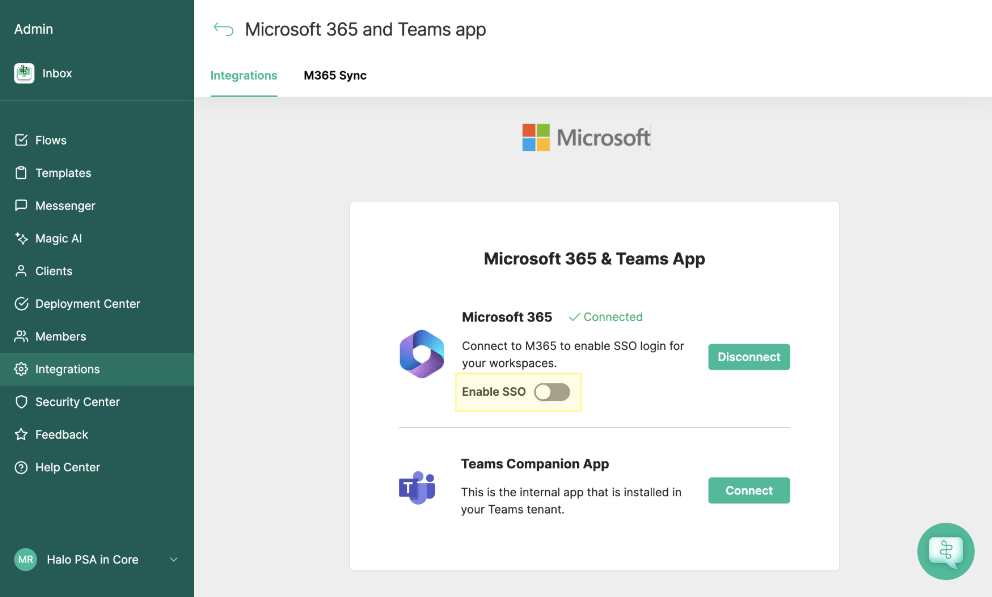
4
Finish setup
Your workspace is now set up
Once SSO is setup
Once SSO is setup and configured, point your service team to log into Inboxwhich will let your teammates take advantage of M365’s authentication.
FAQ Section
Does SSO replace logging in with the One Time Passcode?
Does SSO replace logging in with the One Time Passcode?
It does not! Users who have the “admin” role can choose to still login with the one time passcode sent to their email address, and users logging in without a Microsoft account will still have to use the one time passcode to login.