
What Request Blocking does
Request Blocking defines rules that prevent the Triage Agent from engaging with certain inbound requests. Matching requests still create a thread, but the Triage Agent will not respond or act on them. A human agent can always pick them up.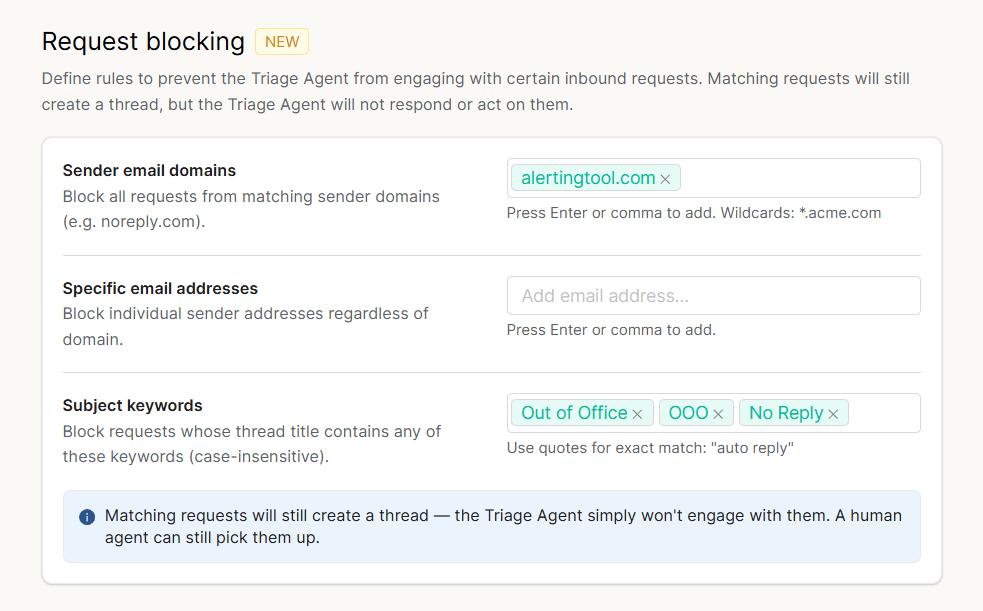
- Sender email domains — block every request coming from a matching domain (for example,
noreply.com,alertingtool.com). Wildcards are supported:*.acme.comblocks any subdomain ofacme.com. - Specific email addresses — block an individual sender regardless of the domain (for example,
no-reply@vendor.com). - Subject keywords — block requests whose thread title contains any of the listed keywords (case-insensitive). Wrap a phrase in quotes for an exact match, for example
"auto reply".
Request Blocking prevents Triage Agent engagement only. It does not delete, filter, or hide the thread — it still lands in your inbox so a technician can triage it manually if the situation calls for it.
Configure Request Blocking
Admin → Magic Agent → Triage Agent → Request Blocking- Open the Request Blocking section in your Triage Agent settings.
- Add entries under any of the three fields:
- Sender email domains — type the domain and press Enter or comma to add. Use
*.example.comto catch every subdomain. - Specific email addresses — type the full address and press Enter or comma to add.
- Subject keywords — type the keyword and press Enter. Use quotes for exact-phrase matching.
- Sender email domains — type the domain and press Enter or comma to add. Use
- Save. New inbound requests are evaluated against your rules immediately.
Common use cases
Out-of-office (OOO) auto-replies
OOO replies are the classic case where the Triage Agent should stay silent. Without a rule, the agent may greet the OOO responder, ask clarifying questions, and generate a thread that goes nowhere. Recommended subject keywords:Out of OfficeOOOAutomatic replyAuto-reply"auto reply"(exact match)Away from the officeOn vacationOn leaveAnnual leave
Monitoring and alerting tools
Alerts from RMMs, SIEMs, and monitoring platforms often arrive from a no-reply mailbox and never expect a conversational reply. Blocking them prevents the agent from asking a robot for more detail. Recommended sender email domains:alertingtool.comnoreply.comalerts.datadoghq.comnotifications.pagerduty.comno-reply.sentry.io
*.pagerduty.com when the alerting platform sends from multiple subdomains.
No-reply and system mailboxes
Confirmation emails, receipts, and system notifications routinely bounce off anoreply@ address. Blocking the specific address (or the whole domain, if the vendor sends only automated mail) keeps these threads free of agent replies.
Recommended specific email addresses:
no-reply@vendor.comnoreply@billing.example.comdonotreply@yourpsa.com
Delivery failures and mailer daemons
Bounce notifications (“Undeliverable”, “Delivery Status Notification (Failure)”, “Mail delivery failed”) are another form of noise. Block them by subject keyword so the agent does not try to help a mailer daemon. Recommended subject keywords:UndeliverableDelivery Status NotificationMail delivery failed"Returned mail"
Newsletters and marketing
If a vendor newsletter lands in a monitored inbox, block the sender domain rather than trying to catch every subject line. Recommended sender email domains:email.vendor.commarketing.example.com*.mailchimp.com
Best practices
- Start with subject keywords for OOO, sender domains for tools. OOO wording varies by client but is predictable across senders, so subject keywords catch it best. Alerting and no-reply mail is predictable by sender, so domain blocks are cleaner.
- Prefer wildcards to a long list of subdomains.
*.acme.comis easier to maintain thanalerts.acme.com,noreply.acme.com,notifications.acme.com. - Use quoted keywords for short phrases.
"auto reply"will not match “auto-replying to your request” — quotes force an exact match, which prevents accidental over-blocking. - Review your inbox after adding a rule. Because blocked requests still create threads, you can scan them for false positives — real client requests that happened to include a blocked keyword — and adjust.
- Do not block a legitimate client’s domain. If a client’s mail system tags replies with an auto-response header, use the subject keyword instead of blocking the whole domain.
- Layer with Custom Rules for behavior, not silence. Request Blocking is for “do not engage.” If you want the agent to engage but behave differently (shorter replies for a specific client, escalate certain contacts), use Custom Rules.
- Revisit quarterly. Vendors change sending domains, mail clients change auto-reply phrasing, and your alerting stack evolves. A short review every quarter keeps the list tight.
FAQ
Does Request Blocking delete the thread? No. The thread is still created and visible in your inbox. Only the Triage Agent is prevented from engaging — a human agent can still pick it up. Are subject keyword matches case-sensitive? No. Matches are case-insensitive.OOO, ooo, and Ooo all match the same threads.
How do wildcards work in sender domains?
Use * as a prefix to match any subdomain. *.acme.com matches mail.acme.com and alerts.acme.com but not acme.com itself — add acme.com separately if you want to block the root domain too.
Can I block a whole domain except one address?
Not directly. Block the domain, and if you need an exception, contact the sender to have them send from a different address, or handle the exception with a human agent workflow.
Will blocked requests affect my reporting?
Blocked threads still exist in your workspace, so they appear in ticket counts. Because the Triage Agent does not engage, they will not appear in agent response metrics (auto-response rate, resolution rate, etc.).