> ## Documentation Index
> Fetch the complete documentation index at: https://helpdocs.getthread.com/llms.txt
> Use this file to discover all available pages before exploring further.
# How Notifications Work for your Team
> Explain how technicians receive Thread Inbox notifications across web, desktop, Microsoft Teams, and Slack, plus recommended settings for assigned threads.
As your techs transition to using inbox, they will encounter a number of different notifications from various places. This doc aims to explain the behavior of each type of notification they will encounter.
 ## Inbox Notifications (Desktop and Web)
When using inbox, techs by default will get all notifications for all updates on all threads inside inbox. These settings can be configured on the global user level, and the channel user level.
### The Global User Level
At the global user level, each user is able to control two settings
1. "Play a sounds when there's a new message"
2. "Play a sound when there's a new thread"
## Inbox Notifications (Desktop and Web)
When using inbox, techs by default will get all notifications for all updates on all threads inside inbox. These settings can be configured on the global user level, and the channel user level.
### The Global User Level
At the global user level, each user is able to control two settings
1. "Play a sounds when there's a new message"
2. "Play a sound when there's a new thread"
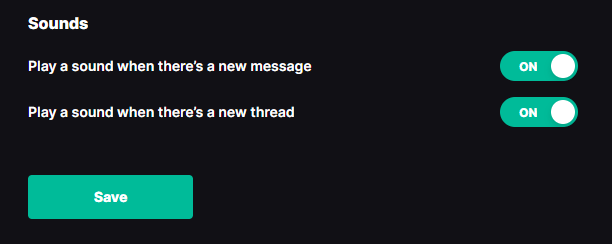 The first setting will affect all threads that you are assigned to, and the second setting will affect all new threads.
### The View User Level
At the view level, each user has 4 options to configure notifications for each view.
The first setting will affect all threads that you are assigned to, and the second setting will affect all new threads.
### The View User Level
At the view level, each user has 4 options to configure notifications for each view.
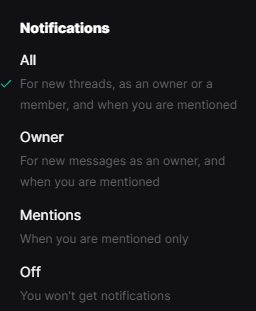 1. **All** - This setting will notify you when there is a new thread, when there is a new message on a thread where you are the owner or a member, and when you are @ mentioned on a thread.
2. **Owner** - This setting will notify you when there is a new message on a thread where you are the owner or a member, and when you are @ mentioned on a thread.
3. **Mentions** - This setting will notify you when you are @ mentioned on a thread
4. **Off** - This will disable notifications from this view and will also disable the swarm mode for live threads inside this view
This setting is configured by each user for each view that they are a member of.
### The Notification Banner
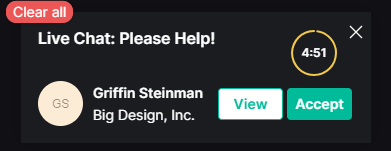
The notification Banner appears at the top center of inbox and comes in 2 variates, Live and Non-Live.
Live threads will look like this
1. **All** - This setting will notify you when there is a new thread, when there is a new message on a thread where you are the owner or a member, and when you are @ mentioned on a thread.
2. **Owner** - This setting will notify you when there is a new message on a thread where you are the owner or a member, and when you are @ mentioned on a thread.
3. **Mentions** - This setting will notify you when you are @ mentioned on a thread
4. **Off** - This will disable notifications from this view and will also disable the swarm mode for live threads inside this view
This setting is configured by each user for each view that they are a member of.
### The Notification Banner
The notification Banner appears at the top center of inbox and comes in 2 variates, Live and Non-Live.
Live threads will look like this
 And Non-Live threads will look like this:
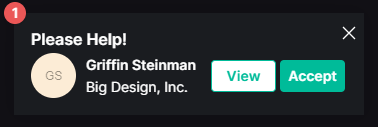 The main difference is the timer, as the Live-Chat request contains an SLA of 5 minutes.
This banner will appear if and only if a new thread comes into inbox that does not have an assigned owner and is a new thread. It will not appear when the thread gets assigned or someone is mentioned
## Desktop Notifications
Desktop notifications will appear based on your inbox notification settings, as well as your OS notification settings. Desktop notifications will appear the same whether you are using the web version of inbox, or the desktop version of inbox. If you wish to mute system notifications entirely for inbox, you can do that in your OS system settings the same way you do it for any other application.
## Admin Panel Controls
Before we go into how Slack and Teams notifications work, it is important to talk about some more global member notification settings that affect both.
In the [Thread Admin Panel](https://admin.getthread.com/dashboard/members) in the members tab, each member has a notification setting that will affect what notifications they will receive from the bot in either Slack or Teams.
The main difference is the timer, as the Live-Chat request contains an SLA of 5 minutes.
This banner will appear if and only if a new thread comes into inbox that does not have an assigned owner and is a new thread. It will not appear when the thread gets assigned or someone is mentioned
## Desktop Notifications
Desktop notifications will appear based on your inbox notification settings, as well as your OS notification settings. Desktop notifications will appear the same whether you are using the web version of inbox, or the desktop version of inbox. If you wish to mute system notifications entirely for inbox, you can do that in your OS system settings the same way you do it for any other application.
## Admin Panel Controls
Before we go into how Slack and Teams notifications work, it is important to talk about some more global member notification settings that affect both.
In the [Thread Admin Panel](https://admin.getthread.com/dashboard/members) in the members tab, each member has a notification setting that will affect what notifications they will receive from the bot in either Slack or Teams.
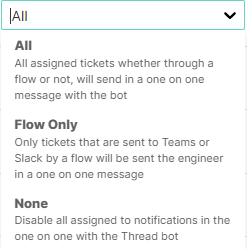 1. **All** - When this setting is selected, the member will get a notification for ALL threads that they are assigned to in inbox, regardless if they were sent to MS Teams or Slack via a flow or not
2. **Flow Only** - When this setting is selected, the member will only be notified about threads that they are assigned to that are sent to MS teams or Slack via a flow
3. **None** - When this setting is selected, the member will not receive any "assigned" notifications from the bot in MS Teams or Slack
Note that this setting only affects the MS Teams or Slack 1 on 1 bot, it will not affect notifications coming from a view configured to receive threads from a flow
## Microsoft Teams Notifications
Teams notifications are based on the Teams Companion App that you integrate into your teams tenant. For more info on that integration, please [see this doc](https://docs.getthread.com/article/ynz0rlxyls-teams-companion-app).
Once this integration is setup, your techs will begin to receive system notification from Microsoft Teams. They will be the same weather you are using the web or desktop version of teams.
### 1. Notifications from the installed Teams Companion App
Once a tech is assigned to a thread as an owner or a member, they will begin to receive Teams notifications from the installed companion app.
1. **All** - When this setting is selected, the member will get a notification for ALL threads that they are assigned to in inbox, regardless if they were sent to MS Teams or Slack via a flow or not
2. **Flow Only** - When this setting is selected, the member will only be notified about threads that they are assigned to that are sent to MS teams or Slack via a flow
3. **None** - When this setting is selected, the member will not receive any "assigned" notifications from the bot in MS Teams or Slack
Note that this setting only affects the MS Teams or Slack 1 on 1 bot, it will not affect notifications coming from a view configured to receive threads from a flow
## Microsoft Teams Notifications
Teams notifications are based on the Teams Companion App that you integrate into your teams tenant. For more info on that integration, please [see this doc](https://docs.getthread.com/article/ynz0rlxyls-teams-companion-app).
Once this integration is setup, your techs will begin to receive system notification from Microsoft Teams. They will be the same weather you are using the web or desktop version of teams.
### 1. Notifications from the installed Teams Companion App
Once a tech is assigned to a thread as an owner or a member, they will begin to receive Teams notifications from the installed companion app.
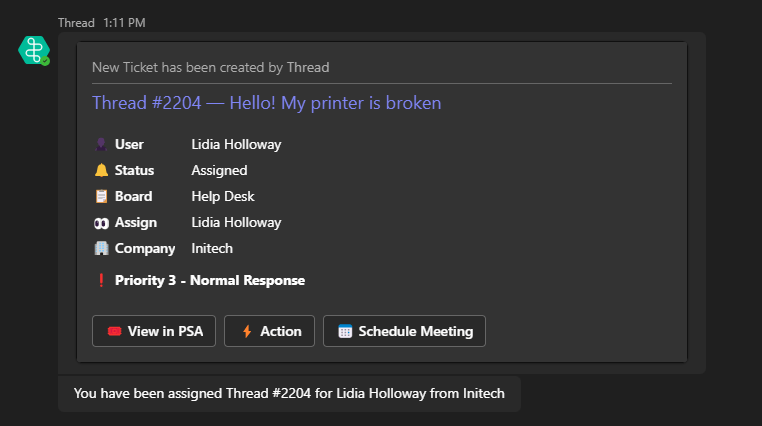
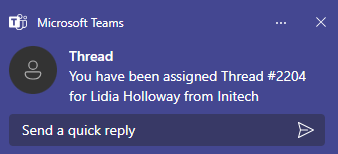 From here, when the thread can be viewed in the 1 on 1 conversation with the bot
 ### 2. Notifications from a public teams channel
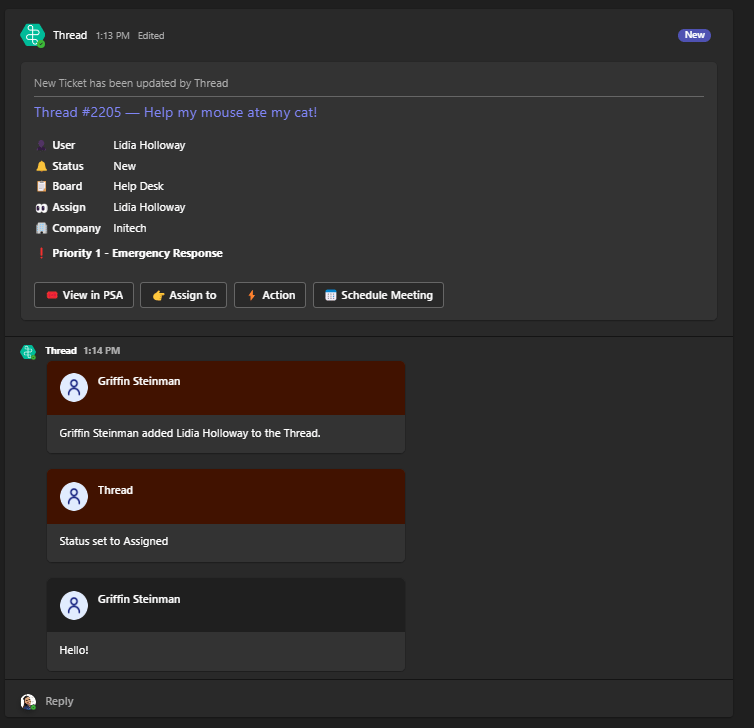
Once the Teams integration is setup in your workspace, you have the option to direct threads to a public Teams channel in your tenant via a flow in the thread admin panel. When a new thread is created, it will appear in the channel
### 2. Notifications from a public teams channel
Once the Teams integration is setup in your workspace, you have the option to direct threads to a public Teams channel in your tenant via a flow in the thread admin panel. When a new thread is created, it will appear in the channel
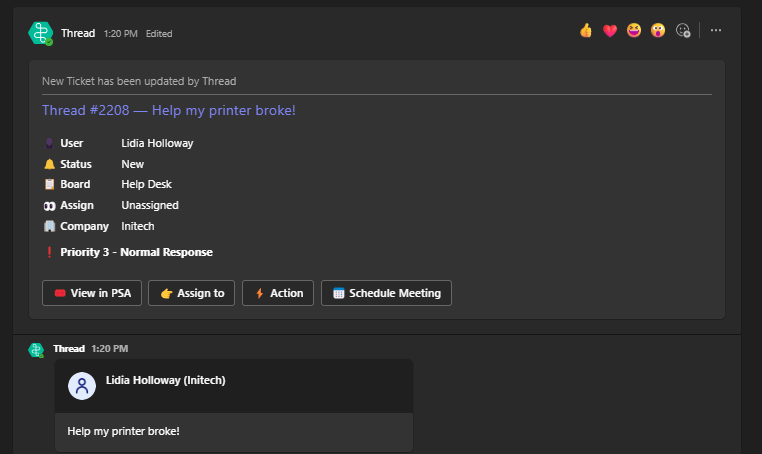 But after the thread gets an assigned owner, only that owner will get notifications about that thread.
 ## Slack Notifications
Slack notifications are based on the Slack Companion App that you integrate into your slack tenant. For more info on that integration, please [see this doc](https://docs.getthread.com/article/ljgmr5sc5d-installing-slack-as-an-msp).
Once this integration is setup, your techs will begin to receive system notifications from slack regarding their thread. These notifications can come from 1 of 2 places.
### 1. Notifications from the installed Slack Companion App
Once a tech is assigned to a thread as an owner or a member, they will begin to receive Slack notifications from the installed companion app.
## Slack Notifications
Slack notifications are based on the Slack Companion App that you integrate into your slack tenant. For more info on that integration, please [see this doc](https://docs.getthread.com/article/ljgmr5sc5d-installing-slack-as-an-msp).
Once this integration is setup, your techs will begin to receive system notifications from slack regarding their thread. These notifications can come from 1 of 2 places.
### 1. Notifications from the installed Slack Companion App
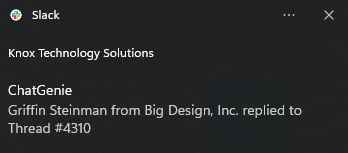
Once a tech is assigned to a thread as an owner or a member, they will begin to receive Slack notifications from the installed companion app.
 From here, when the thread is updated by the contact or another tech, the owner will be notified.
 ### 2. Notifications from a public slack channel
Once the slack integration is setup in your workspace, you have the option to direct threads to a public slack channel in your tenant via a flow in the thread admin panel. When a new thread is created, anyone in that channel will receive notification for new threads:
### 2. Notifications from a public slack channel
Once the slack integration is setup in your workspace, you have the option to direct threads to a public slack channel in your tenant via a flow in the thread admin panel. When a new thread is created, anyone in that channel will receive notification for new threads:
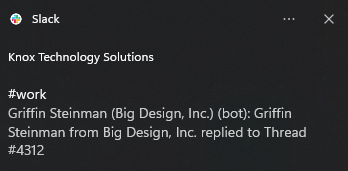
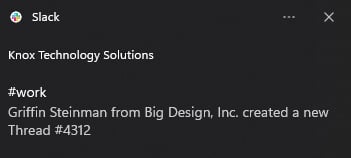 But after the thread gets an assigned owner, only that owner will get notifications about that thread.
 ## Internal Notification FAQ
We believe the most useful settings are to have:
1. Inbox - "Play a sound when there's a new thread" - ENABLED
2. Inbox - "Play a sound when there's a new message" - DISABLED
3. Admin Panel - Configure member notification to FLOW ONLY
4. Inbox View Notifications - Confiture view notifications to "OWNER"
5. Teams / Slack - Keep default settings
Keep in mind, each companies work flow is different and these settings may not work well with how your team works. Play around with these settings until you get to a point where you are happy!
The Slack/Teams companion bot can only be added to a public channel. When added to a private channel, the bot is unable to update anything.
If you are getting too many notifications from the Teams/Slack Companion App, you can mute the 1 on 1 conversation with the bot itself in teams, mute the companion app itself in slack, or you can mute the channel that you have all of your threads routes to in teams
To get rid of these Swarm Modes in inbox, you can set the view notifications to "none" where these swarm modes are coming from. If the Swarms are coming from multiple views, you will have to mute all of them
## Related topics
- [How Notifications Work for your Customers](/notifications/how-notifications-work-externally.md)
- [How to Manage Your Inbox Notifications](/notifications/managing-your-inbox-notifications.md)
- [Inbox Teams: Group Members and Share Views at Scale](/inbox/inbox-teams.md)
## Internal Notification FAQ
We believe the most useful settings are to have:
1. Inbox - "Play a sound when there's a new thread" - ENABLED
2. Inbox - "Play a sound when there's a new message" - DISABLED
3. Admin Panel - Configure member notification to FLOW ONLY
4. Inbox View Notifications - Confiture view notifications to "OWNER"
5. Teams / Slack - Keep default settings
Keep in mind, each companies work flow is different and these settings may not work well with how your team works. Play around with these settings until you get to a point where you are happy!
The Slack/Teams companion bot can only be added to a public channel. When added to a private channel, the bot is unable to update anything.
If you are getting too many notifications from the Teams/Slack Companion App, you can mute the 1 on 1 conversation with the bot itself in teams, mute the companion app itself in slack, or you can mute the channel that you have all of your threads routes to in teams
To get rid of these Swarm Modes in inbox, you can set the view notifications to "none" where these swarm modes are coming from. If the Swarms are coming from multiple views, you will have to mute all of them
## Related topics
- [How Notifications Work for your Customers](/notifications/how-notifications-work-externally.md)
- [How to Manage Your Inbox Notifications](/notifications/managing-your-inbox-notifications.md)
- [Inbox Teams: Group Members and Share Views at Scale](/inbox/inbox-teams.md)