> ## Documentation Index
> Fetch the complete documentation index at: https://helpdocs.getthread.com/llms.txt
> Use this file to discover all available pages before exploring further.
# How to Roll Out the Teams Service App to Specific Users
> Use Microsoft Teams app setup policies and Entra ID groups to roll out the Thread Teams Service App to a pilot team or specific users in a customer tenant.
## Introduction to Setup Policies
To ensure maximum adoption of your customer-facing chat application, we usually recommend rolling the app out to all Teams users in a given customer Teams tenant.
However, there are some scenarios where you might want to only give access to the app to a specific subset of users.
Microsoft allows you to configure Teams App Setup Policies. These allow different users in the tenant to have different Teams app configs than other users.
### Use Cases
Here are some use cases for when we recommend deploying the Teams service app to a custom setup policy:
* If you have multiple customer companies sharing the same Microsoft 365 tenant, you can create custom setup policies that map to each organization in the tenant. You can then deploy different Teams Service apps to the different organizations through the setup policies.
* If you want to roll out the Teams Service app to an internal testing group before rolling out to the entire company, you can deploy the app to a custom Setup Policy and assign your testing group to that policy.
## How to Guide
In this guide, we'll show you how to create a custom setup policy in Teams, deploy and pin the app to that policy and assign a group/users to the policy.
Follow this guide on [how to deploy the Teams Service App to a customer](https://docs.getthread.com/article/ry9zssic5c-how-to-install-the-teams-bot-on-your-customers-tenant) until you get to the step to install the app on the Global Setup Policy. Make sure you've uploaded your custom zip file to the Teams tenant, but don't deploy the app to the Global Setup Policy.
Navigate to Microsoft Teams Admin Center -> Teams apps -> [Setup policies](https://admin.teams.microsoft.com/policies/app-setup).
Find and click on a Teams Setup policy you wish to link your Thread Service app to, or click **+ Add** to create a new one.Using the **Global (org-wide default)** policy will ensure the app is rolled out to all Teams users in the environment. In this example, we'll be creating our own policy.
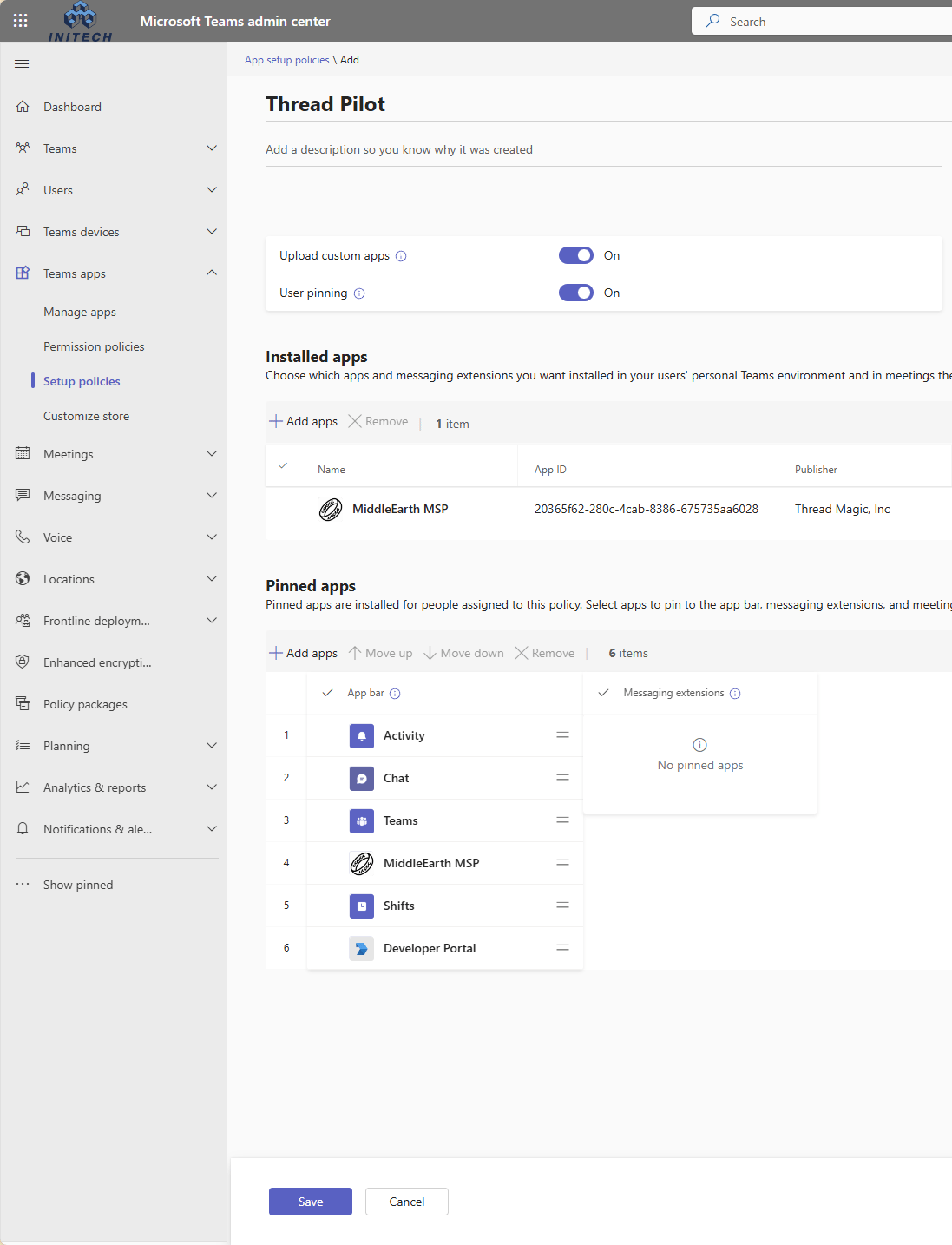
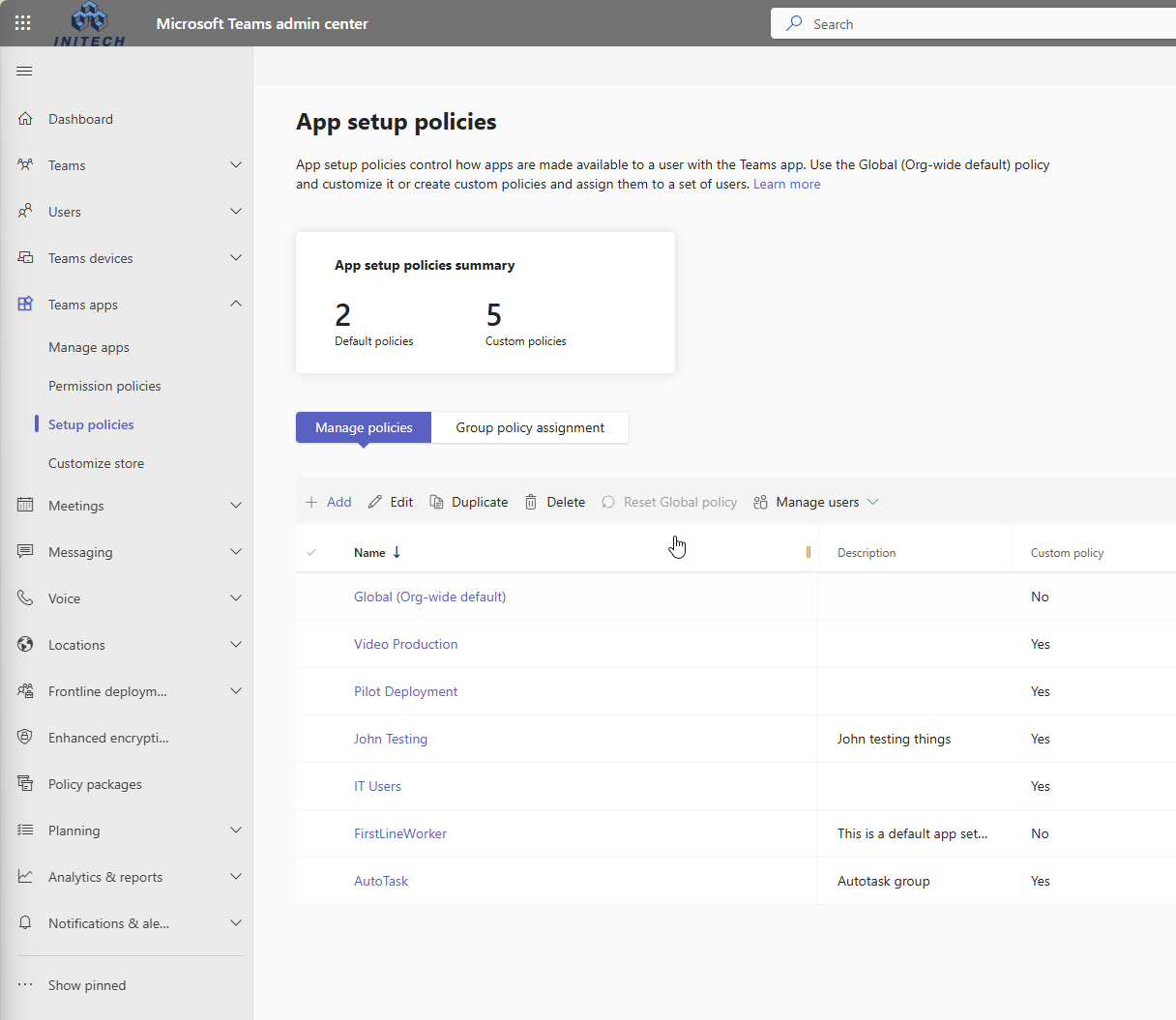 If you're creating a new policy, name it. Then, follow these steps...
1. Under **Installed apps**, click **+ Add apps** to add your Thread Service App, search for the app, select it and click **Add**.
2. Under **Pinned apps**, click **+ Add apps** to add your Thread Service App, search for the app, select it and click **Add**.
3. Click **Save** to save your changes.
If you're creating a new policy, name it. Then, follow these steps...
1. Under **Installed apps**, click **+ Add apps** to add your Thread Service App, search for the app, select it and click **Add**.
2. Under **Pinned apps**, click **+ Add apps** to add your Thread Service App, search for the app, select it and click **Add**.
3. Click **Save** to save your changes.
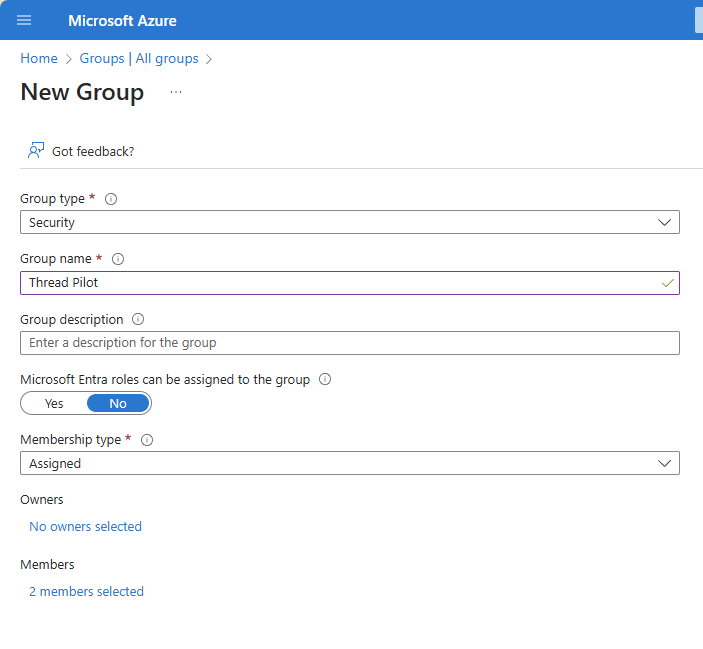
 Before proceeding, make sure an [Entra ID group](https://portal.azure.com/#view/Microsoft_AAD_IAM/GroupsManagementMenuBlade/~/AllGroups) is configured in Microsoft 365 with the users you want to deploy the app to. Teams \App Setup policies support both Dynamic and Manual Assigned groups.
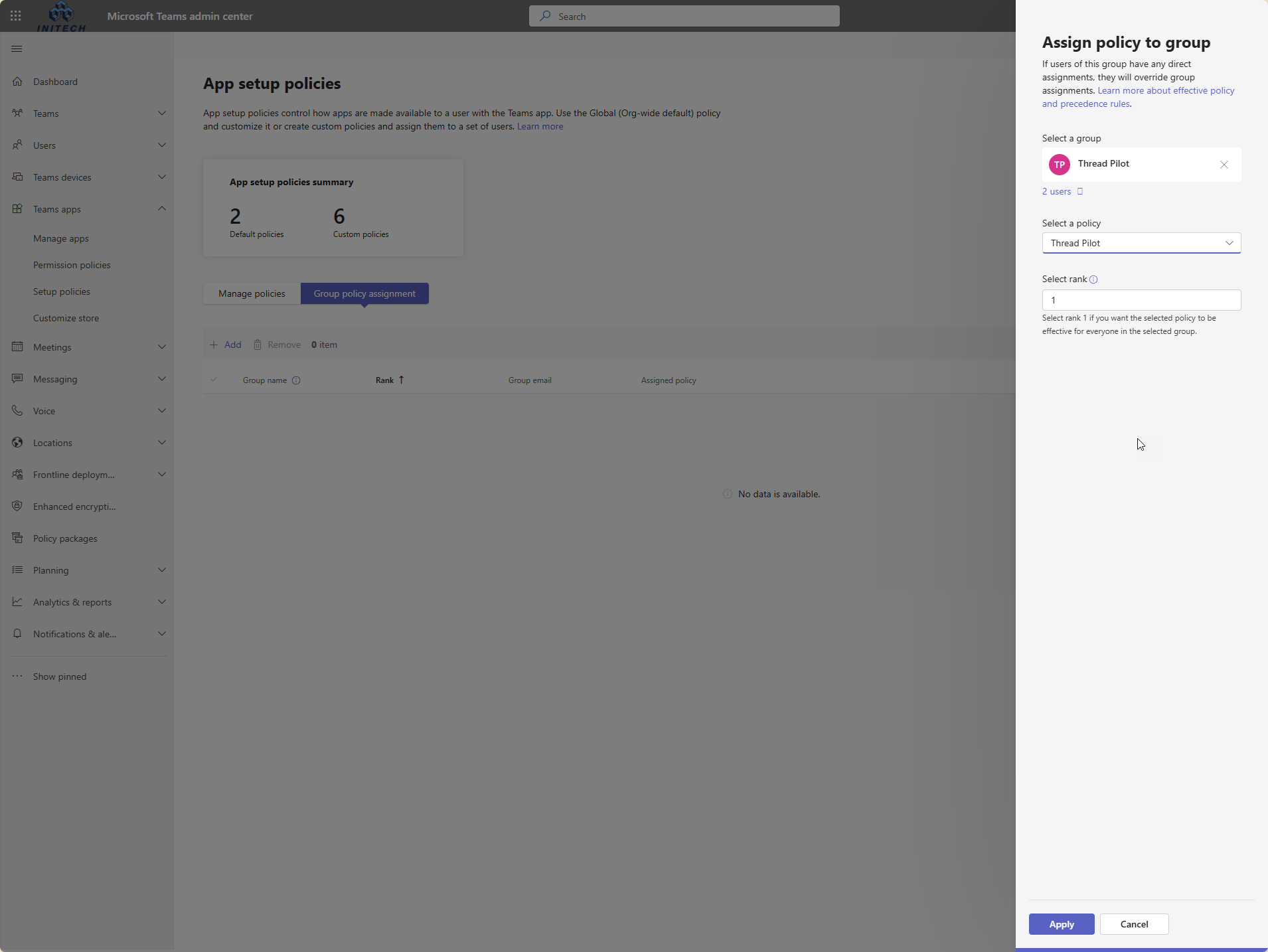
 Back on the Setup policies screen, click on the [**Group policy assignment**](https://admin.teams.microsoft.com/policies/app-setup/grouppolicyassignments) tab.
Click **+ Add** to create a new Group policy assignment.
1. To the right, select the [Entra ID group](https://portal.azure.com/#view/Microsoft_AAD_IAM/GroupsManagementMenuBlade/~/AllGroups) you want to assign to the policy.
2. Select the Setup Policy you created in the previous step.
3. Set rank to 1. In the event of a conflict, the user inherits the setup policy with the lowest rank. Setting the rank to 1 will override the Global policy for the user with the new custom policy you created.
4. Click **Apply** -> **Confirm** to save.
Back on the Setup policies screen, click on the [**Group policy assignment**](https://admin.teams.microsoft.com/policies/app-setup/grouppolicyassignments) tab.
Click **+ Add** to create a new Group policy assignment.
1. To the right, select the [Entra ID group](https://portal.azure.com/#view/Microsoft_AAD_IAM/GroupsManagementMenuBlade/~/AllGroups) you want to assign to the policy.
2. Select the Setup Policy you created in the previous step.
3. Set rank to 1. In the event of a conflict, the user inherits the setup policy with the lowest rank. Setting the rank to 1 will override the Global policy for the user with the new custom policy you created.
4. Click **Apply** -> **Confirm** to save.
 The users that are assigned to the group/policy will see the app in their Teams in the next 24 hours.It can take a full 24 hours for Microsoft to reflect the policy application in Teams. After this period of time, the user should see the app pinned in their Teams app.
## FAQ
Only the users you deploy to via the setup policy will receive the Thread welcome message for that app.
Yes, using this method, user A can have app A and user B can have app B. Each app must be linked to a different company in your PSA.
## Related topics
- [How to Upgrade your Legacy Teams App](/messenger/how-to-upgrade-your-legacy-teams-app.md)
- [How to Uninstall the Microsoft Teams Service App](/messenger/how-to-uninstall-the-microsoft-teams-thread-service-app.md)
- [How Notifications Work for your Customers](/notifications/how-notifications-work-externally.md)
The users that are assigned to the group/policy will see the app in their Teams in the next 24 hours.It can take a full 24 hours for Microsoft to reflect the policy application in Teams. After this period of time, the user should see the app pinned in their Teams app.
## FAQ
Only the users you deploy to via the setup policy will receive the Thread welcome message for that app.
Yes, using this method, user A can have app A and user B can have app B. Each app must be linked to a different company in your PSA.
## Related topics
- [How to Upgrade your Legacy Teams App](/messenger/how-to-upgrade-your-legacy-teams-app.md)
- [How to Uninstall the Microsoft Teams Service App](/messenger/how-to-uninstall-the-microsoft-teams-thread-service-app.md)
- [How Notifications Work for your Customers](/notifications/how-notifications-work-externally.md)