> ## Documentation Index
> Fetch the complete documentation index at: https://helpdocs.getthread.com/llms.txt
> Use this file to discover all available pages before exploring further.
# Design a Custom Teams App for Your Customers
> Use the Thread Admin Panel Teams App Builder to design and deploy white-labeled, branded Microsoft Teams support apps for each of your MSP customers.
### Create a white-labeled Teams app for your customers
From the Admin Panel, you have the ability to create a branded Teams experience that you can deploy to your customers. Best of all, you can create multiple different apps with different brandings, if you have customers that prefer their own branding in their Teams app.
 To access the Teams App Builder:
Navigate to your Thread Admin Panel
Click on **Messenger** in the left navigation bar
Navigate to the **Teams Apps** tab at the top-center of your browser window
To access the Teams App Builder:
Navigate to your Thread Admin Panel
Click on **Messenger** in the left navigation bar
Navigate to the **Teams Apps** tab at the top-center of your browser window
 Click **Create New** if you wish to create a new custom Teams App, or **Edit** or **Duplicate** an existing app
If you clicked **Create New** on the previous screen, you will be brought to the Teams App Builder.
1. Please follow these guidelines for the App icons [here](https://learn.microsoft.com/en-us/microsoftteams/platform/concepts/design/design-teams-app-icon-store-appbar)
Click **Create New** if you wish to create a new custom Teams App, or **Edit** or **Duplicate** an existing app
If you clicked **Create New** on the previous screen, you will be brought to the Teams App Builder.
1. Please follow these guidelines for the App icons [here](https://learn.microsoft.com/en-us/microsoftteams/platform/concepts/design/design-teams-app-icon-store-appbar)
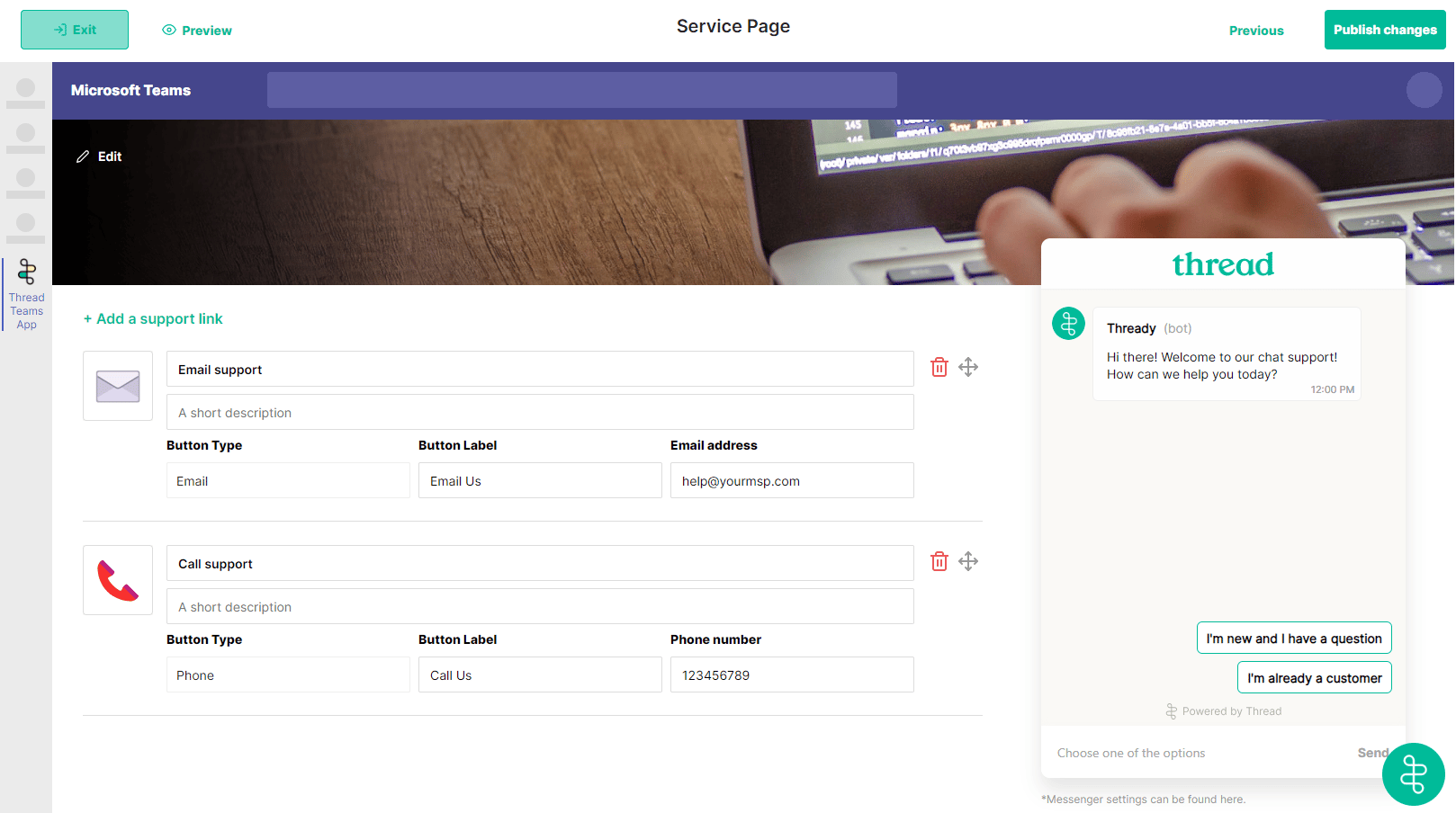
 Now you can customize your app, the entire experience is brandable and customizable. *When naming your App, we recommend a name that can be recognized by your customers' users for the type of service you provide, e.g IT Support.*
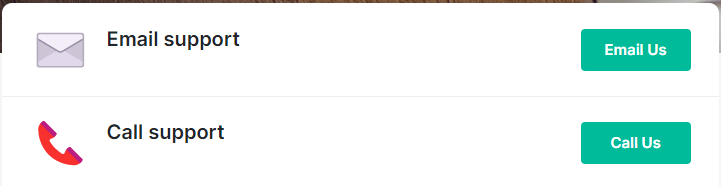
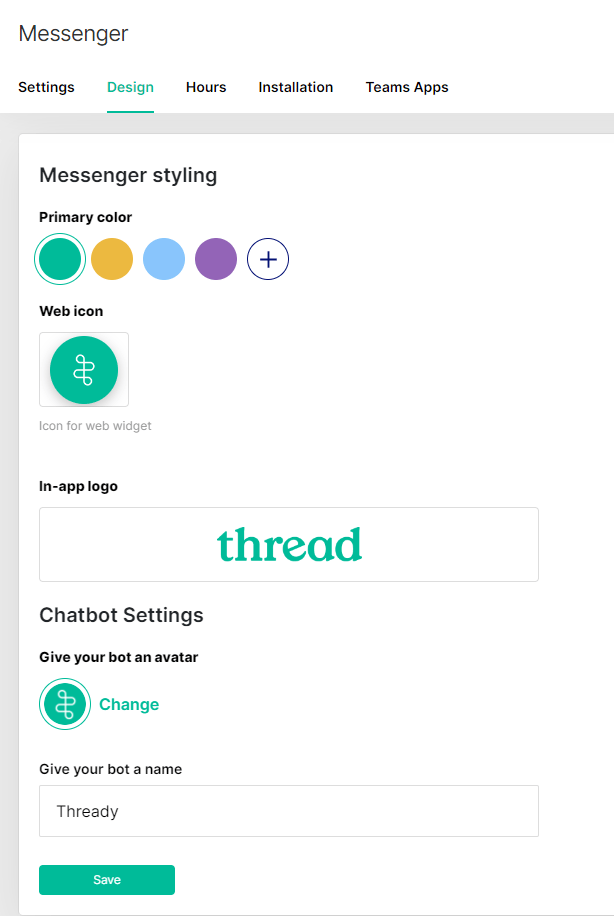
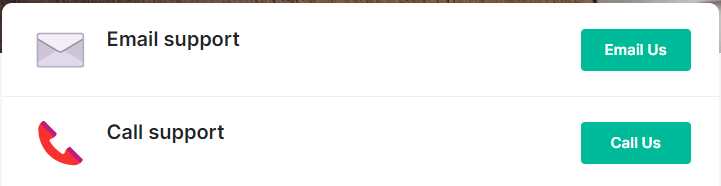
Here you can edit the support pages displayed on your app, and also preview your app design. To change the color of these support buttons:You can go to the design page of the messenger settings and change the primary color. Then all you have to do is click "save" and then after a refresh of teams the color will change
Now you can customize your app, the entire experience is brandable and customizable. *When naming your App, we recommend a name that can be recognized by your customers' users for the type of service you provide, e.g IT Support.*
Here you can edit the support pages displayed on your app, and also preview your app design. To change the color of these support buttons:You can go to the design page of the messenger settings and change the primary color. Then all you have to do is click "save" and then after a refresh of teams the color will change
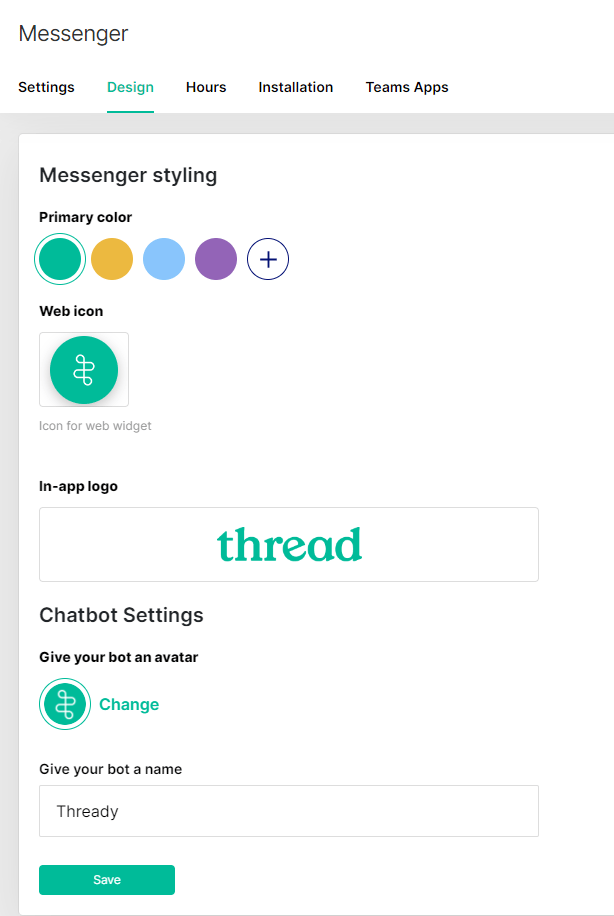
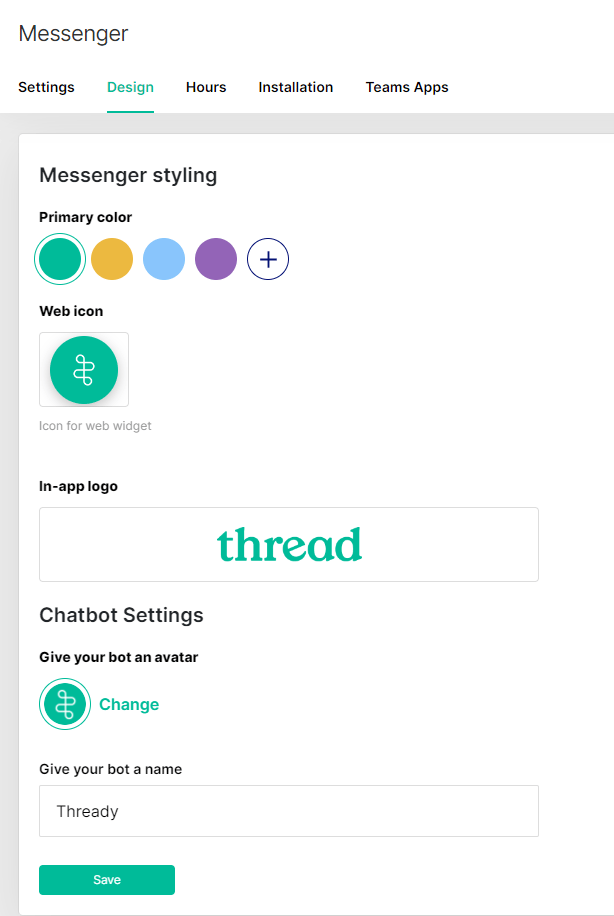 The customizable Teams app embeds a version of Messenger on the right for your customers to open chats with your team. This inherits the Messenger branding settings you set at the parent level, or if you are overriding these settings at the customer level, it will inherit those settings for that Customer.
## Related topics
- [How Notifications Work for your Customers](/notifications/how-notifications-work-externally.md)
- [Messenger Settings: Configure Chat, Design, and Hours](/inbox/messenger.md)
- [Customer Value Messaging for AI-Powered Support](/get-started/talking-to-customers-about-ai-powered-support-thread-customer-value-messaging.md)
The customizable Teams app embeds a version of Messenger on the right for your customers to open chats with your team. This inherits the Messenger branding settings you set at the parent level, or if you are overriding these settings at the customer level, it will inherit those settings for that Customer.
## Related topics
- [How Notifications Work for your Customers](/notifications/how-notifications-work-externally.md)
- [Messenger Settings: Configure Chat, Design, and Hours](/inbox/messenger.md)
- [Customer Value Messaging for AI-Powered Support](/get-started/talking-to-customers-about-ai-powered-support-thread-customer-value-messaging.md)