> ## Documentation Index
> Fetch the complete documentation index at: https://helpdocs.getthread.com/llms.txt
> Use this file to discover all available pages before exploring further.
# Inbox Notifications: Sounds, Views, and Chat Alerts
> Customize Thread Inbox notifications with sound alerts, per-view notification preferences, and Microsoft Teams or Slack chat alerts to match your workflow.
Notifications in Thread keep you informed about what matters most — without overwhelming you. They’re fully customizable, letting each user decide how and when they’d like to be notified.
Whether you prefer an audio alert, a desktop toast notification, or a message sent directly to your connected chat platform (Teams or Slack), Thread gives you full control over your notification experience.
Notifications can also be fine-tuned to match your workflow. You can choose to be notified only for certain views, when new threads are created, or for every message that comes in — ensuring you stay updated at the right times, in the right places.
## **Sound Notifications**
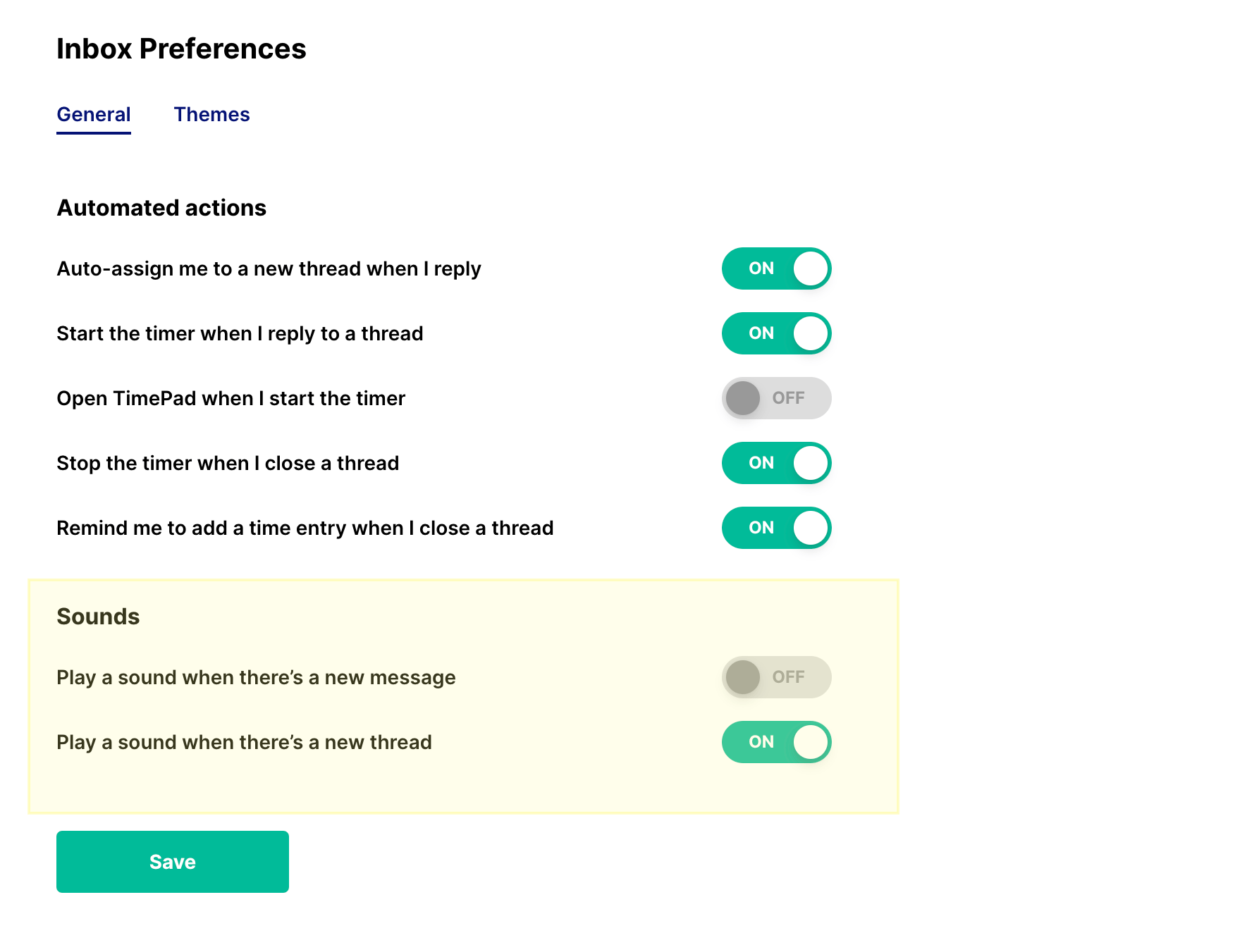
 You can manage your notification sounds by clicking your name in the bottom-left corner and selecting **Preferences**.
Under the **Sounds** section, you’ll find two simple toggles:
* **Play a sound when there’s a new message** – Plays an audio alert whenever a new message is received in a thread you own.
* **Play a sound when there’s a new thread** – Plays an alert when a new thread is created and assigned to you.
These settings apply specifically to your
My Inbox
, meaning you’ll only receive sounds for threads where you are the thread owner.
## **View Notifications**
You can manage your notification sounds by clicking your name in the bottom-left corner and selecting **Preferences**.
Under the **Sounds** section, you’ll find two simple toggles:
* **Play a sound when there’s a new message** – Plays an audio alert whenever a new message is received in a thread you own.
* **Play a sound when there’s a new thread** – Plays an alert when a new thread is created and assigned to you.
These settings apply specifically to your
My Inbox
, meaning you’ll only receive sounds for threads where you are the thread owner.
## **View Notifications**
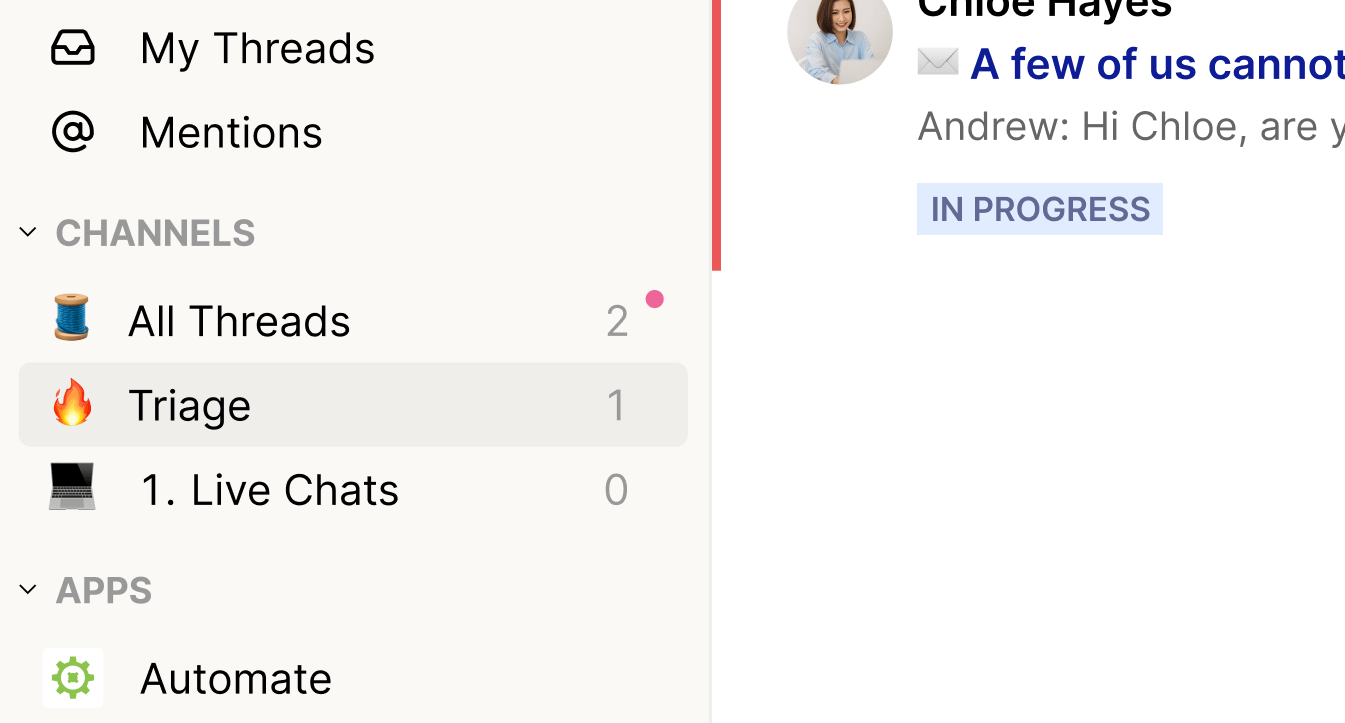 View notifications control how you’re notified for activity within a specific view. These settings are configured individually per view, allowing you to tailor notifications based on your focus areas.
To adjust them, click the **breadcrumbs menu (⋯)** next to the view name on the **left sidebar**, then select **Notification Preferences**.
You’ll have the following options:
* **New threads, owner and mentions** – Get notified for new threads, activity on threads you own or are a member of, and when you’re mentioned.
* **Owner** – Receive notifications for new messages only on threads you own, plus any mentions.
* **@ Mentions** – Only receive notifications when you are directly mentioned.
* **Off** – Turns off notifications for that view entirely.
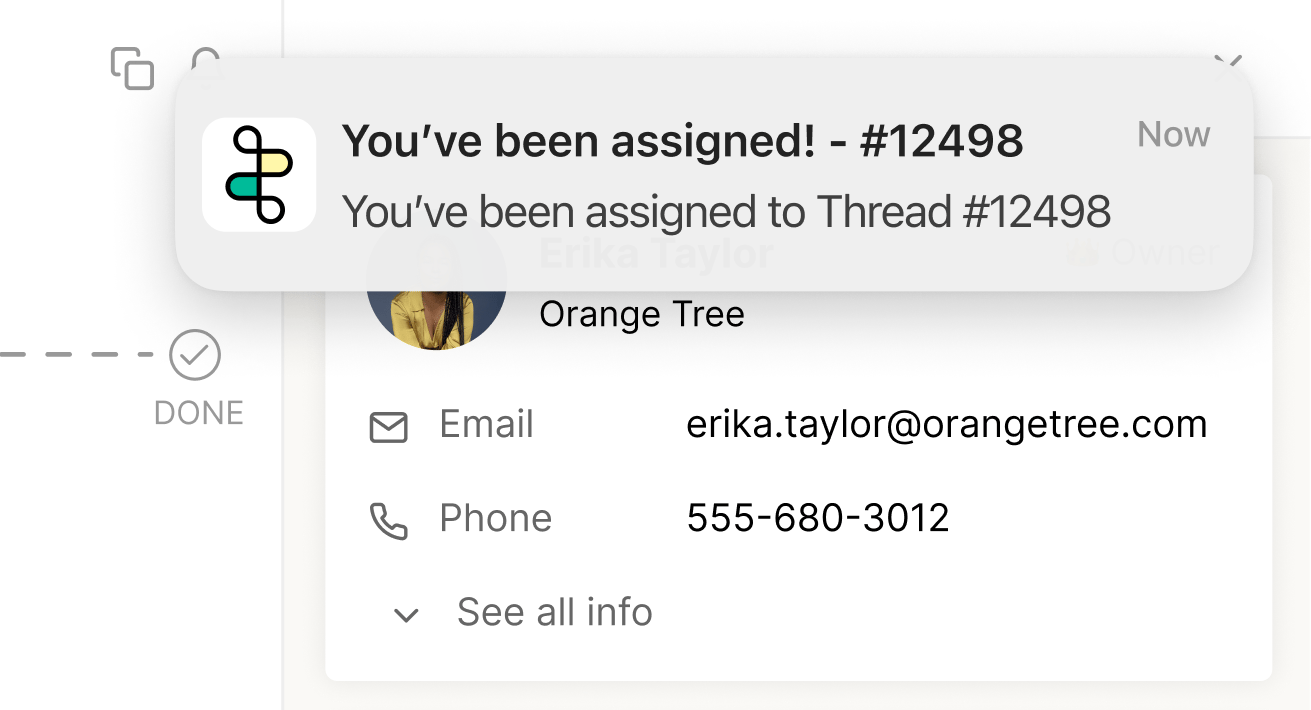
When enabled, new thread notifications appear as a pop-up at the top middle of Inbox, providing a quick visual cue without disrupting your workflow.
## **Chat Platform Notifications**
View notifications control how you’re notified for activity within a specific view. These settings are configured individually per view, allowing you to tailor notifications based on your focus areas.
To adjust them, click the **breadcrumbs menu (⋯)** next to the view name on the **left sidebar**, then select **Notification Preferences**.
You’ll have the following options:
* **New threads, owner and mentions** – Get notified for new threads, activity on threads you own or are a member of, and when you’re mentioned.
* **Owner** – Receive notifications for new messages only on threads you own, plus any mentions.
* **@ Mentions** – Only receive notifications when you are directly mentioned.
* **Off** – Turns off notifications for that view entirely.
When enabled, new thread notifications appear as a pop-up at the top middle of Inbox, providing a quick visual cue without disrupting your workflow.
## **Chat Platform Notifications**
 Chat platform notifications control whether assigned threads are sent as direct messages from the **Thread Companion App** in your connected chat platform (Teams or Slack).
These settings are managed in **Thread Admin → Members**, and can be adjusted per member. Only admins can modify these preferences.
It’s important to note that these settings affect only the selected user’s
one-on-one conversation
with the Companion App — they do
not
impact thread notifications that are sent through
Flows
.
Options include:
* **All** – Sends all assigned tickets, whether through a flow or not, as direct messages from the Thread bot.
* **None** – Disables all assigned-to notifications from being sent to the user’s one-on-one chat with the Thread bot.
## **Best Practices**
Notifications in Thread are designed to keep you informed without adding noise. By combining sound alerts, view-based notifications, and chat platform messages, you can tailor how you stay updated based on your personal workflow.
A few best practices to consider:
* **Customize per view** – Set different notification preferences for each view to focus on what matters most.
* **Use sounds sparingly** – Enable audio notifications only where immediate attention is needed, such as for new threads in your **My Inbox**.
* **Leverage Companion App messages** – For admins, enabling chat platform notifications helps ensure critical updates reach team members directly in Teams or Slack.
* **Review settings periodically** – As your role or responsibilities change, revisit your preferences to keep notifications relevant and useful.
Thoughtful configuration ensures you never miss what’s important — and avoid distractions from what isn’t.
## Related topics
- [How to Manage Your Inbox Notifications](/notifications/managing-your-inbox-notifications.md)
- [How Notifications Work for your Team](/notifications/how-will-notifications-work-internally.md)
- [Navigating a Thread in Inbox](/inbox/3-the-thread-itself.md)
Chat platform notifications control whether assigned threads are sent as direct messages from the **Thread Companion App** in your connected chat platform (Teams or Slack).
These settings are managed in **Thread Admin → Members**, and can be adjusted per member. Only admins can modify these preferences.
It’s important to note that these settings affect only the selected user’s
one-on-one conversation
with the Companion App — they do
not
impact thread notifications that are sent through
Flows
.
Options include:
* **All** – Sends all assigned tickets, whether through a flow or not, as direct messages from the Thread bot.
* **None** – Disables all assigned-to notifications from being sent to the user’s one-on-one chat with the Thread bot.
## **Best Practices**
Notifications in Thread are designed to keep you informed without adding noise. By combining sound alerts, view-based notifications, and chat platform messages, you can tailor how you stay updated based on your personal workflow.
A few best practices to consider:
* **Customize per view** – Set different notification preferences for each view to focus on what matters most.
* **Use sounds sparingly** – Enable audio notifications only where immediate attention is needed, such as for new threads in your **My Inbox**.
* **Leverage Companion App messages** – For admins, enabling chat platform notifications helps ensure critical updates reach team members directly in Teams or Slack.
* **Review settings periodically** – As your role or responsibilities change, revisit your preferences to keep notifications relevant and useful.
Thoughtful configuration ensures you never miss what’s important — and avoid distractions from what isn’t.
## Related topics
- [How to Manage Your Inbox Notifications](/notifications/managing-your-inbox-notifications.md)
- [How Notifications Work for your Team](/notifications/how-will-notifications-work-internally.md)
- [Navigating a Thread in Inbox](/inbox/3-the-thread-itself.md)