> ## Documentation Index
> Fetch the complete documentation index at: https://helpdocs.getthread.com/llms.txt
> Use this file to discover all available pages before exploring further.
# Messenger Settings: Configure Chat, Design, and Hours
> Configure the Thread Messenger Settings tab, including proactive messaging, Chat with SLAs vs. Standard Chat, design customization, and after-hours messaging.
## Messenger
The messenger tab is where you can control the settings of your customer messenger applications
### The Settings Tab
 On this page you are able to configure the properties of your messenger.
The one important setting that is found here is "Proactive Messaging", which you can learn more about [here](https://docs.getthread.com/article/rvgjcv3dms-access-all-tickets-messenger)
#### Difference between "Standard" and "Chat with SLAs"
**Chat with SLAs** - These types of threads are created via messenger by hitting a button called “chat” at the bottom. These types have a time expectation of 5 minutes for a response.
**Standard Chat** - These types of threads are created via messenger by hitting a button called “request" at the bottom. These types do not have a time expectation and can be treated more like an email thread in terms of timed response.
In this section, you are also shown a version of your own branded messenger which you can use for testing purposes.
### The Design Tab
The design section allows you to customize your messenger experience to your own liking. To learn more about this, see [this help doc.](https://docs.getthread.com/article/w2rvw0nqlm-customizing-messenger)
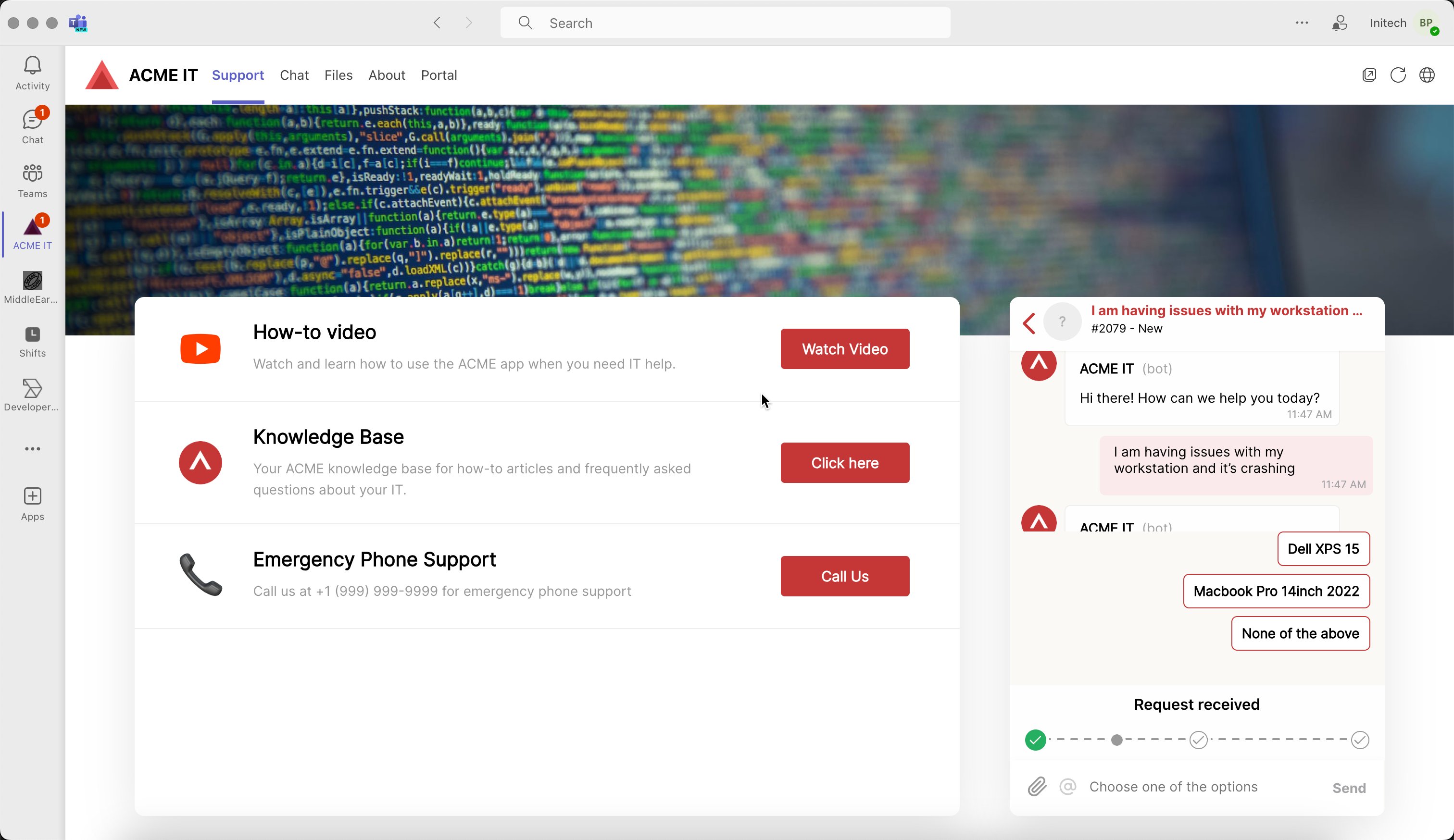
Any changes that are made to your messenger are kept up in real time and deployed to the desktop version and MS Teams version almost instantly
### The Hours Tab
This section allows you to set a working hours schedule if you wish. Outside of these set hours are referred to as “After Hours”, and you are able to display a custom message and it lets your customers know that the support team is currently offline
### The Installation Tab
This section includes your messengers unique AppID as well as a custom snippet you can use to embed messenger in your website
For more info on embedding messenger in websites, [see this help doc](https://docs.getthread.com/article/0vrdzy7zxc-embedding-the-chat-in-webpages).
### Teams Apps
This section shows you the custom teams you have created, and allows you to edit and duplicate existing teams apps
For more info on these apps, please see [this help doc](/messenger/create-teams-app).
## Related topics
- [Embedding Messenger on a Landing Page](/messenger/embedding-messenger-on-landing-page.md)
- [Clients Tab: Managing Companies and Messenger Deployment](/inbox/3-clients.md)
- [Design a Custom Teams App for Your Customers](/messenger/create-teams-app.md)
On this page you are able to configure the properties of your messenger.
The one important setting that is found here is "Proactive Messaging", which you can learn more about [here](https://docs.getthread.com/article/rvgjcv3dms-access-all-tickets-messenger)
#### Difference between "Standard" and "Chat with SLAs"
**Chat with SLAs** - These types of threads are created via messenger by hitting a button called “chat” at the bottom. These types have a time expectation of 5 minutes for a response.
**Standard Chat** - These types of threads are created via messenger by hitting a button called “request" at the bottom. These types do not have a time expectation and can be treated more like an email thread in terms of timed response.
In this section, you are also shown a version of your own branded messenger which you can use for testing purposes.
### The Design Tab
The design section allows you to customize your messenger experience to your own liking. To learn more about this, see [this help doc.](https://docs.getthread.com/article/w2rvw0nqlm-customizing-messenger)
Any changes that are made to your messenger are kept up in real time and deployed to the desktop version and MS Teams version almost instantly
### The Hours Tab
This section allows you to set a working hours schedule if you wish. Outside of these set hours are referred to as “After Hours”, and you are able to display a custom message and it lets your customers know that the support team is currently offline
### The Installation Tab
This section includes your messengers unique AppID as well as a custom snippet you can use to embed messenger in your website
For more info on embedding messenger in websites, [see this help doc](https://docs.getthread.com/article/0vrdzy7zxc-embedding-the-chat-in-webpages).
### Teams Apps
This section shows you the custom teams you have created, and allows you to edit and duplicate existing teams apps
For more info on these apps, please see [this help doc](/messenger/create-teams-app).
## Related topics
- [Embedding Messenger on a Landing Page](/messenger/embedding-messenger-on-landing-page.md)
- [Clients Tab: Managing Companies and Messenger Deployment](/inbox/3-clients.md)
- [Design a Custom Teams App for Your Customers](/messenger/create-teams-app.md)