> ## Documentation Index
> Fetch the complete documentation index at: https://helpdocs.getthread.com/llms.txt
> Use this file to discover all available pages before exploring further.
# Managing Members in Thread Admin
> Manage Thread member access through automatic PSA sync or the Members page in Admin: control Active, Pending, and Deleted states plus companion notifications.
You can manage your team's access to thread via two methods:
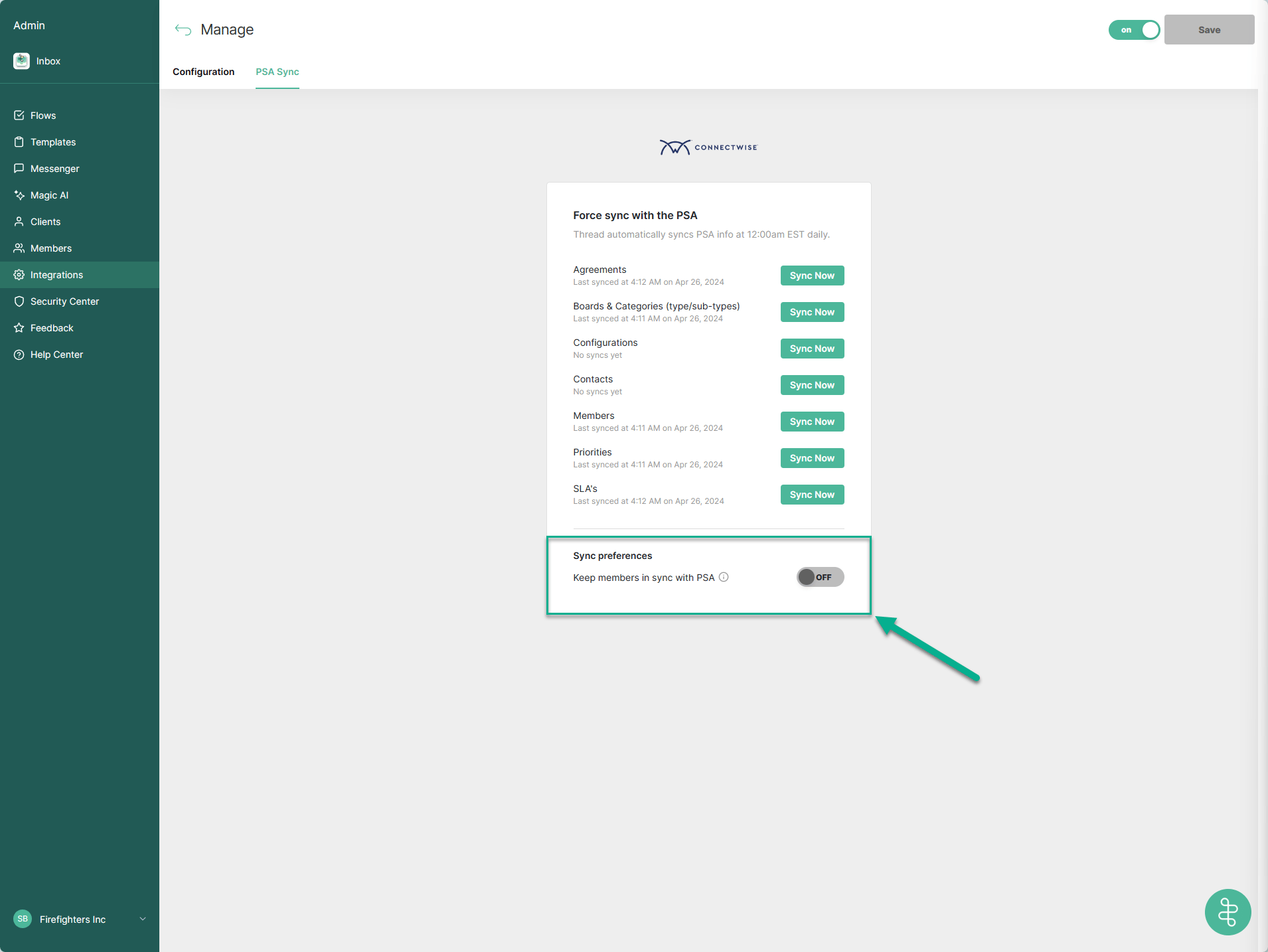
1. **Automatic Sync** - to keep members automatically in sync with your PSA.
2. To configure, navigate to admin.getthread.com -> [Integrations](https://admin.getthread.com/dashboard/integrations) -> pick your PSA -> PSA Sync tab -> Enable/Disable **Keep members in sync with PSA**
 2. **Members** section in Thread Admin - to manually manage your members from your PSA.
3. To manually manage your member access & settings, navigate to admin.getthread.com -> [Members](https://admin.getthread.com/dashboard/members)
## Managing Members in Thread Admin
Upon navigating to the [Members](https://admin.getthread.com/dashboard/members) section in Thread Admin, you have several options to manage your members, these are defined below.
### Member States
A Member can be in one of three states, members in each state can be accessed via the tabs at the top of the members screen.
2. **Members** section in Thread Admin - to manually manage your members from your PSA.
3. To manually manage your member access & settings, navigate to admin.getthread.com -> [Members](https://admin.getthread.com/dashboard/members)
## Managing Members in Thread Admin
Upon navigating to the [Members](https://admin.getthread.com/dashboard/members) section in Thread Admin, you have several options to manage your members, these are defined below.
### Member States
A Member can be in one of three states, members in each state can be accessed via the tabs at the top of the members screen.
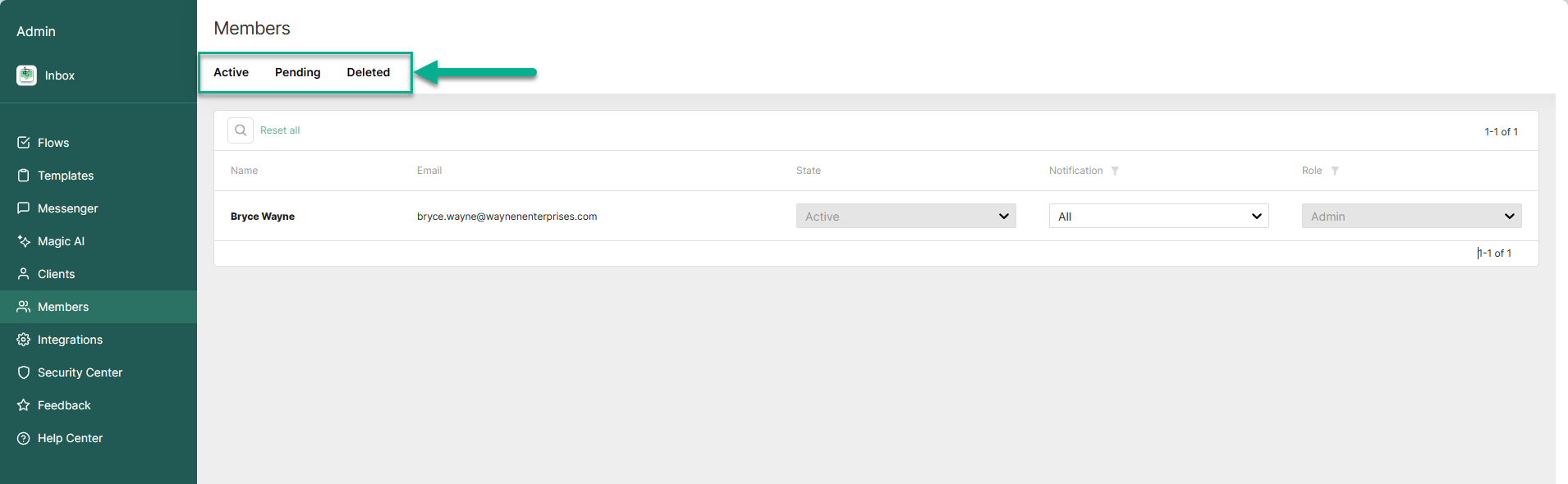 The states are:
* **Active** - These users have access to Thread.
* **Pending** - These users have access to your PSA but have not yet been given access to Thread, change their state to Active to give them access.
* **Deleted** - These users have had their access removed, either because access in their PSA was revoked or access in Thread was revoked. To remove a user's access to Thread, change their state to Deleted.
### Member Notification Settings
You can control notifications for Members in your Teams or Slack companion apps via the Members page.
The
Notification
options here only controls notifications in the Teams or Slack companion apps and
not
in Inbox. Inbox notifications are controlled via your channel and user settings in Inbox.
The states are:
* **Active** - These users have access to Thread.
* **Pending** - These users have access to your PSA but have not yet been given access to Thread, change their state to Active to give them access.
* **Deleted** - These users have had their access removed, either because access in their PSA was revoked or access in Thread was revoked. To remove a user's access to Thread, change their state to Deleted.
### Member Notification Settings
You can control notifications for Members in your Teams or Slack companion apps via the Members page.
The
Notification
options here only controls notifications in the Teams or Slack companion apps and
not
in Inbox. Inbox notifications are controlled via your channel and user settings in Inbox.
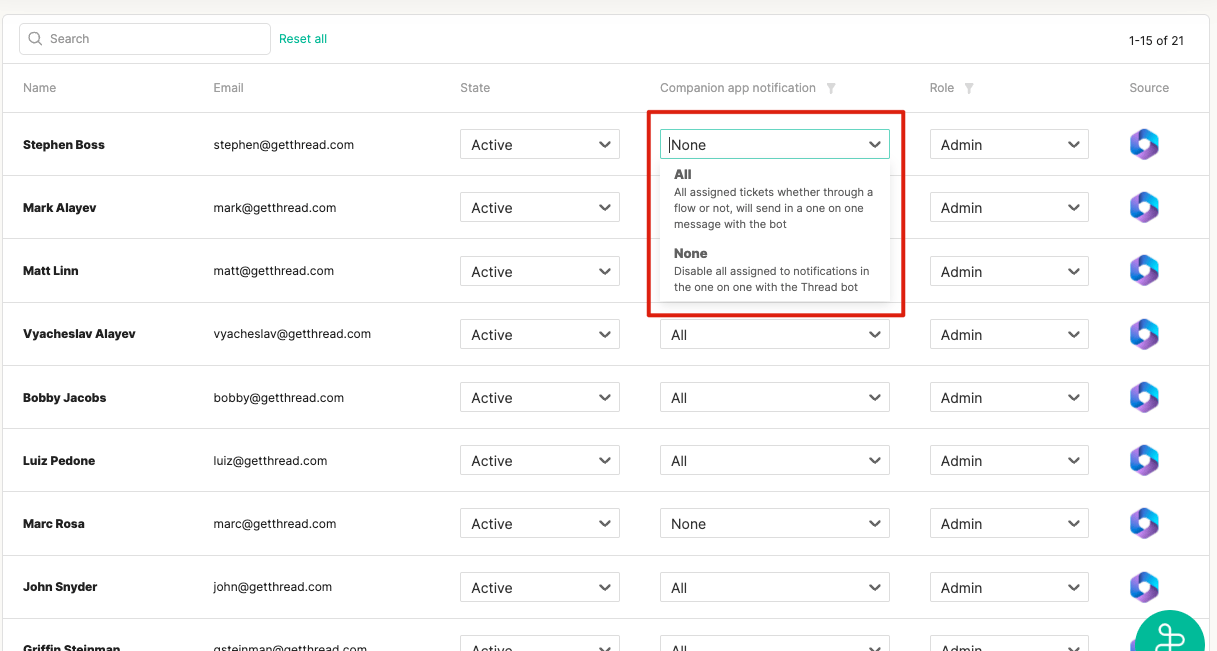 The Notification options you have are:
* **All** - Notify members via direct message in Teams or Slack companion app of any ticket they are assigned as the owner to in the PSA/Thread.
* **None** - Disable all notifications via direct message in Teams or Slack companion app when that member is assigned as the owner to a thread.
### Member Roles
You can set the member's role via the Members page. This governs their permissions and what they have access to within Thread.
The Notification options you have are:
* **All** - Notify members via direct message in Teams or Slack companion app of any ticket they are assigned as the owner to in the PSA/Thread.
* **None** - Disable all notifications via direct message in Teams or Slack companion app when that member is assigned as the owner to a thread.
### Member Roles
You can set the member's role via the Members page. This governs their permissions and what they have access to within Thread.
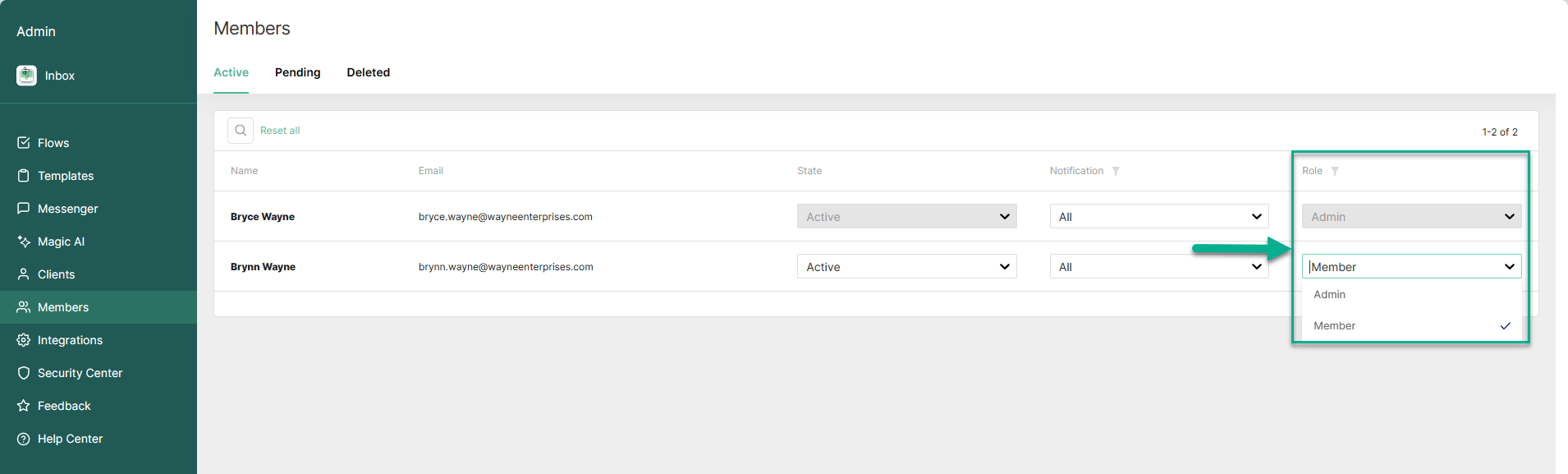 Here are the roles:
* **Admin** - Highest level of access, full access to Thread Admin, to create and managed flows, channels, members, create apps and deploy to customers.
* **Member** - Lowest level of access, has access to Inbox, to action threads in channels they are a member of. No access to Thread Admin, and cannot manage any setup.
We recommend designating at least two Admins.
## Related topics
- [Inbox Teams: Group Members and Share Views at Scale](/inbox/inbox-teams.md)
- [Team Admin Role: Scoped Admin Permissions](/inbox/team-admin-role.md)
- [Log emoji reactions in PSA](/integrations/log-emoji-reactions-in-psa.md)
Here are the roles:
* **Admin** - Highest level of access, full access to Thread Admin, to create and managed flows, channels, members, create apps and deploy to customers.
* **Member** - Lowest level of access, has access to Inbox, to action threads in channels they are a member of. No access to Thread Admin, and cannot manage any setup.
We recommend designating at least two Admins.
## Related topics
- [Inbox Teams: Group Members and Share Views at Scale](/inbox/inbox-teams.md)
- [Team Admin Role: Scoped Admin Permissions](/inbox/team-admin-role.md)
- [Log emoji reactions in PSA](/integrations/log-emoji-reactions-in-psa.md)