> ## Documentation Index
> Fetch the complete documentation index at: https://helpdocs.getthread.com/llms.txt
> Use this file to discover all available pages before exploring further.
# Set Up a SmileBack CSAT Survey with Snippets
> Build a SmileBack CSAT survey snippet in Thread that injects the Ticket ID variable into positive, neutral, and negative feedback URLs for accurate ratings.
## How to Setup a SmileBack CSAT Survey Using Snippets
Most PSA-native or integrated CSAT survey solutions provide URLs that are unique to your company, and each will tie to a Positive, Neutral or Negative response.
Here is an example of a positive SmileBack survey:
[https://feedback.smileback.io/r/7/BleO3kGDsgX\_J2ViiZknEQ/123456/1](https://feedback.smileback.io/r/7/BleO3kGDsgX_J2ViiZknEQ/123456/1)
The /123456/ in the above example should tie to the ID of the request in your PSA.
With **snippets**, Thread gives you the ability to place the ID you need in-URL on demand.
Use the **\{Ticket ID}** variable in your snippet to ensure each rating is tied to the right request. When the user clicks on the hyperlink for any of the 3 options, it takes them to the correct SmileBack survey page and then they're off and running.
**Here is an example that Thread uses every day:**
*Choose from the options below to rate your service experience:*
1. *\[Service magic]\(*[*https://feedback.smileback.io/r/7/YOUR\_SMILEBACK\_SURVEY\_URL/*](https://feedback.smileback.io/r/7/BleO3kGDsgX_J2ViiZknEQ/)*\{Ticket ID}/1)*
2. *\[Good service]\(*[*https://feedback.smileback.io/r/7/YOUR\_SMILEBACK\_SURVEY\_URL/*](https://feedback.smileback.io/r/7/BleO3kGDsgX_J2ViiZknEQ/)*\{Ticket ID}/0)*
3. *\["I'm not mad; just disappointed"]\(*[*https://feedback.smileback.io/r/7/YOUR\_SMILEBACK\_SURVEY\_URL/*](https://feedback.smileback.io/r/7/BleO3kGDsgX_J2ViiZknEQ/)*\{Ticket ID}/-1)*
**And here is the output presented to the user in-thread:**
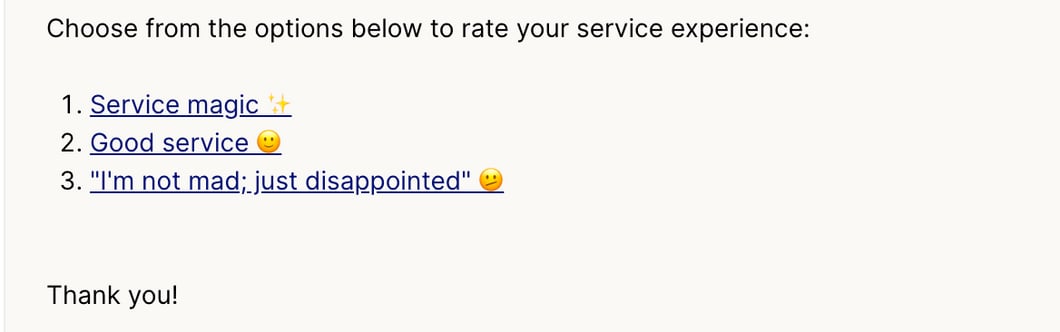 *To setup your own CSAT Survey snippet, you must first get the unique URL for your company from your CSAT provider:*
**To get the unique URL for your company and create the snippet, you will need to:**
Navigate to your CSAT module (SmileBack, SimpleSAT, AutoTask, etc)
Grab your unique URLs
1. navigate to inbox
2. click your account name in the bottom left corner
3. click snippets
4. click the "+ New Snippet" button
5. Plug them in to a snippet:
*To setup your own CSAT Survey snippet, you must first get the unique URL for your company from your CSAT provider:*
**To get the unique URL for your company and create the snippet, you will need to:**
Navigate to your CSAT module (SmileBack, SimpleSAT, AutoTask, etc)
Grab your unique URLs
1. navigate to inbox
2. click your account name in the bottom left corner
3. click snippets
4. click the "+ New Snippet" button
5. Plug them in to a snippet:
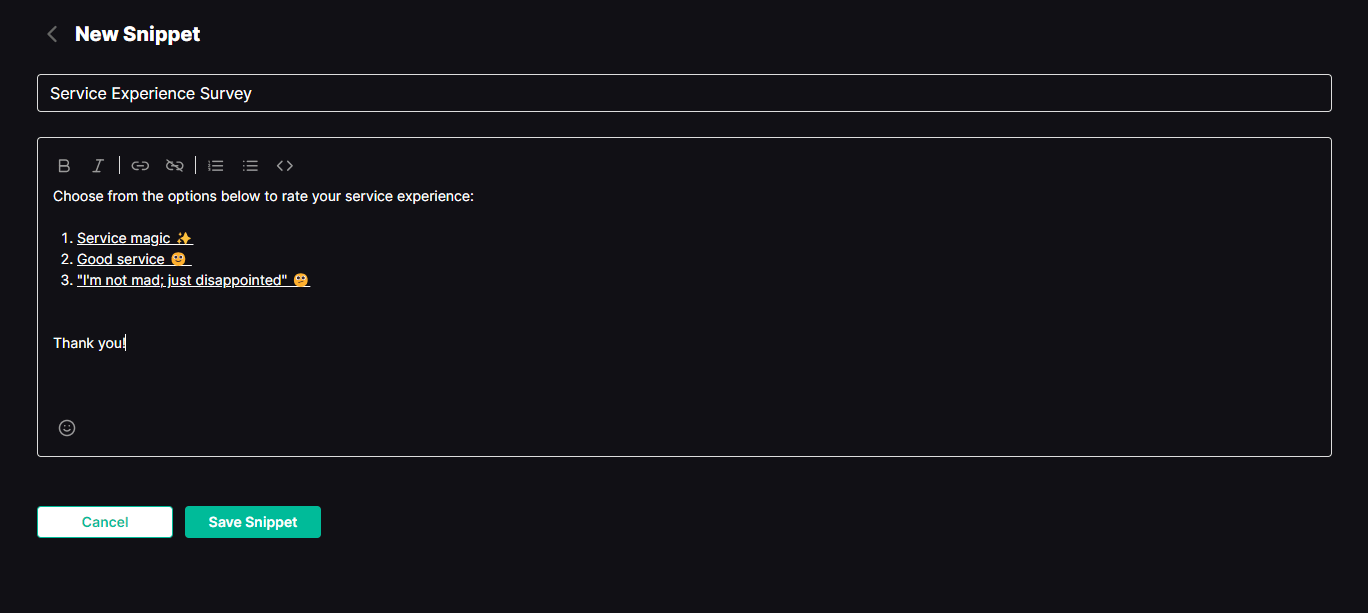 6. Customize the language as you wish
Enjoy higher response rates from happier customers by surfacing your survey immediately after the session.
## How to setup an automated SmileBack CSAT survey using flows
Usually, you don't want to manually send the CSAT survey every time you are finished with a thread. So instead, you can setup a flow that will automatically send the survey when you are finished with a thread.
Take the following flow for example
6. Customize the language as you wish
Enjoy higher response rates from happier customers by surfacing your survey immediately after the session.
## How to setup an automated SmileBack CSAT survey using flows
Usually, you don't want to manually send the CSAT survey every time you are finished with a thread. So instead, you can setup a flow that will automatically send the survey when you are finished with a thread.
Take the following flow for example
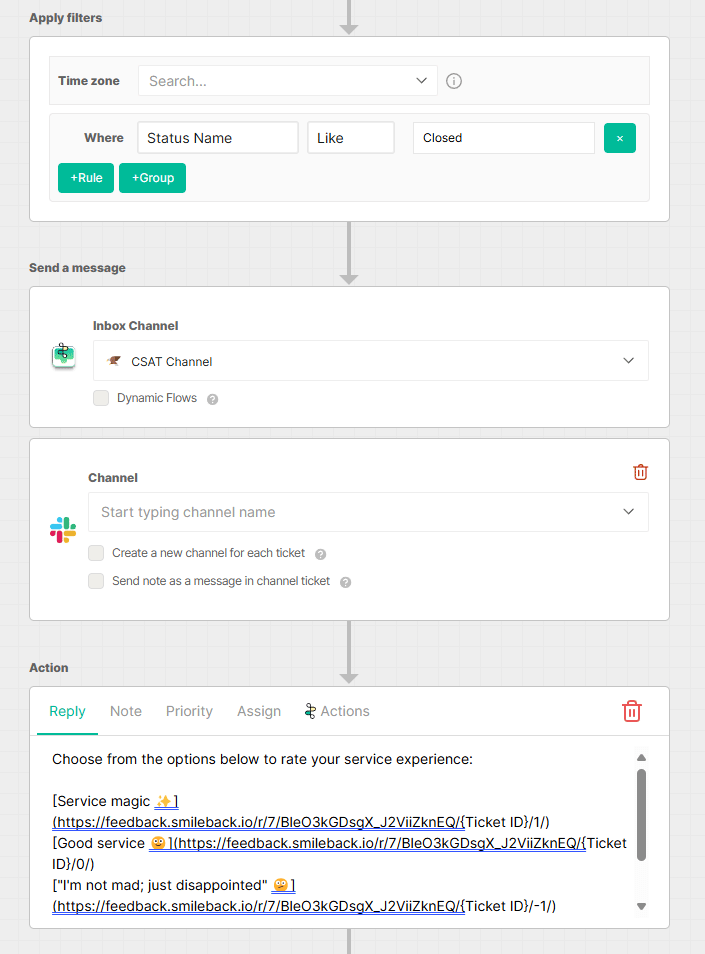 This flow will automatically send the CSAT survey once you change the status of the thread to "closed". You can change the parameters of the flow so that the survey is sent whenever you'd like.
The survey itself is made up of Markdown, which is slightly different than how we set it up using a snippet. The code looks like this:
`[Service magic](https://feedback.smileback.io/r/7/YOUR_SMILEBACK_SURVEY_URL/{Ticket ID}/1/)`
`[Good service](https://feedback.smileback.io/r/7/YOUR_SMILEBACK_SURVEY_URL/{Ticket ID}/0/`
`["I'm not mad; just disappointed"](https://feedback.smileback.io/r/7/YOUR_SMILEBACK_SURVEY_URL/{Ticket ID}/-1/)`
You can change the text to say whatever you'd like and be sure to change the custom links to your own. Once you paste this into the survey, create a test thread to ensure that it works, and everything is formatted correctly.
Tip: To ensure that the customer is able to see that the survey has been sent before the thread actually reaches a "closed" status, created another status in your PSA that is used as a buffer between the survey being sent, and it being set to closed. This ensures that the customer will see the thread active in their messenger and allow them to reply to the survey.
## Related topics
- [CSAT Follow-Up Loop](/skill-library/qa-and-closure/csat-followup-loop.md)
- [Inbox Viewer: Navigating Views and Threads](/inbox/1-the-channel-viewer.md)
- [Thread Partner Change Management Guide](/get-started/thread-partner-change-management-guide.md)
This flow will automatically send the CSAT survey once you change the status of the thread to "closed". You can change the parameters of the flow so that the survey is sent whenever you'd like.
The survey itself is made up of Markdown, which is slightly different than how we set it up using a snippet. The code looks like this:
`[Service magic](https://feedback.smileback.io/r/7/YOUR_SMILEBACK_SURVEY_URL/{Ticket ID}/1/)`
`[Good service](https://feedback.smileback.io/r/7/YOUR_SMILEBACK_SURVEY_URL/{Ticket ID}/0/`
`["I'm not mad; just disappointed"](https://feedback.smileback.io/r/7/YOUR_SMILEBACK_SURVEY_URL/{Ticket ID}/-1/)`
You can change the text to say whatever you'd like and be sure to change the custom links to your own. Once you paste this into the survey, create a test thread to ensure that it works, and everything is formatted correctly.
Tip: To ensure that the customer is able to see that the survey has been sent before the thread actually reaches a "closed" status, created another status in your PSA that is used as a buffer between the survey being sent, and it being set to closed. This ensures that the customer will see the thread active in their messenger and allow them to reply to the survey.
## Related topics
- [CSAT Follow-Up Loop](/skill-library/qa-and-closure/csat-followup-loop.md)
- [Inbox Viewer: Navigating Views and Threads](/inbox/1-the-channel-viewer.md)
- [Thread Partner Change Management Guide](/get-started/thread-partner-change-management-guide.md)