> ## Documentation Index
> Fetch the complete documentation index at: https://helpdocs.getthread.com/llms.txt
> Use this file to discover all available pages before exploring further.
# Member and Contact Avatars in Inbox and Messenger
> Learn how Thread sets avatars for members and contacts via manual upload, Microsoft 365 and Teams sync, and the daily Slack sync, including override rules.
 ## How does it work?
An avatar will be added if you
1. Upload an avatar to inbox or messenger manually
2. Sync Members from the Microsoft Integrations page when the member with the same email address has an already set avatar in Teams
3. Have an already set avatar in Slack when the daily Slack sync job runs.
## How to Set an Avatar
1. Go to Click on your name on left sidebar > Preferences > General and update your Avatar.
## How does it work?
An avatar will be added if you
1. Upload an avatar to inbox or messenger manually
2. Sync Members from the Microsoft Integrations page when the member with the same email address has an already set avatar in Teams
3. Have an already set avatar in Slack when the daily Slack sync job runs.
## How to Set an Avatar
1. Go to Click on your name on left sidebar > Preferences > General and update your Avatar.
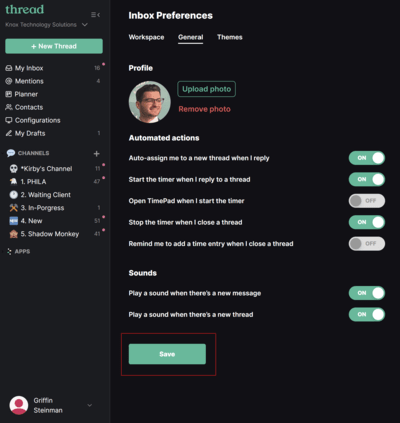 1. Click on your Avatar with initials and then upload a new Avatar
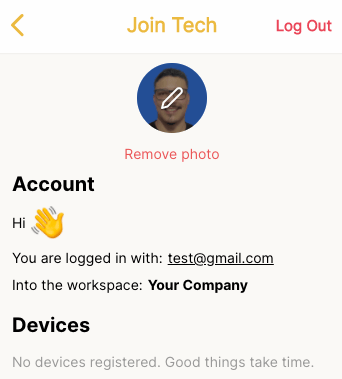 ### Syncs
These are the following scenarios where we sync Avatars from members and contacts:
| | Members (from companion apps) | Contacts (from service apps) |
| --------------- | ----------------------------- | ---------------------------- |
| M365 (or Teams) | Daily or Manual on Admin | Daily |
| Slack | Daily | Daily |
If the member or contact already has an avatar, this sync does not override it. To override your image you should:
* Remove the current image from Inbox or Messenger and wait for the next sync
* Upload a new image on Inbox or Messenger
1. Admin → Integrations → M365 → Sync users
If you have a M365 integration for SSO or from Teams, you can force the members sync by this route.
## Related topics
- [Thread Partner Change Management Guide](/get-started/thread-partner-change-management-guide.md)
- [Thread Quick Setup Guide: Workspace, PSA, and Inbox](/get-started/quick-setup-guide.md)
- [Set your availability for auto-dispatch](/inbox/available-for-dispatch.md)
### Syncs
These are the following scenarios where we sync Avatars from members and contacts:
| | Members (from companion apps) | Contacts (from service apps) |
| --------------- | ----------------------------- | ---------------------------- |
| M365 (or Teams) | Daily or Manual on Admin | Daily |
| Slack | Daily | Daily |
If the member or contact already has an avatar, this sync does not override it. To override your image you should:
* Remove the current image from Inbox or Messenger and wait for the next sync
* Upload a new image on Inbox or Messenger
1. Admin → Integrations → M365 → Sync users
If you have a M365 integration for SSO or from Teams, you can force the members sync by this route.
## Related topics
- [Thread Partner Change Management Guide](/get-started/thread-partner-change-management-guide.md)
- [Thread Quick Setup Guide: Workspace, PSA, and Inbox](/get-started/quick-setup-guide.md)
- [Set your availability for auto-dispatch](/inbox/available-for-dispatch.md)