> ## Documentation Index
> Fetch the complete documentation index at: https://helpdocs.getthread.com/llms.txt
> Use this file to discover all available pages before exploring further.
# Configure Reminder Agent
> Enable and configure Reminder Agent to send automatic follow-ups, set send times and timezones, and auto-close stalled threads with a post-reminder status.
**Reminder Agent** is a Magic Agent feature that automatically sends follow-up messages to end users when a thread stalls — and can update the thread to a post-reminder status (e.g., “Closed – No Response”) if no reply is received. It helps reduce backlog, save technician time, and improve visibility across the support experience.
### **Who should use it?**
* **Technicians** who want to reduce manual follow-ups
* **Admins** looking to standardize reminder timing and closure rules
* **Partners** who want consistent, automated thread cleanup without relying on human intervention
### **How to Enable Reminder Agent**
Go to **Admin > Magic AI > Reminder Agent** and enable the Reminder Agent Toggle **ON**.
Choose whether to run for All managed clients (recommended) or Specific clients.
Choose thread types to run on: All chat, email, and phone threads (recommended).
#### **Timing Configuration**
Reminder Agent runs **once per day** with the following settings:
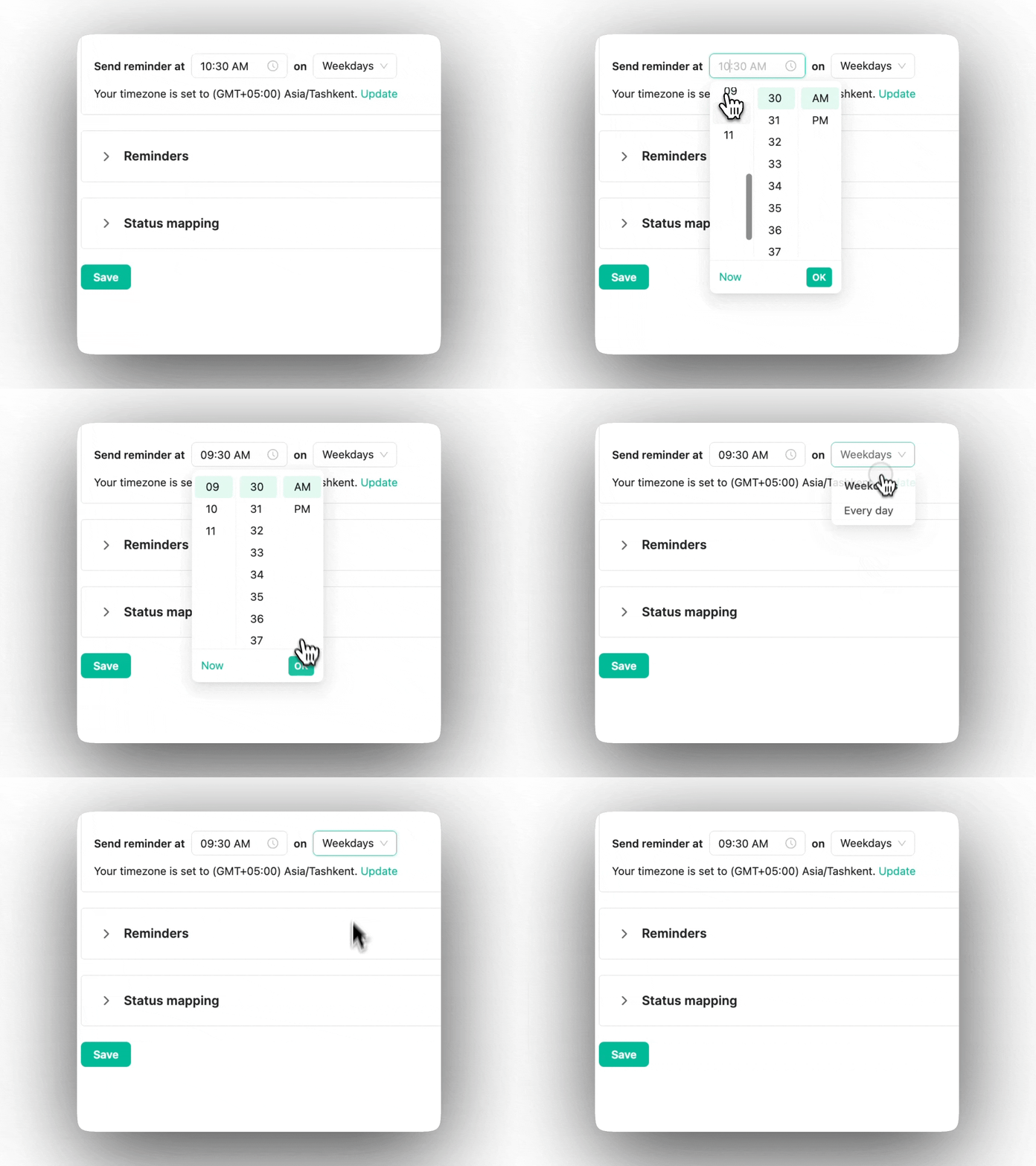
1. **Time of day**: Click the time field, select the hour, minutes, and AM/PM from the scrollable list, then click **OK** to confirm.
2. **Day type**: Weekdays or All Days
3. **Timezone**: Pulled from Workspace Preferences
Reminder Agent runs **once per day**, with the following settings:
Threads must already be in a qualifying status **the day before** the configured send time to receive a reminder.
If a thread enters a qualifying status on the same day
before
or after
the configured time, the reminder will be sent on the
next eligible day
.
> Example: If reminders are scheduled for 9:30 AM and the thread status changes to “Waiting for Client” at 9:00 AM, no reminder will be sent that day. The first reminder will go out the following eligible day at 9:30 AM.
 #### **Reminder Messages**
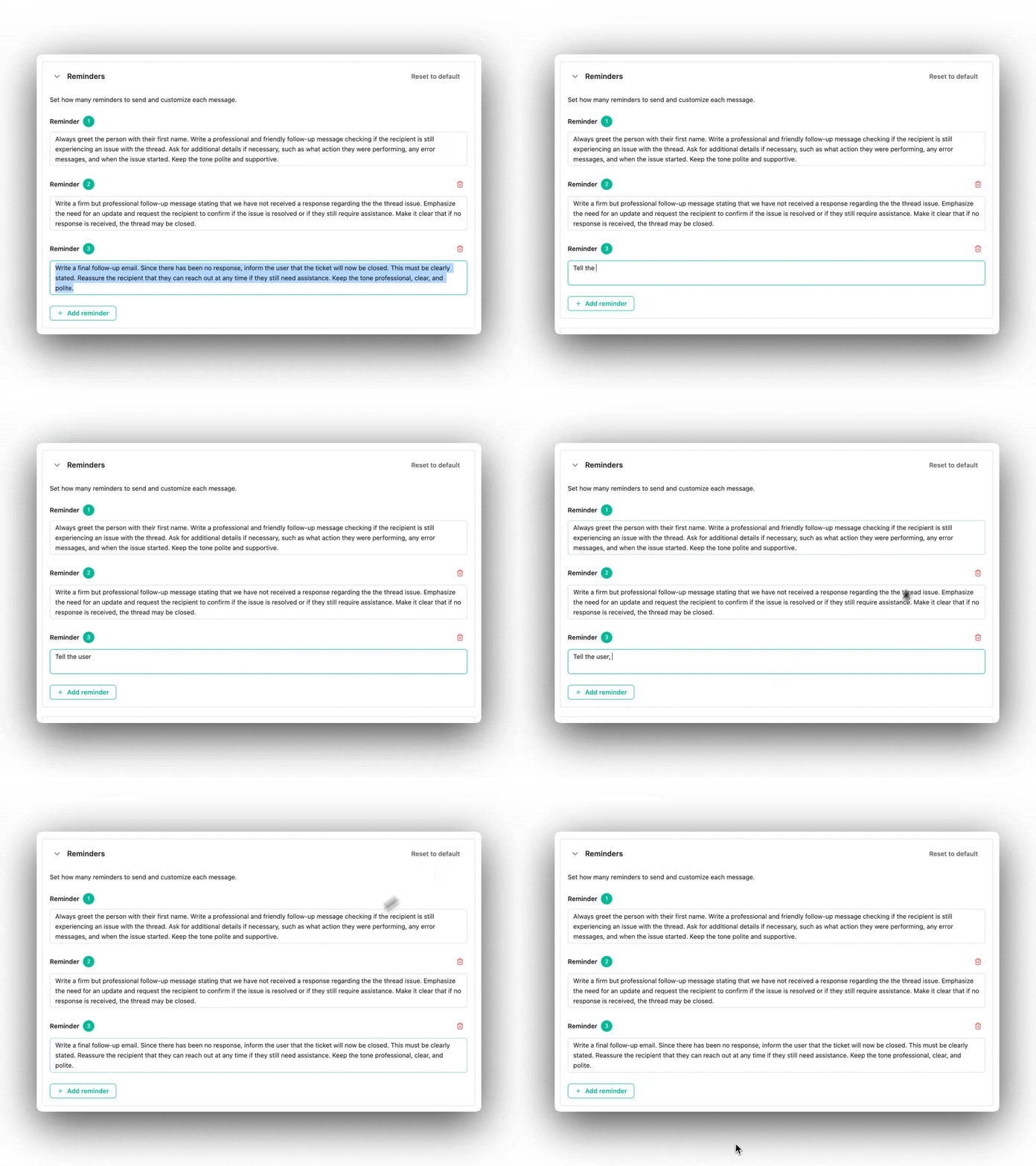
Admins can define **how many reminders** to send (1–5) and **customize the message content** for each reminder.
* **Three** default reminder and prompts are already included — no setup required.
* A friendly check-in, a more direct follow-up, and a final message explaining the thread will be closed.
* Messages can be adjusted to reflect tone, support style, or escalation needs.
#### **Reminder Messages**
Admins can define **how many reminders** to send (1–5) and **customize the message content** for each reminder.
* **Three** default reminder and prompts are already included — no setup required.
* A friendly check-in, a more direct follow-up, and a final message explaining the thread will be closed.
* Messages can be adjusted to reflect tone, support style, or escalation needs.
 #### **Test Your Reminders with Emulator Chat**
To preview how reminders will appear in real conversations:
* Use the **Preview Chat** on the right side of the screen
* Select a real historical thread and click **“Run Reminder Agent”**
* This will show how each configured reminder will appear in the thread, based on your current tone, text, and settings
This is a great way to fine-tune messages to your exact needs.
#### **Status Mapping**
Admins can define which threads are eligible for reminders and what happens after follow-ups:
* Select **Board(s)** (e.g. Service, Escalations)
* Select **Trigger status** (e.g. “Waiting for Client”)
* Select **Post-reminder status** (e.g. “Closed – No Response”)
You can configure multiple boards and statuses.
#### **Visibility & Logs**
* Reminder logs are visible in Inbox, so techs know when AI has followed up.
* Preview panel shows how messages will appear based on tone and setup.
* Logs include:
* Reminder timestamp
* Status before and after
* Whether the post-reminder status was applied
#### **Filtering Threads by Reminder Status (Inbox Views)**
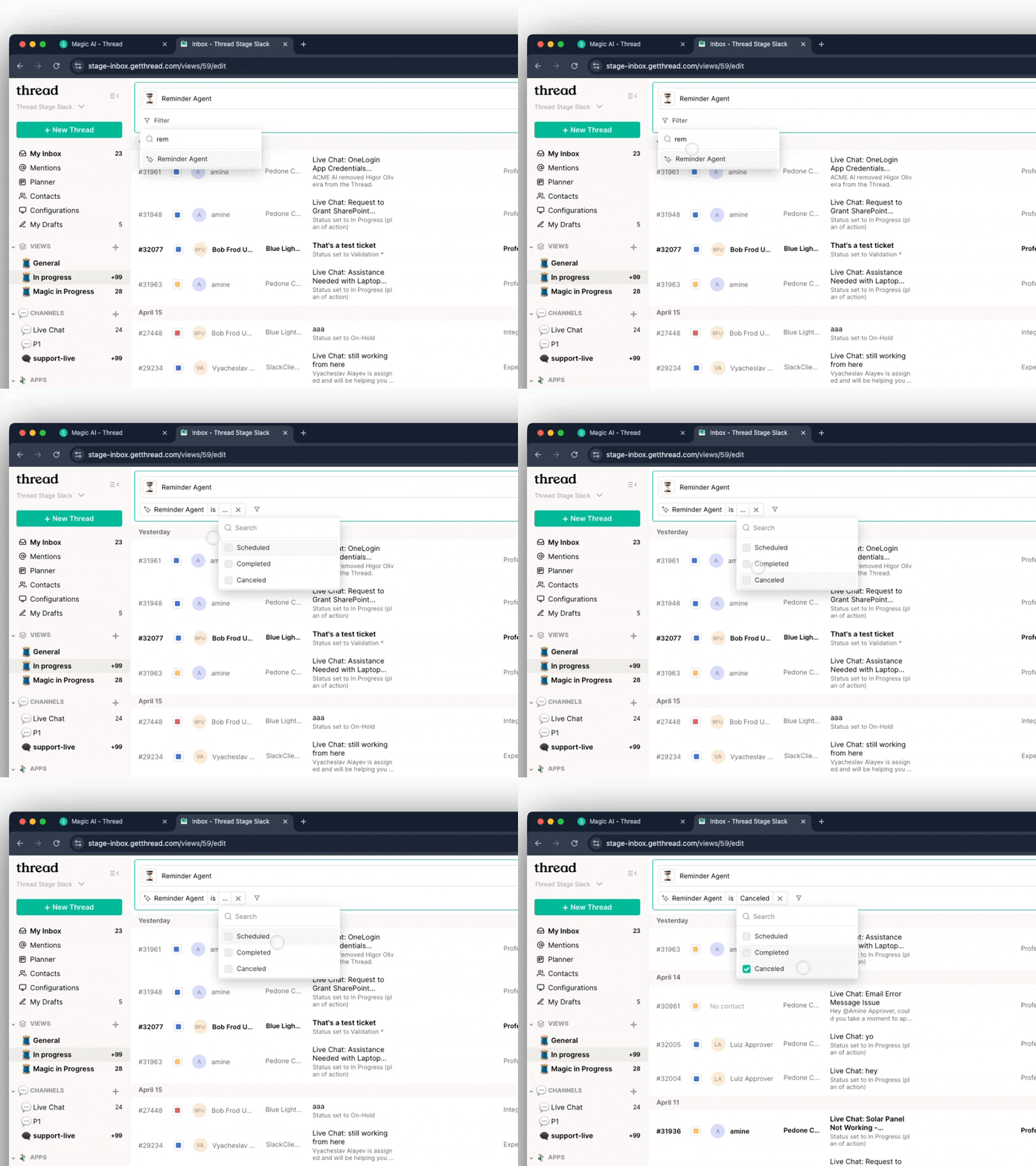
Admins and technicians can now filter threads in Inbox using the new **Reminder Agent status filter**. This makes it easy to track where each thread stands in the follow-up process.
The filter includes the following states:
* **Scheduled** – A reminder is scheduled but hasn’t been sent yet (e.g. a reminder is set to go out tomorrow at 9:00 AM).
* **Completed** – All configured reminders (up to 5) have been sent, and the thread was transitioned into the **post-reminder status** selected by the partner (e.g. “Closed – No Response”).
* **Canceled** – The last scheduled reminder was automatically canceled due to a change in status or updated settings in the admin panel.
This filter is useful for:
* Spotting which threads are still pending a reminder
* Verifying whether follow-up logic has fully run its course
* Troubleshooting why a thread did or didn’t get closed
You’ll find this filter option in the **Inbox > Views** interface.
#### **Test Your Reminders with Emulator Chat**
To preview how reminders will appear in real conversations:
* Use the **Preview Chat** on the right side of the screen
* Select a real historical thread and click **“Run Reminder Agent”**
* This will show how each configured reminder will appear in the thread, based on your current tone, text, and settings
This is a great way to fine-tune messages to your exact needs.
#### **Status Mapping**
Admins can define which threads are eligible for reminders and what happens after follow-ups:
* Select **Board(s)** (e.g. Service, Escalations)
* Select **Trigger status** (e.g. “Waiting for Client”)
* Select **Post-reminder status** (e.g. “Closed – No Response”)
You can configure multiple boards and statuses.
#### **Visibility & Logs**
* Reminder logs are visible in Inbox, so techs know when AI has followed up.
* Preview panel shows how messages will appear based on tone and setup.
* Logs include:
* Reminder timestamp
* Status before and after
* Whether the post-reminder status was applied
#### **Filtering Threads by Reminder Status (Inbox Views)**
Admins and technicians can now filter threads in Inbox using the new **Reminder Agent status filter**. This makes it easy to track where each thread stands in the follow-up process.
The filter includes the following states:
* **Scheduled** – A reminder is scheduled but hasn’t been sent yet (e.g. a reminder is set to go out tomorrow at 9:00 AM).
* **Completed** – All configured reminders (up to 5) have been sent, and the thread was transitioned into the **post-reminder status** selected by the partner (e.g. “Closed – No Response”).
* **Canceled** – The last scheduled reminder was automatically canceled due to a change in status or updated settings in the admin panel.
This filter is useful for:
* Spotting which threads are still pending a reminder
* Verifying whether follow-up logic has fully run its course
* Troubleshooting why a thread did or didn’t get closed
You’ll find this filter option in the **Inbox > Views** interface.
 Reminder Agent
## Related topics
- [How Reminder Agent Works](/ai-agents/reminder-agent-nqhl.md)
- [Listening Mode for Triage Agents](/ai-agents/listening-mode-for-triage-agents.md)
- [Customer Value Messaging for AI-Powered Support](/get-started/talking-to-customers-about-ai-powered-support-thread-customer-value-messaging.md)
Reminder Agent
## Related topics
- [How Reminder Agent Works](/ai-agents/reminder-agent-nqhl.md)
- [Listening Mode for Triage Agents](/ai-agents/listening-mode-for-triage-agents.md)
- [Customer Value Messaging for AI-Powered Support](/get-started/talking-to-customers-about-ai-powered-support-thread-customer-value-messaging.md)