> ## Documentation Index
> Fetch the complete documentation index at: https://helpdocs.getthread.com/llms.txt
> Use this file to discover all available pages before exploring further.
# How Reminder Agent Works
> Learn how Reminder Agent automatically follows up on stalled tickets when statuses change, including eligibility checks and reminder scheduling rules.
## **Reminder Agent: How It Works**
### **What is the Reminder Agent?**
The Reminder Agent is an automated feature that helps you follow up with customers who haven't responded to support tickets. Instead of manually tracking and sending follow-up messages, the Reminder Agent does this for you automatically.
### **How Does It Get Activated?**
The Reminder Agent wakes up and starts working whenever a **ticket's status changes**. Here's the step-by-step process:
### **1. Status Change Triggers the Check**
When you (or anyone on your team) changes a ticket's status, the system asks: *"Should the Reminder Agent handle this ticket?"*
### **2. Eligibility Check**
The system checks if the ticket meets ALL of these conditions:
| Condition | What It Means |
| ------------------ | --------------------------------------------------------------------------------------- |
| Feature Enabled | Your company has the Reminder Agent feature turned on |
| Ticket Not Closed | The ticket must still be open/active |
| Customer Activated | The customer's company is on your "reminder list" (or you've set it to "all customers") |
| Board Activated | The ticket is on a service board where reminders are enabled |
| Source Activated | The ticket came from a channel (email, chat, etc.) where reminders are allowed |
| Status Matches | The ticket's current status is one you've designated as a "reminder status" |
If any of these checks fail, the Reminder Agent stays quiet and does nothing.
### **3. Scheduling the Reminder**
If the ticket passes all checks, the Reminder Agent calculates **when** to send the first reminder message.
### **Two Ways to Schedule Reminders**
You can choose one of two scheduling methods. Each method handles **timezones** and **messenger working hours** differently.
### **Option A: Daily Reminders**
Send reminders at the **same time every day** — perfect for consistent, predictable follow-ups.
| Setting | Description |
| ------------- | ------------------------------------------------------------ |
| Reminder Time | The exact time to send reminders (e.g., 9:00 AM) |
| Day Type | Choose between Weekdays only (Mon-Fri) or Every day (7 days) |
| Timezone | Uses your company's timezone from settings |
### **How Daily Scheduling Works**
1. When a ticket becomes eligible, the system looks for the **next occurrence** of your reminder time
2. If that time has already passed today, it schedules for tomorrow
3. If "Weekdays only" is selected, weekends are automatically skipped
### **Timezone Behavior**
Daily reminders use your **company's configured timezone**:
* If your company is set to "America/New\_York" and you set reminders for 9:00 AM
* The reminder fires at 9:00 AM Eastern Time, regardless of where the customer is located
### **Option B: Custom Delay**
Send reminders after a **specific number of hours** — perfect for urgent follow-ups or SLA-based timing.
| Setting | Description |
| ----------- | ------------------------------------------------------------ |
| Delay Hours | Number of hours to wait (1-100 hours) |
| Timezone | Not timezone-dependent — simply adds hours from current time |
### **How Custom Delay Works**
1. When a ticket becomes eligible, the system takes the **current time**
2. Adds your configured number of hours
3. That's when the reminder fires
### **Timezone Behavior**
Custom delay is timezone-agnostic — it simply adds hours to the current moment:
* If it's 2:00 PM anywhere and you have a 4-hour delay
* The reminder fires at 6:00 PM (in UTC internally, displayed in local time)
### **Integration with Messenger Working Hours**
When the **Working Hours feature** is enabled, the Reminder Agent respects your business schedule. This prevents reminders from being sent when your team isn't available.
 ### **How Working Hours Are Determined**
| Priority | Source | Timezone Used |
| -------- | ------------------------------------------- | --------------------------------- |
| 1st | Company's own Messenger Hours settings | Messenger Hours timezone |
| 2nd | Parent company's Messenger Hours (fallback) | Parent's Messenger Hours timezone |
> Important: Working hours use the Messenger Hours timezone, which may be different from your company timezone!
### **Working Hours + Daily Reminders**
The system **validates** that your reminder time falls within working hours:
### **Valid Configuration**
* Working Hours: 8:00 AM - 6:00 PM
* Reminder Time: 9:00 AM
* 9:00 AM is within working hours — reminder will fire
### **Invalid Configuration**
* Working Hours: 9:00 AM - 5:00 PM
* Reminder Time: 8:00 AM
* 8:00 AM is BEFORE working hours start
* **Result:** Error message, reminder skipped
### **Working Hours + Custom Delay**
The system **adjusts** the calculated time to fit within working hours:
| Calculated Time Falls... | What Happens |
| -------------------------- | ---------------------------------------- |
| Within working hours | Reminder fires at calculated time |
| Before working hours start | Moves to start of working hours that day |
| After working hours end | Moves to start of next working day |
| On a non-working day | Moves to start of next working day |
### **Edge Cases & Limits**
| Situation | Behavior |
| ----------------------------------------- | ---------------------------------------------------------------- |
| No working hours configured | Error: "Messenger hours not configured" — reminder skipped |
| Messenger Hours set to "Always Available" | Working hours check bypassed — reminder fires at calculated time |
| No working hours found in 8 days | Error: "No available working hours" — reminder skipped |
| Reminder time outside all working hours | Error with details — reminder skipped |
### **Quick Comparison**
| Aspect | Daily Reminder | Custom Delay |
| ---------------------- | -------------------------------- | ------------------------------- |
| When it fires | Same time every day | X hours from now |
| Timezone used | Company timezone | None (UTC internally) |
| Working hours timezone | Messenger Hours timezone | Messenger Hours timezone |
| Weekend handling | Optional skip (Weekdays setting) | Only with Working Hours enabled |
| Best for | Consistent daily follow-ups | Urgent or SLA-based timing |
### **What Happens When a Reminder Fires?**
When the scheduled time arrives:
1. **Final eligibility check** - The system confirms the ticket is still eligible (customer hasn't replied, status hasn't changed, etc.)
2. **Message sent** - An AI-generated follow-up message is sent to the customer based on the instructions you've configured
3. **Next reminder scheduled** - If you have multiple reminders configured (up to 5), the next one gets scheduled
4. **Activity logged** - An internal note is added to the ticket showing "Reminder Agent sent Reminder 1" (or 2, 3, etc.)
### **Multiple Reminders in Sequence**
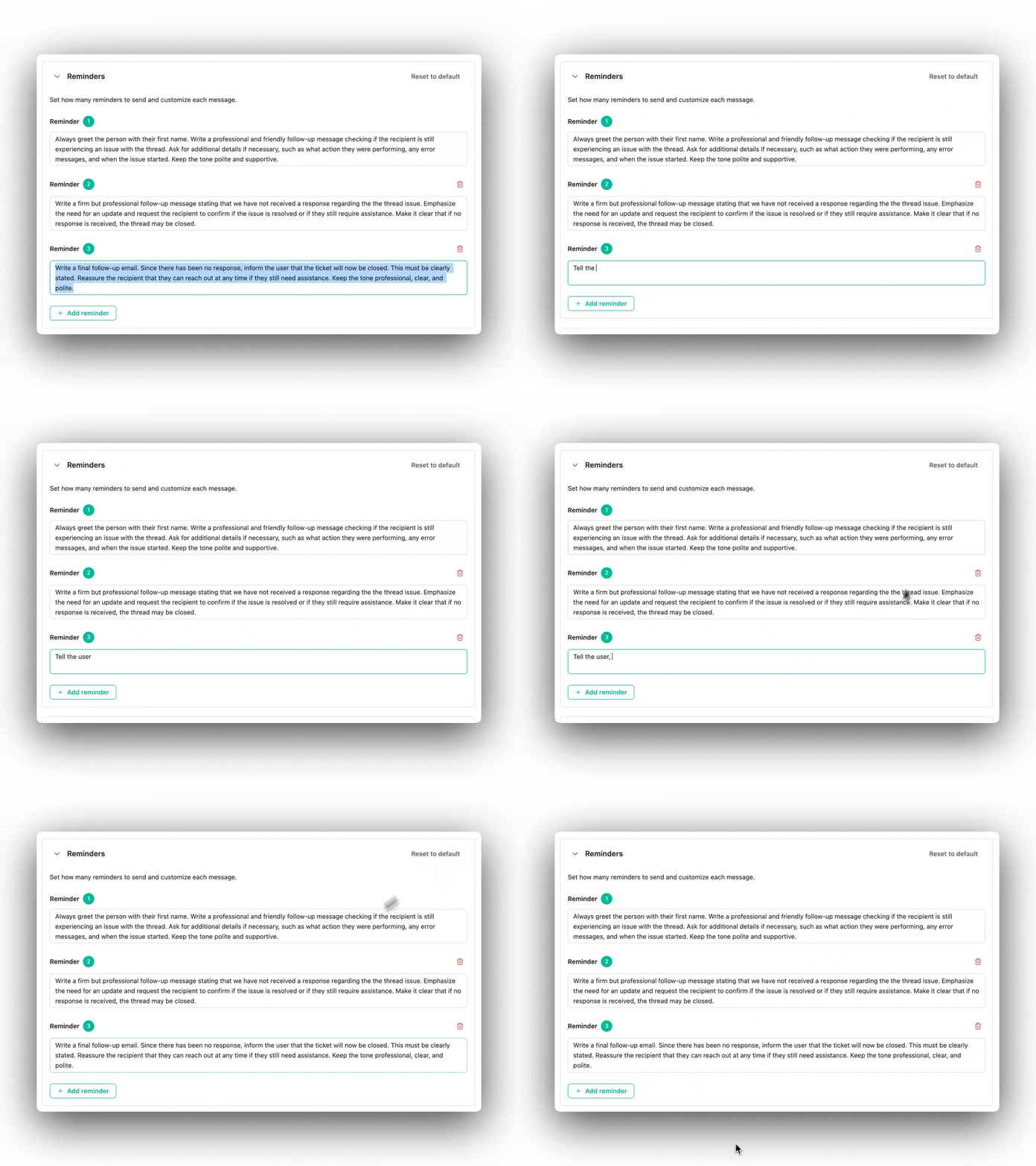
You can set up to **5 reminder messages**, each with its own custom instructions. They fire one after another:
```
Reminder 1 → (wait) → Reminder 2 → (wait) → Reminder 3 → ... → Final Action
```
Each reminder only fires if the customer still hasn't responded since the last one.
### **What Happens After the Last Reminder?**
After all your configured reminders have been sent (and the customer still hasn't replied), the Reminder Agent can automatically:
* **Change the ticket status** to a status you've designated (e.g., "Waiting for Response")
* **Close the ticket** if you've set the final status to a "closed" status
This is configured in your **Status Mapping** settings.
### **Summary Flow**
```
┌─────────────────────────────────────────────────────────────────────┐
│ TICKET STATUS CHANGES │
└─────────────────────────────────────────────────────────────────────┘
│
▼
┌─────────────────────────────────────────────────────────────────────┐
│ Is ticket eligible? (feature on, right board, status, etc.) │
└─────────────────────────────────────────────────────────────────────┘
│
┌────────────┴────────────┐
│ │
YES NO
│ │
▼ ▼
┌──────────────────────────────┐ ┌──────────────────────────────────┐
│ Calculate when to send │ │ Do nothing / Cancel existing │
│ (daily time OR custom delay)│ │ reminders if any │
└──────────────────────────────┘ └──────────────────────────────────┘
│
▼
┌──────────────────────────────┐
│ Adjust for working hours │
│ (if feature enabled) │
└──────────────────────────────┘
│
▼
┌──────────────────────────────┐
│ Schedule reminder job │
└──────────────────────────────┘
│
▼
(Time passes...)
│
▼
┌──────────────────────────────┐
│ Re-check eligibility │
└──────────────────────────────┘
│
┌───────┴───────┐
│ │
YES NO
│ │
▼ ▼
┌─────────────────┐ ┌─────────────────┐
│ Send reminder │ │ Cancel reminder │
│ to customer │ │ │
└─────────────────┘ └─────────────────┘
│
▼
┌─────────────────────────────────────────────────────────────────────┐
│ More reminders? YES → Schedule next NO → Apply final status │
└─────────────────────────────────────────────────────────────────────┘
```
### **Configuration Checklist**
To use the Reminder Agent, make sure you have configured:
1. **Enabled** the Reminder Agent for your company
2. **Selected customers** (all or specific ones)
3. **Selected boards** where reminders should apply
4. **Selected sources** (email, chat, etc.)
5. **Mapped statuses** - which statuses trigger reminders and what status to apply at the end
6. **Set timing** - daily time OR custom delay hours
7. **Written reminder instructions** - what the AI should say in each reminder message (up to 5)
8. Configured working hours if you want time-aware scheduling
## **FAQ**
The next reminder is automatically cancelled. The ticket returns to normal handling.
Yes, the system logs "Reminder Agent is activated" as an internal note when reminders are scheduled.
It uses your company's configured timezone for daily reminders, and your messenger's working hours timezone for working-hours adjustments.
If working hours feature is enabled but no hours are set up, you'll receive an error message and the reminder will be skipped.
## Related topics
- [Configure Reminder Agent](/ai-agents/reminder-agent.md)
- [Listening Mode for Triage Agents](/ai-agents/listening-mode-for-triage-agents.md)
- [Using Variables in Magic AI and Magic Agents](/assistive-ai/variables.md)
### **How Working Hours Are Determined**
| Priority | Source | Timezone Used |
| -------- | ------------------------------------------- | --------------------------------- |
| 1st | Company's own Messenger Hours settings | Messenger Hours timezone |
| 2nd | Parent company's Messenger Hours (fallback) | Parent's Messenger Hours timezone |
> Important: Working hours use the Messenger Hours timezone, which may be different from your company timezone!
### **Working Hours + Daily Reminders**
The system **validates** that your reminder time falls within working hours:
### **Valid Configuration**
* Working Hours: 8:00 AM - 6:00 PM
* Reminder Time: 9:00 AM
* 9:00 AM is within working hours — reminder will fire
### **Invalid Configuration**
* Working Hours: 9:00 AM - 5:00 PM
* Reminder Time: 8:00 AM
* 8:00 AM is BEFORE working hours start
* **Result:** Error message, reminder skipped
### **Working Hours + Custom Delay**
The system **adjusts** the calculated time to fit within working hours:
| Calculated Time Falls... | What Happens |
| -------------------------- | ---------------------------------------- |
| Within working hours | Reminder fires at calculated time |
| Before working hours start | Moves to start of working hours that day |
| After working hours end | Moves to start of next working day |
| On a non-working day | Moves to start of next working day |
### **Edge Cases & Limits**
| Situation | Behavior |
| ----------------------------------------- | ---------------------------------------------------------------- |
| No working hours configured | Error: "Messenger hours not configured" — reminder skipped |
| Messenger Hours set to "Always Available" | Working hours check bypassed — reminder fires at calculated time |
| No working hours found in 8 days | Error: "No available working hours" — reminder skipped |
| Reminder time outside all working hours | Error with details — reminder skipped |
### **Quick Comparison**
| Aspect | Daily Reminder | Custom Delay |
| ---------------------- | -------------------------------- | ------------------------------- |
| When it fires | Same time every day | X hours from now |
| Timezone used | Company timezone | None (UTC internally) |
| Working hours timezone | Messenger Hours timezone | Messenger Hours timezone |
| Weekend handling | Optional skip (Weekdays setting) | Only with Working Hours enabled |
| Best for | Consistent daily follow-ups | Urgent or SLA-based timing |
### **What Happens When a Reminder Fires?**
When the scheduled time arrives:
1. **Final eligibility check** - The system confirms the ticket is still eligible (customer hasn't replied, status hasn't changed, etc.)
2. **Message sent** - An AI-generated follow-up message is sent to the customer based on the instructions you've configured
3. **Next reminder scheduled** - If you have multiple reminders configured (up to 5), the next one gets scheduled
4. **Activity logged** - An internal note is added to the ticket showing "Reminder Agent sent Reminder 1" (or 2, 3, etc.)
### **Multiple Reminders in Sequence**
You can set up to **5 reminder messages**, each with its own custom instructions. They fire one after another:
```
Reminder 1 → (wait) → Reminder 2 → (wait) → Reminder 3 → ... → Final Action
```
Each reminder only fires if the customer still hasn't responded since the last one.
### **What Happens After the Last Reminder?**
After all your configured reminders have been sent (and the customer still hasn't replied), the Reminder Agent can automatically:
* **Change the ticket status** to a status you've designated (e.g., "Waiting for Response")
* **Close the ticket** if you've set the final status to a "closed" status
This is configured in your **Status Mapping** settings.
### **Summary Flow**
```
┌─────────────────────────────────────────────────────────────────────┐
│ TICKET STATUS CHANGES │
└─────────────────────────────────────────────────────────────────────┘
│
▼
┌─────────────────────────────────────────────────────────────────────┐
│ Is ticket eligible? (feature on, right board, status, etc.) │
└─────────────────────────────────────────────────────────────────────┘
│
┌────────────┴────────────┐
│ │
YES NO
│ │
▼ ▼
┌──────────────────────────────┐ ┌──────────────────────────────────┐
│ Calculate when to send │ │ Do nothing / Cancel existing │
│ (daily time OR custom delay)│ │ reminders if any │
└──────────────────────────────┘ └──────────────────────────────────┘
│
▼
┌──────────────────────────────┐
│ Adjust for working hours │
│ (if feature enabled) │
└──────────────────────────────┘
│
▼
┌──────────────────────────────┐
│ Schedule reminder job │
└──────────────────────────────┘
│
▼
(Time passes...)
│
▼
┌──────────────────────────────┐
│ Re-check eligibility │
└──────────────────────────────┘
│
┌───────┴───────┐
│ │
YES NO
│ │
▼ ▼
┌─────────────────┐ ┌─────────────────┐
│ Send reminder │ │ Cancel reminder │
│ to customer │ │ │
└─────────────────┘ └─────────────────┘
│
▼
┌─────────────────────────────────────────────────────────────────────┐
│ More reminders? YES → Schedule next NO → Apply final status │
└─────────────────────────────────────────────────────────────────────┘
```
### **Configuration Checklist**
To use the Reminder Agent, make sure you have configured:
1. **Enabled** the Reminder Agent for your company
2. **Selected customers** (all or specific ones)
3. **Selected boards** where reminders should apply
4. **Selected sources** (email, chat, etc.)
5. **Mapped statuses** - which statuses trigger reminders and what status to apply at the end
6. **Set timing** - daily time OR custom delay hours
7. **Written reminder instructions** - what the AI should say in each reminder message (up to 5)
8. Configured working hours if you want time-aware scheduling
## **FAQ**
The next reminder is automatically cancelled. The ticket returns to normal handling.
Yes, the system logs "Reminder Agent is activated" as an internal note when reminders are scheduled.
It uses your company's configured timezone for daily reminders, and your messenger's working hours timezone for working-hours adjustments.
If working hours feature is enabled but no hours are set up, you'll receive an error message and the reminder will be skipped.
## Related topics
- [Configure Reminder Agent](/ai-agents/reminder-agent.md)
- [Listening Mode for Triage Agents](/ai-agents/listening-mode-for-triage-agents.md)
- [Using Variables in Magic AI and Magic Agents](/assistive-ai/variables.md)